Have you noticed risky sign-ins in your Microsoft Entra ID (Microsoft 365 environment) coming from unexpected locations, new devices, or at unusual times?
These aren’t simply anomalies hidden in a log file; in fact, they can be the first and only indication that an account has been compromised.
As a result, your data might be at risk.
Investigating suspicious sign-ins helps administrators distinguish between legitimate authentication attempts and those that require immediate action to prevent unauthorized access.
- What counts as a risky sign-in in Microsoft Entra ID
- Two native methods for investigating suspicious sign-ins using the Microsoft Entra Admin Center and PowerShell
- Where native tools fall short during a thorough investigation
- How Lepide helps detect, investigate, and respond to suspicious sign-ins faster with real-time alerts and complete audit trails.
What Counts as a Suspicious Sign-In in Microsoft Entra ID?
Microsoft Entra ID Protection evaluates sign-ins against a set of risk signals, including:
- Anonymous IP Address: Logins originating from IP addresses related to anonymizing proxy servers, virtual private networks (VPNs) used to hide a login’s identity, or Tor exit nodes.
- Impossible Travel: A user signs in from two geographically distant locations within a timeframe that makes legitimate travel impossible.
- Leaked Credentials: Microsoft detects that the user’s credentials have been exposed in known credential leak datasets.
- Password Spray Activity: Repeated attempts to authenticate to multiple accounts using commonly used passwords.
- Malicious IP Address: IPs previously linked to high volumes of failed authentication attempts.
Native Methods to Investigate Suspicious Sign-Ins in Microsoft Entra ID
Microsoft Entra ID provides two native methods for investigating Microsoft 365 sign-in activity: the Microsoft Entra Admin Center and PowerShell.
Method 1: Using the Microsoft Entra Admin Center
The Microsoft Entra Admin Center provides the quickest way to review sign-in activity and identity risk information, making it the first place administrators typically investigate suspicious authentication events.
Permissions Required: Appropriate Microsoft Entra role (such as Security Reader or Security Administrator) and Microsoft Graph permissions (for example, AuditLog.Read.All and, where applicable, IdentityRiskyUser.Read.All or IdentityRiskEvent.Read.All).
Steps to Investigate Suspicious Sign-In Activity:
- Sign in to the Microsoft Entra Admin Center
- Navigate to Identity > Monitoring & Health > Sign-In logs to view every sign-in attempt, including its status, IP address, location, device, and application used.
- For risk-specific data, go to Identity > Protection > Risky users to see full details, such as IP address, location, device, application, Conditional Access Status, and the exact risk detection that triggered the flag.
- Act based on what you find:
- Confirm Compromised: Select this option if the sign-in was not performed by the legitimate account owner. This confirms the account has been compromised and updates Microsoft Entra ID’s risk assessment.
- Confirm Safe: Select this option if the sign-in was legitimate. This mitigates the associated risk and helps improve Microsoft’s future risk-detection accuracy.
- From the Risky users report, you can also reset the password, block sign-in, or dismiss user risk, depending on your findings.
Method 2: Using PowerShell
For administrators who prefer scripting, need to automate investigations, or want to integrate sign-in data with external tools such as SIEM platforms, the Microsoft Graph PowerShell SDK offers a faster, more flexible approach.
Permissions Required: Global Administrator, Security Administrator, Security Reader, Global Reader, or Reports Reader (with the appropriate Microsoft Graph API permissions).
Steps to Investigate Suspicious Sign-In Activity
- Install and Connect to Microsoft Graph: Install the required Microsoft Graph PowerShell modules and connect to Microsoft Graph.
- Retrieve Sign-In Logs: Retrieve risky sign-in data using the Microsoft Graph Identity Protection API (for example, Get-MgRiskyIdentityProtectionRiskySignIn)
- Retrieve Risky Sign-In: Retrieve risky sign-in logs to view sign-in events that Microsoft Entra ID has identified as potentially risky. These logs include risk detections and help investigators identify suspicious authentication attempts, such as sign-ins from unfamiliar locations, anonymous IP addresses, or other indicators of compromise.
How Lepide Helps You Investigate Suspicious Sign-Ins Faster
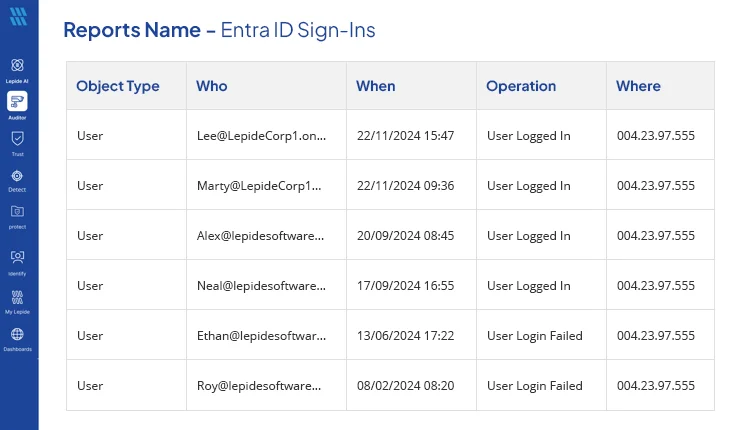
While Microsoft Entra ID Protection identifies risky sign-ins, security teams often need additional context to determine whether an event represents a genuine threat or legitimate user activity. Lepide Entra ID Auditor simplifies this investigation by presenting successful and failed sign-ins in searchable, centralized reports that capture the who, what, when, and where of every authentication event.
Using Lepide, administrators can quickly review sign-in activity, identify failed login attempts, view the originating IP address, and filter authentication events by user, time period, operation, or criticality. This makes it easier to investigate suspicious sign-ins without manually searching through multiple native audit logs.
With Lepide, organizations can:
- View successful and failed sign-in events in centralized, searchable reports.
- Filter authentication events by user, date, operation, IP address, and criticality to accelerate investigations.
- Receive real-time alerts for suspicious authentication activity.
- Search historical sign-in data to support incident response and forensic investigations.
- Generate compliance-ready reports for security audits and post-incident reviews.
- Correlate suspicious sign-ins with identity changes, privilege modifications, and other Microsoft Entra ID audit events for additional investigation context.
Beyond sign-in investigations, Lepide also provides comprehensive auditing for Microsoft Entra ID, enabling organizations to monitor user and group changes, role assignments, administrative activities, and other identity events from a single console.
Frequently Asked Questions
Administrator roles such as Global Administrator, Security Administrator, Security Reader, Reports Reader, or Global Reader are usually needed, along with the appropriate Microsoft Entra ID Protection licensing.
No. Risky sign-ins reports are strictly for administrators who have the necessary permissions in Microsoft Entra ID, so users cannot see their own.
Yes, the Microsoft Graph PowerShell module enables administrators to retrieve risky users and sign-in records not only for automating tasks but also for reporting and conducting large-scale investigations.
Native tools provide valuable visibility but often require administrators to switch between multiple reports, manually correlate authentication events with configuration changes, and work within audit log and risk data retention limits based on licensing.