SharePoint file access auditing helps organizations track user activities such as file viewing, editing, and downloading through built-in logs and reports. SharePoint Online integrates with Microsoft Purview Audit (formerly the Microsoft 365 Unified Audit Log) for centralized auditing, whereas SharePoint Server relies on manually configured auditing or third-party auditing platforms.
Can SharePoint Show Who Accessed or Downloaded a File?
Yes, SharePoint is capable of revealing users who accessed, viewed, modified, or downloaded the documents. Yet, the auditing features you get in SharePoint Online and SharePoint Server differ. In fact, both platforms can, with various levels of effectiveness, monitor actions like:
- File Accessed
- File Downloaded
- File Modified
- File Deleted
- File Shared
The catch is that native auditing in both environments is primarily designed to support compliance requirements rather than provide fast, investigation-ready security insights. Audit log retention depends on Microsoft 365 licensing, audit configuration, and retention policies, and to analyze activity across different sites, users, or file types, one often must combine several tools.
How to See Who Accessed or Downloaded Files in ‘SharePoint Online’
SharePoint Online auditing features are part of the Microsoft 365 auditing facilities that are accessible via Microsoft Purview. If organizations want to track SharePoint user activity, administrators must have the required permissions, and the availability of auditing also depends on the licensing and retention configurations of Microsoft 365.
Method 1: Using Microsoft 365 Audit Logs
Microsoft Purview Audit (formerly the Microsoft 365 Unified Audit Log) captures user activity events on all Microsoft 365 services, including SharePoint Online. Security teams can use audit logs to investigate:
- User Activity
- File Access
- File Downloads
- Sharing Events
- Documents investigations
Steps to View File Access and Download Activities
Please follow below steps:
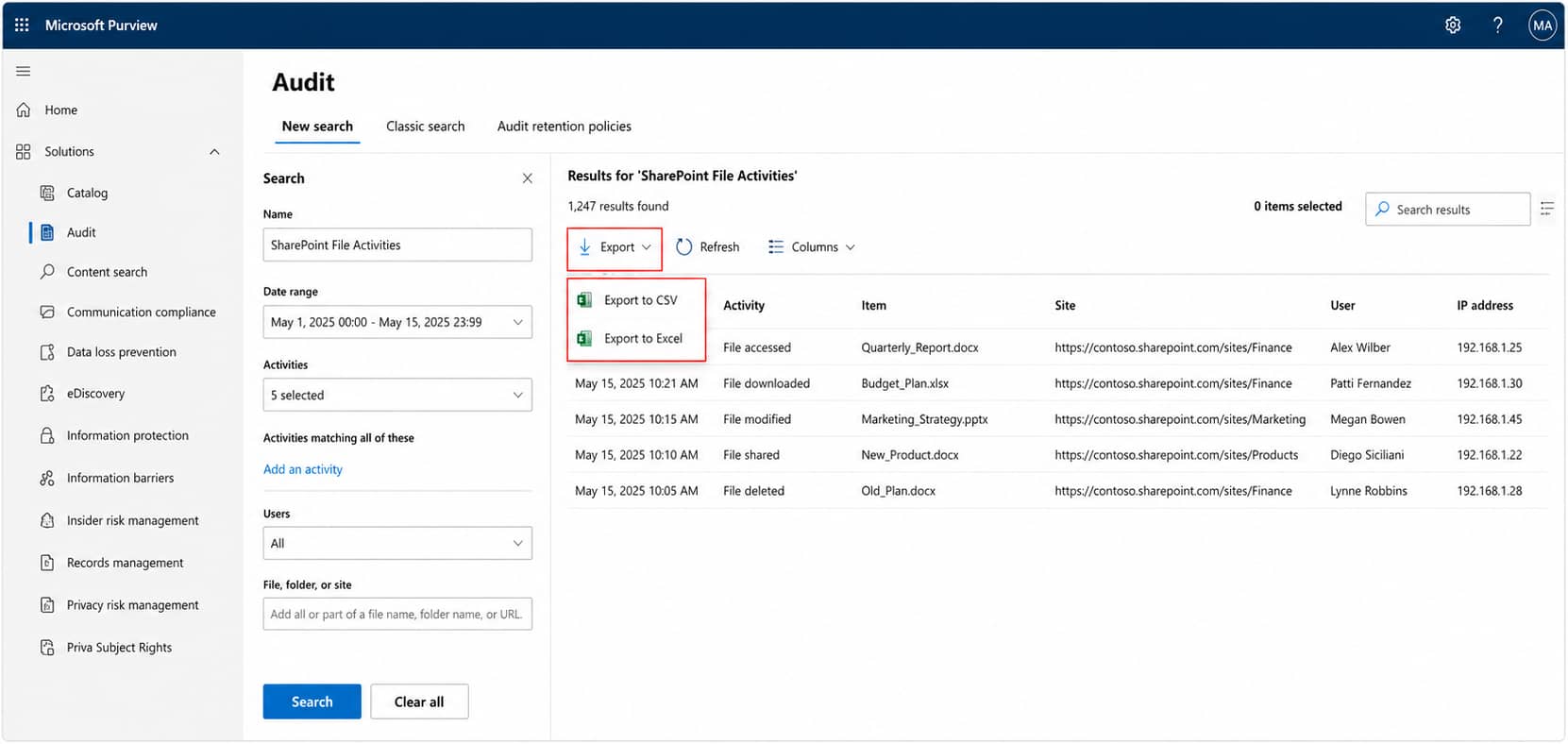
- Open Microsoft Purview Compliance Portal
- Navigate to the Audit section
- Create a search based on the investigation requirements. Select SharePoint-relevant activities like File accessed, File downloaded, File modified, File deleted, and File shared.
- Narrow results using filters such as:
- User Account
- SharePoint site
- Filename
- Date range
- Activity type
- Review the activity logs to determine:
- Who performed the action?
- What was the exact action?
- When did the action take place?
- Which document was accessed?
- Export the results to CSV if the data needs to be shared with incident response, legal or compliance teams.
Method 2: Using PowerShell
For larger organizations or recurring reporting needs, admins can use the Search-UnifiedAuditLog cmdlet to request audit data in a programmatic way rather than through the UI. This is particularly useful when you need to pull activity from a very long data range or multiple sites, or a large number of users, or when you want to schedule the search as part of a regular reporting routine.
For instance, searching for file download activity over a date range:
Search-UnifiedAuditLog -StartDate "06/01/2026" -EndDate "06/30/2026" -RecordType SharePointFileOperation -Operations FileAccessed, FileDownloadedThis returns raw audit records which you can filter, export, or provide to the SIEM for matching with other security-related information. 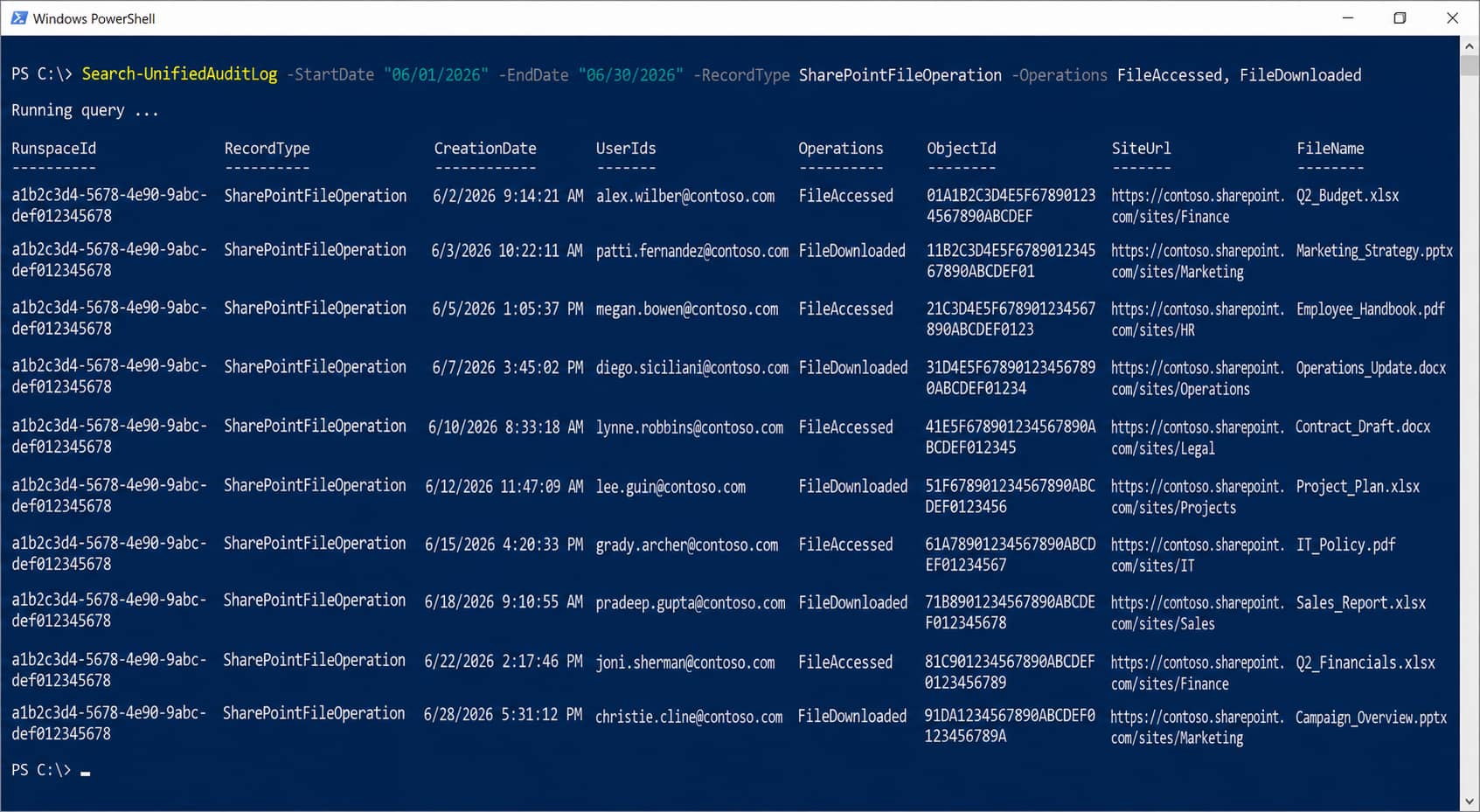
How to See Who Accessed or Downloaded Files in ‘SharePoint Server’
SharePoint Server provides auditing capabilities, but auditing must first be enabled manually. Unlike SharePoint Online, where auditing is part of the overall Microsoft 365 services, SharePoint Server auditing is configured at the site collection level and requires administrators to enable specific audit events.
Enable Auditing
Unlike SharePoint Online, SharePoint Server does not enable auditing by default. It must be explicitly configured at the site collection level. This is done through Site Collection Administration, under Site Collection Audit Settings. To track file activity:
- Open Site Settings
- Navigate to Site Collection Administration
- Select Site Collection Audit Settings
- Enable the required audit events
Common audit events administrators can enable include:
- Viewing documents
- Opening files
- Editing content
- Deleting files
- Changing permissions
Once enabled, SharePoint Server records these activities for review.
View Audit Reports
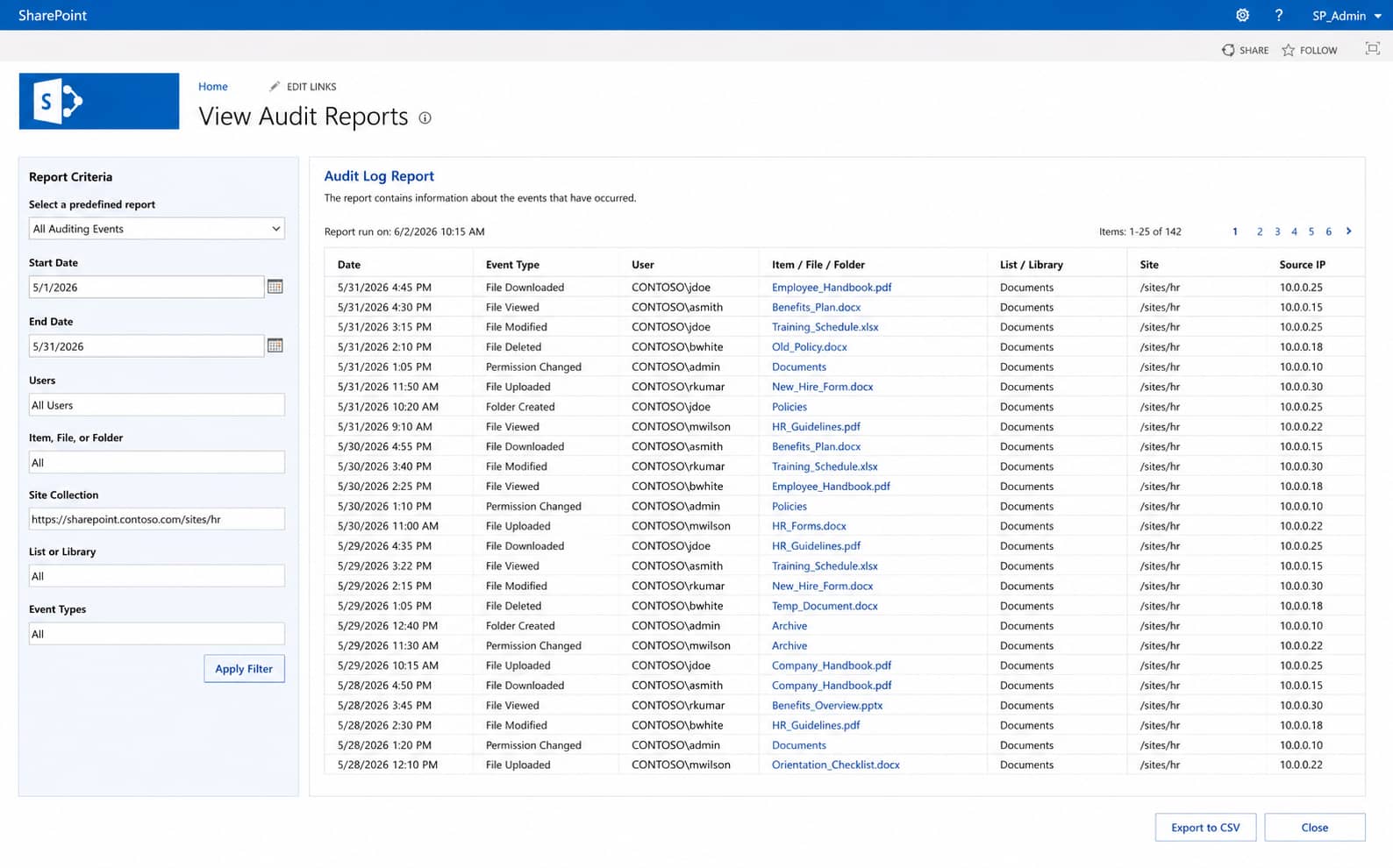
Once auditing is enabled and events have been logged, reports can be generated as follows
- Open Site Settings
- Navigate to Site Collection Administration
- Select Audit Log Reports
- Under Audit Log Reports, select the appropriate predefined report (report names vary by SharePoint Server version).
- Enter the URL of a document library where you want to save the report, and click OK.
Limitations of SharePoint Server Audit Logs
While useful, SharePoint Server audit logs create challenges for security teams:
- Manual Reporting: The process of generating reports is manual, which means the administrators have to generate and review reports instead of the users searching them dynamically.
- Limited Search Capabilities: The capabilities of searching within the audit logs are very limited, which is why it may be quite difficult to locate a specific event.
- Limited Central Visibility: If you want to analyze activities across multiple site collections, you will have to repeat the same operations for each one separately, as there is no single unified view.
- Long-Term Visibility: Audit log retention depends on storage management and administrator configuration; logs are not retained indefinitely; besides, due to storage/performance issues, administrators are often forced to purge it even earlier than security teams would like.
Common Challenges with Native Auditing
Challenges emerging from native auditing running on SharePoint Online or SharePoint Server are largely one and the same. Once you move from checking a single file to conducting a real investigation, these challenges become apparent:
- Large Volume of Data: This makes it difficult to narrow down and identify only relevant incidents without extensive filtering.
- Time-Consuming Investigation: Since native tools were not built to facilitate rapid root-cause analysis or timeline reconstruction, investigations can become time-consuming.
- Difficulty Identifying Sensitive File Access: Determining sensitive file access can be difficult because native logs generally do not signal or alert on files containing sensitive or regulated data.
- Limited Alerting Capabilities: There is a limited alerting capability, as suspicious access or bulk downloads often aren’t flagged until someone goes looking after the fact.
- Multiple Tools Required: Since SharePoint Online, SharePoint Server, OneDrive, and Microsoft Teams generate audit events through different mechanisms, fully covering them may require multiple tools.
- Retention Limitations: Retention limitations are often related to licensing tiers, with longer retention periods frequently available only through premium Microsoft 365 plans or add-ons.
How Lepide Helps with SharePoint Auditing
Lepide Auditor for SharePoint closes the gaps left by native SharePoint auditing by providing centralized visibility into user activity, document changes, permission changes, and administrative events in both SharePoint Online and SharePoint Server. Security and IT teams can quickly investigate who accessed sensitive content, what changed, when it happened, and who was responsible, from a single console. 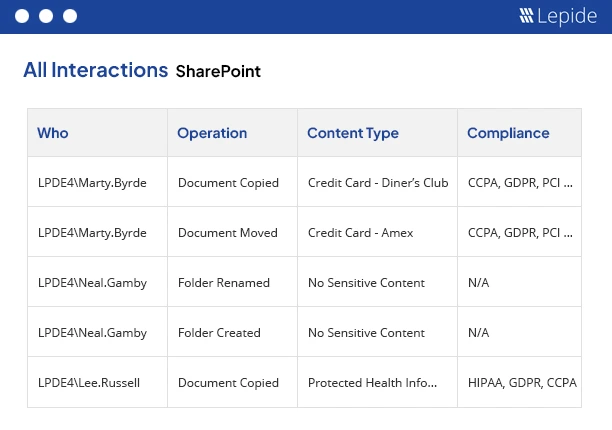
Lepide continuously monitors document activity, permission changes, and admin actions on an ongoing basis and provides powerful search and filtering capabilities to quickly locate audit events by user, file, folder, site, or time period. It supports both user-centric and file-centric investigations and these investigations are supported by pre-built reports and real-time alerts for suspicious user behavior like bulk downloads, unauthorized permission changes, or other suspicious activity. Together, these capabilities simplify compliance reporting and accelerate incident response by providing complete, searchable audit trails.
Frequently Asked Questions
If you are using SharePoint Online, use the Microsoft Purview Audit logs and search for SharePoint file downloaded events. For SharePoint Server, enable auditing first at the site collection level and then create an Audit Log Report covering document activity.
Yes, if the auditing is turned on. SharePoint Online records file access and file viewing activities through Purview Audit. In contrast, SharePoint Server can record the viewing activity if the relevant audit event is enabled in Site Collection Audit Settings.
SharePoint Online audit records are stored in Microsoft Purview Audit and accessed through the Microsoft Purview portal or PowerShell.
The duration for which SharePoint audit logs are retained depends on several factors such as Microsoft 365 licensing, audit configuration, and organizational retention policies.
You can use Microsoft Purview Audit or the Search-UnifiedAuditLog PowerShell cmdlet for this purpose. A dedicated auditing platform like Lepide can provide ongoing real-time monitoring, alerting, and centralized reporting across SharePoint Online and SharePoint Server.