Microsoft 365 records a wide range of user and administrator activities across services, including Exchange Online, SharePoint Online, OneDrive for Business, Microsoft Teams, and Microsoft Entra ID. Depending on the workload and event type, activities such as file access, email operations, permission changes, administrative actions, and sign-ins are recorded in Microsoft Purview Audit.
Microsoft Purview provides centralized auditing, compliance, and governance capabilities that enable administrators to investigate security incidents, support compliance requirements, and understand user interactions with organizational data.
This article explains how to audit user activity in Microsoft 365. In it, we cover the required prerequisites, how to search audit logs using Microsoft Purview and PowerShell, and how to review and export the results.
Prerequisites
Before auditing user activity across Microsoft 365, confirm the correct setup and permissions to avoid noncompliant results:
- Microsoft 365 License: Microsoft Purview Audit (Standard) is included with most Microsoft 365 and Office 365 enterprise and business subscriptions. Advanced auditing capabilities, including longer retention periods and additional high-value audit events, require Microsoft Purview Audit (Premium), which is included with Microsoft 365 E5 or available as an add-on for eligible licenses.
- Required Admin Roles/Permissions: Users must be assigned an appropriate Microsoft Purview role, such as Audit Reader (View-Only Audit Logs) or Audit Manager (Audit Logs). Compliance Administrator and Global Administrator roles also have the required permissions by default.
- Unified Audit Status: Unified auditing is enabled by default for new Microsoft 365 organizations. Administrators can verify the status by running Get-AdminAuditLogConfig and checking the UnifiedAuditLogIngestionEnabled property.
Native Methods (Microsoft Purview and PowerShell)
Method 1: Using Microsoft Purview
Please follow below steps:
- Open Microsoft Purview Audit: Sign in to the Microsoft Purview portal using an account with the appropriate permissions. From the left-hand navigation pane, select Solutions > Audit to open the audit search page.
- Configure Your Audit Search: Use the available filters to define your search:
- Date Range: Select the time period to search. Available history depends on your Microsoft 365 license and audit retention settings.
- Users: Specify one or more users, or leave the field blank to search across all users.
- Activities: Filter by specific actions such as file access, mailbox operations, permission changes, or sign-ins.
- Workloads: Optionally filter by services such as Exchange Online, SharePoint Online, OneDrive for Business, Microsoft Teams, or Microsoft Entra ID.
- Review the Output: The results include details such as:
- User
- Operation
- Creation Date
- Workload
- Client IP Address (when available)
- Export the Results: Select Export to download the audit results as a CSV file for reporting, investigation, or long-term analysis.
Method 2: Using PowerShell
For administrators who need to automate audit searches, schedule recurring exports, or retrieve audit data through scripts, the Search-UnifiedAuditLog cmdlet provides a flexible alternative to the Microsoft Purview Report.
A basic search for audit events “within a data range”:
Search-UnifiedAuditLog -StartDate 07/01/2026 -EndDate 07/08/2026 -ResultSize 5000To search for SharePoint audit events generated by a specific user:
Search-UnifiedAuditLog -StartDate 07/01/2026 -EndDate 07/08/2026 -UserIds user@domain.com -RecordType SharePointAuditing User Activity By Microsoft 365 Workload
Different workloads log different types of events. Here’s a quick reference for what’s typically tracked in each:
Native Auditing Limitations
- Log Retention Depends on Licensing: Audit log retention depends on your Microsoft 365 licensing and configured audit retention policies. Audit (Standard) and Audit (Premium) provide different default retention periods and event coverage.
- Searching Datasets Can Be Difficult: Broad searches across long date ranges or large user populations can be slow, and the UI isn’t well suited for reviewing very large volumes of results
- Limited Reporting: Microsoft Purview Audit is primarily designed for investigation and compliance searches rather than executive reporting or long-term operational dashboards.
- No Centralized Dashboards: The audit experience offers limited visibility into audit activity and lacks comprehensive dashboards for long-term trend analysis or recurring compliance reporting.
How Lepide Simplifies Microsoft 365 User Activity Auditing
While Microsoft Purview provides native audit logging capabilities, investigating user activity across multiple Microsoft 365 services can become challenging as environments grow. Security and IT teams often need to correlate events across Exchange Online, SharePoint Online, OneDrive, Microsoft Teams, and Microsoft Entra ID to understand who performed an action, what changed, when it occurred, and where it happened.
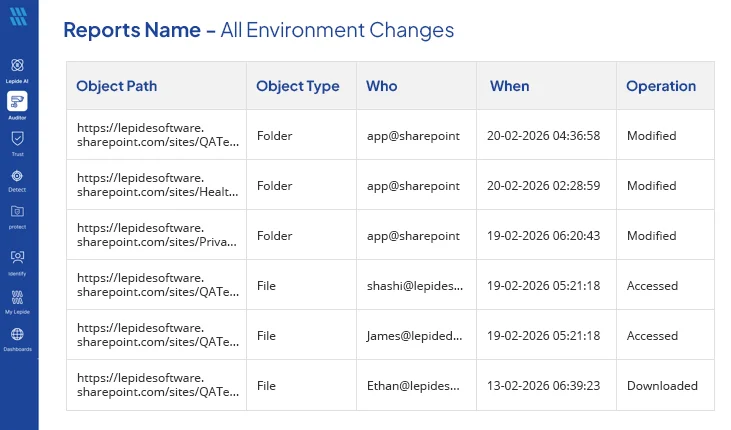
Lepide Auditor for Microsoft 365 simplifies user activity auditing by centralizing audit data from supported Microsoft 365 workloads into a single console. This enables administrators to monitor user behavior, detect suspicious activities, investigate security incidents, and generate compliance-ready reports without manually searching through multiple audit logs.
Key Capabilities Include:
- Centralized User Activity Monitoring: Monitor user activities across supported Microsoft 365 workloads from a unified dashboard, including user logins, file and folder access, mailbox activity, Teams activities, permission changes, and other critical user actions.
- Real-Time Alerts: Receive instant notifications when high-risk user activities occur, such as mass file deletions, suspicious sign-ins, privilege escalations, non-owner mailbox access, or unusual file-sharing behavior, enabling faster incident response.
- Advanced Search and Filtering: Quickly search and filter audit records to identify who performed an action, what changed, when it occurred, and where it happened. This helps security teams reconstruct user activity timelines and investigate incidents more efficiently.
- Compliance-Ready User Activity Reports: Generate pre-built and customizable reports that provide visibility into user activities for security reviews, internal audits, and regulatory compliance requirements, including GDPR, HIPAA, SOX, and PCI DSS.
Frequently Asked Questions
The Microsoft 365 Unified Audit Log is a centralized audit repository that records user and administrator activities across Microsoft 365 services such as Exchange Online, SharePoint, OneDrive, Teams, and Microsoft Entra ID. It collects audit events in one place, making it easier to conduct security investigations and meet compliance requirements.
Unified auditing is enabled by default for most Microsoft 365 organizations. If it has been disabled, an administrator can re-enable it, an administrator with the appropriate permissions can re-enable it.
User activities that you can track in Microsoft 365 audit logs include sign-ins, file access, file sharing, mailbox operations, Teams actions, and permission changes, as well as administrative actions across Microsoft 365 services, depending on your license and workload.
To search audit logs, you must be assigned an appropriate role such as Audit Reader, Audit Manager, Compliance Administrator, or Global Administrator. Without the required permissions, you won’t be able to view the captured audit events.
Audit logs track detailed user and administrator activities for conducting security investigations and being able to follow compliance requirements. However, usage reports in the admin center provide an overview of adoption and productivity metrics without showing specific audit activities.
Audit log retention depends on your Microsoft 365 license and audit retention configuration. Audit (Standard) and Audit (Premium) support different retention periods, with Premium providing longer retention for eligible events.
Regularly review audit logs for unusual sign-ins, excessive file access, permission changes, and abnormal sharing activity. For faster threat detection, organizations often use solutions such as Lepide to centralize audit events, generate real-time alerts, and simplify investigations across Microsoft 365 workloads.