As organizations deepen their reliance on Microsoft 365, the ability to detect and respond to changes in permissions and configurations is becoming essential. If you can’t answer “who changed what, and when?” you can’t secure your environment, pass an audit, or investigate an incident. That’s exactly why tracking permission and configuration changes in Microsoft 365 has become a core responsibility for IT and security teams.
Microsoft Purview Audit enables authorized administrators to search, filter, and review audit events across supported Microsoft 365 services, including Exchange Online, SharePoint Online, OneDrive for Business, Microsoft Teams, and Microsoft Entra ID.
This guide explains how to track permission and configuration changes with the help of the Microsoft Purview Audit feature.
Why Permission and Configuration Changes Matter
Permission and configuration changes have become an important part of Microsoft 365 for the following reasons:
- Security: Unauthorized permission changes, unexpected admin roles, and abused sharing links can put your data at risk. Detecting them early helps stop threats before they spread.
- Compliance: Regulations such as GDPR, HIPAA, SOX, and ISO 27001 are just a few that organizations are being compelled to follow. They require organizations to closely monitor how their sensitive data is distributed and keep track of any changes in access.
- Troubleshooting: Audit logs help identify the root cause of an issue. When an issue arises, it becomes simpler to determine the cause, whether it has to do with permissions, mailbox forwarding, or even a policy change.
Without visibility into these changes, organizations often rely on users to report problems instead of identifying them early.
Prerequisites
Before setting up a full-scale monitoring program, certain technical and strategic prerequisites must be met.
Enable Microsoft Purview Audit: For most Microsoft 365 organizations, Unified Audit Logging is enabled by default. Administrators should verify that auditing is enabled, particularly in older or migrated tenants.
Required Permissions
- Audit Reader Role: View-only access to audit search results.
- Audit Logs Role: Audit (or Audit Logs) permissions are assigned through Microsoft Purview role groups such as Audit Reader or Audit Manager, depending on the required level of access.
- Global Administrator: Global Administrators have full access by default, though it’s best practice to assign narrower, purpose-built roles rather than relying on Global Administrator for routine audit work.
Track Permission Changes in Microsoft 365
A permission change is any modification to access rights, group membership, sharing links, or administrative roles across Microsoft 365 resources. Permission changes are the most sensitive category to monitor, since they directly control who can access what. Here’s how to search for them using Microsoft Purview Audit.
- Open Microsoft Purview Audit: Sign in to the Microsoft Purview portal and navigate to Audit from the left-hand solutions menu. This is the central hub for all unified audit log activity across Microsoft 365.
- Create a New Audit Search: Start an audit search and configure:
- Date Range: Narrow this to the relevant investigation window; shorter ranges mean faster, more manageable results.
- Users (Optional): Filter to specific accounts if you already suspect who made the change.
- Workload (Optional): Scope the search to SharePoint, Exchange, Entra ID, etc.
- Select Permission Change Activities: Select the relevant audited operations related to permission changes
- SharePoint Permission Changes: Examples include sharing permission updates, permission level changes, and other supported permission-related audit events. Not every permission inheritance change generates a dedicated audit event.
- File and Folder Sharing: New sharing links and external sharing grants.
- Microsoft Entra Role Assignments: Users added to or removed from admin roles.
- Mailbox Permission Changes: Search for Exchange Online administrative operations such as Add-MailboxPermission, Remove-MailboxPermission, Add-RecipientPermission, Remove-RecipientPermission, and related mailbox permission changes.
- Microsoft 365 Group Membership Changes: Additions or removals that affect downstream access.
- Review Audit Results: Each result record should let you identify:
- Who Made the Change: The initiating user or service account
- What Permissions Changed: The specific role, access level, or sharing setting affected.
- Target Object: The file, site, mailbox, or group to which the change applied.
- Timestamp: The exact date and time, useful for correlating with other events or incidents
Track Configuration Changes in Microsoft 365
Configuration changes extend beyond permissions to include updates to security policies, administrative settings, connectors, compliance configurations, and workload-specific settings across Microsoft 365 services.
- Open Microsoft Purview Audit: As before, navigate to Microsoft Purview > Audit.
- Create a New Audit Search:
- Set your date range
- Apply user filters if needed
- Select the appropriate workload for the configuration area being investigated.
- Search Configuration Changes by Microsoft 365 Workload
- Review the Audit Results: For Configuration changes, focus on verifying:
- Administrator who made the change
- Configuration Modified
- Time of Change
- Workload Affected
- Additional Event Details (where available; not all audit events include before-and-after values)
Limitations of Native Auditing
Microsoft Purview Audit provides the audit data needed to investigate permission and configuration changes. Administrators often need to manually search audit logs across multiple Microsoft 365 workloads to reconstruct the full sequence of events. Depending on the Microsoft 365 service involved, audit details, retention periods, and available event information can also vary. As environments grow larger and more complex, investigating permission and configuration changes can become increasingly time-consuming.
How Lepide Helps
Lepide Auditor for Microsoft 365 centralizes permission and configuration change auditing across Microsoft Entra ID, Exchange Online, SharePoint Online, OneDrive for Business, and Microsoft Teams, making it easier to identify exactly who changed what, when it changed, and where it occurred.
With Lepide, organizations can:
- Track permission changes across Microsoft Entra ID, SharePoint Online, OneDrive for Business, and Exchange Online, including role assignments, mailbox permissions, sharing permissions, and group membership changes.
- Audit configuration changes to Exchange Online, SharePoint Online, and Microsoft 365 settings with detailed information about who made the change, what was modified, and when it occurred, including before-and-after values, where available.
- Receive real-time alerts for critical permission and configuration changes, such as Global Administrator role assignments, mailbox permission modifications, external sharing changes, and other high-risk administrative activities.
- Use pre-built reports to quickly review permission changes, configuration updates, and administrative activity without manually searching audit logs, simplifying security investigations and compliance reporting.
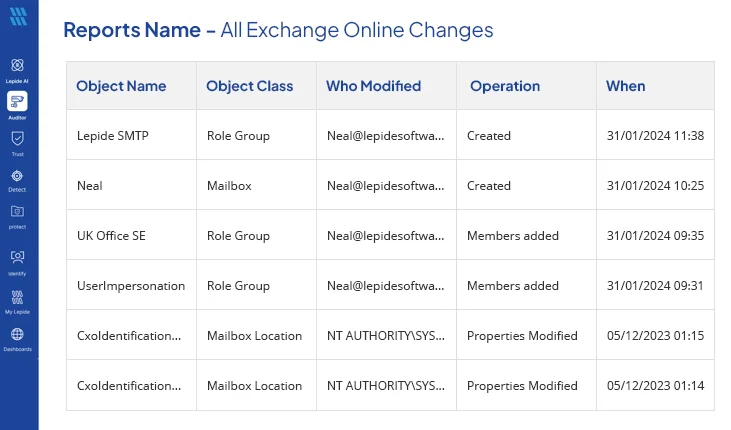
By consolidating permission and configuration auditing into a single interface, Lepide helps security and IT teams detect unauthorized changes faster, investigate incidents more efficiently, and maintain stronger control over their Microsoft 365 environment.
Frequently Asked Questions
The Microsoft 365 Unified Audit Log, accessed through Microsoft Purview Audit, records supported audit events across Microsoft 365 workloads. Supported permission and configuration changes generate audit events that can be searched through Microsoft Purview Audit.
In Microsoft Purview Audit, scope the search to the Microsoft Entra ID workload and filter for supported role assignment activities (such as adding or removing directory role members). This surfaces every instance where a user was added to or removed from an admin role, along with who performed the action and when it was performed, critical for catching unauthorized privilege escalation.
Search the audit log for Exchange Online activities related to mailbox permissions, such as Add-MailboxPermission or Add-RecipientPermission events. These records show the account that granted or revoked access (Full Access, Send As, or Send on Behalf), the target mailbox, and the timestamp of the change
Use Purview Audit to search for SharePoint and OneDrive sharing activities, including new sharing links, external access grants, and permission level changes. For ongoing compliance monitoring, many organizations schedule recurring searches or use a third-party tool like Lepide to generate automated compliance reports rather than running manual searches each time.
Microsoft Purview alert policies can be configured to notify administrators when supported audited activities occur, such as users being added to admin roles or other selected high-risk events.
For most organizations, Unified Audit Logging is already enabled by default. Administrators should verify this setting, especially in older tenants
Native audit log retention depends on licensing for some tiers, and searches must be run manually unless alert policies are configured. The log also does not always present before-and-after values in an easily readable format, which can slow down investigations