SharePoint site permissions determine who can access sites and what actions they can perform. As SharePoint environments grow, reviewing permissions across multiple sites becomes difficult, especially when administrators need to identify users, groups, permission levels, and inherited permissions.
Depending on the SharePoint environment they manage, administrators typically use one of the following approaches:
- SharePoint Online: Use Data access governance in the SharePoint admin center to generate an organization-wide site permissions snapshot.
- SharePoint Server (on-premises): Use PowerShell to retrieve and export permission information across sites.
You may also use the SharePoint interface to examine permissions for a single site without creating a report that can be downloaded.
How to Get a Site Permissions Report in SharePoint Online
Through SharePoint Advanced Management, SharePoint Online provides Data access governance (DAG) reports that help administrators identify potential oversharing and analyze permission exposure across SharePoint and OneDrive sites.
The Site permissions across your organization report is a snapshot report that provides a point-in-time view of the permission structure across SharePoint and OneDrive sites. Instead of a continuous or real-time permissions inventory, it offers an organization-wide perspective of permission exposure. The report is available through SharePoint Advanced Management. Access depends on the applicable SharePoint Advanced Management licensing and administrative permissions.
Generate the ‘Site Permissions Across Your Organization’ Report
Microsoft provides the Site permissions across your organization snapshot report to help administrators identify sites with broad access and potential permission exposure.
- Use an account that has the necessary administrative permissions to log into the SharePoint admin center.
- In the SharePoint admin center, expand Reports in the left navigation and select Data access governance.
- Under Snapshot reports, locate Site permissions across your organization.
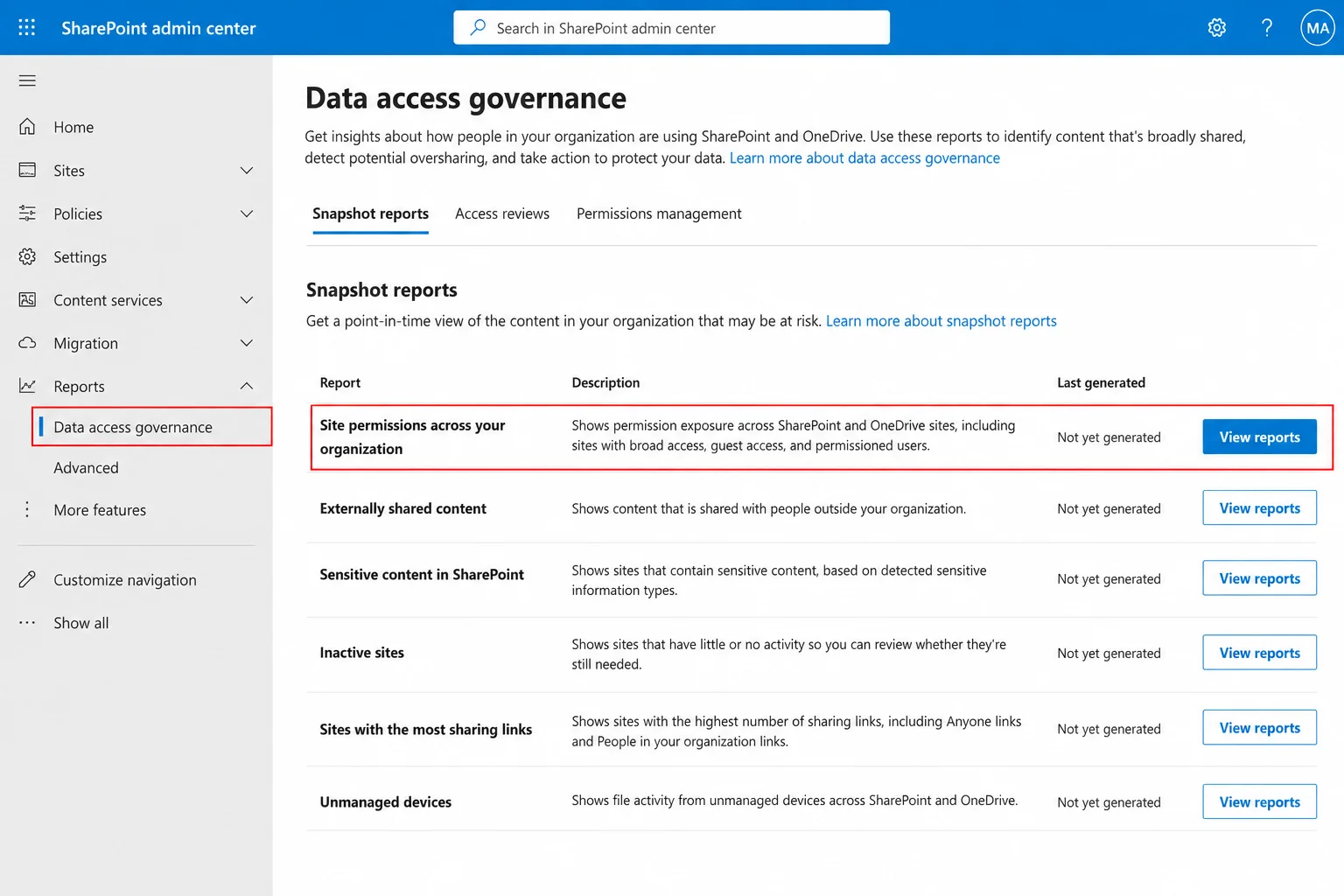
- Click View Reports.
- Select Create report to generate the report for the first time. After a report has been generated, it can be rerun when it becomes eligible to run again.
- Wait for SharePoint to process the report. Microsoft notes that the first report can take up to five days to complete, while subsequent reports can take up to 24 hours. The report captures data from up to 48 hours before generation.
- When the report is ready, open the report to review the results.
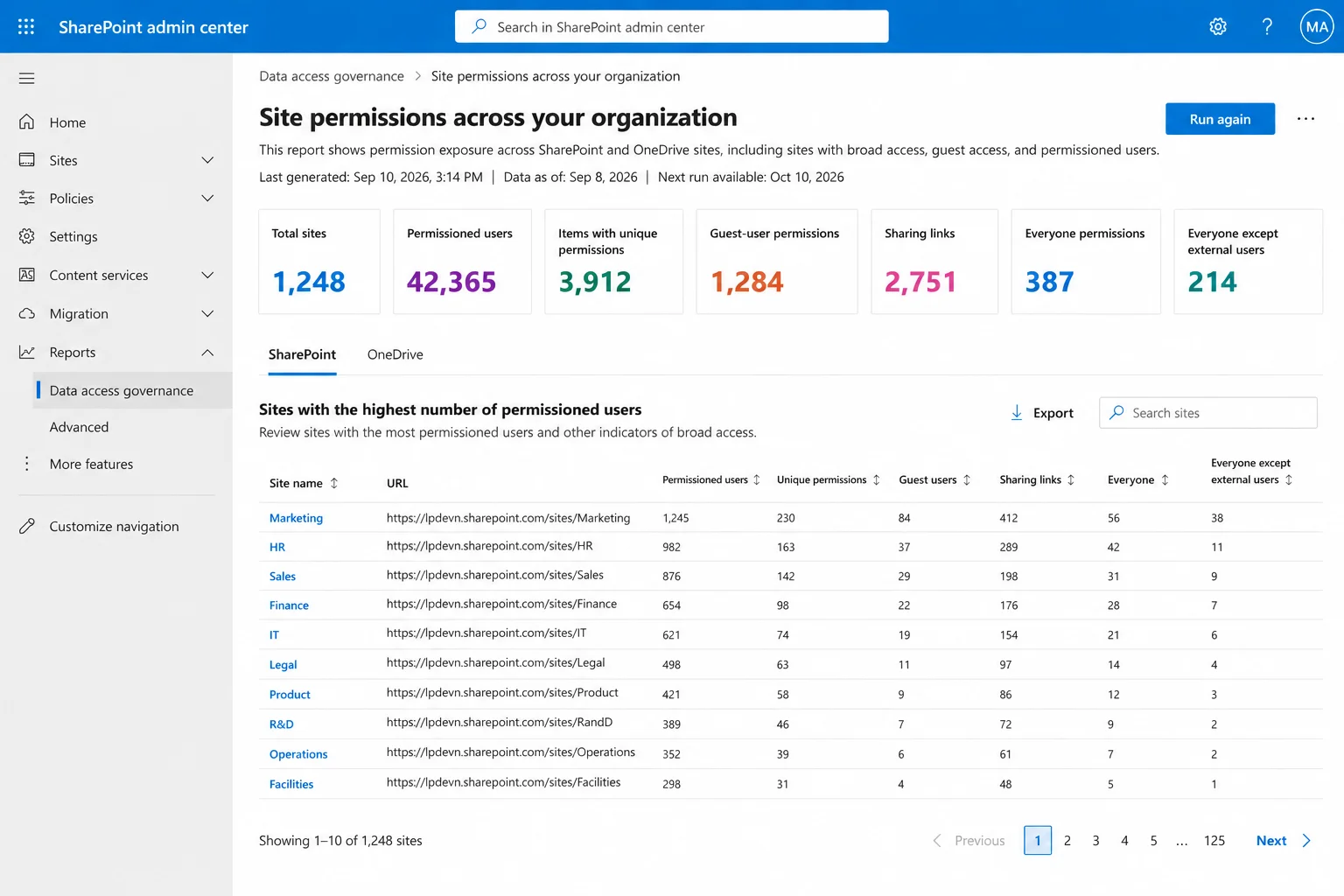
- Select View report under the SharePoint section to examine the sites included in the report.
- Review the sites with the highest numbers of permissioned users and use the other report metrics to identify sites with potentially broad access.
- Download the report as a CSV file for further analysis. Microsoft states that the downloaded report can contain data for up to one million sites.
What You can View in the Report
The organization-wide permissions report provides metrics that help administrators identify potential permission exposure, including:
- Sites with Permissioned Users: Shows the number of unique users who have permissions to a site or its content.
- Items with Unique Permissions: Shows the number of items with unique permissions, where permission inheritance has been broken.
- Microsoft Entra Group Permissions: Shows the number of permissions assigned to Microsoft Entra cloud-only groups.
- Guest-User Permissions: Helps identify permission exposure involving guest users.
- Anyone Sharing Links: Includes indicators for Anyone links and People in your organization links.
- Everyone Permissions: Identifies permissions where Everyone is the recipient.
- Everyone Except External Users Permissions: Identifies permissions where Everyone except external users is the recipient.
- Other Indicators of Broadly Accessible Content: Provides additional visibility into broadly accessible content.
Report Considerations
When using the native SharePoint Online report, keep the following points in mind:
- The report is not a real-time permissions monitoring tool; it provides a point-in-time snapshot.
- Very recent permission changes might not appear immediately because the report can include data from up to 48 hours before generation.
- It may take up to five days to finish the initial report, and up to twenty-four hours to do subsequent reports. Reports can be rerun once every 30 days.
- Availability depends on the applicable SharePoint Advanced Management/Microsoft 365 licensing and permissions.
How to Check Permissions for a Single SharePoint Online Site
If you only need to check permissions for one site, you don’t need to generate an organization-wide report.
Open the SharePoint site and go to Settings → Site permissions → Advanced permissions settings. From there, you can review users, SharePoint groups, and other principals with permissions at the site level and their assigned permission levels. You can also use Check Permissions to investigate how a particular user or group has access to the site.
This is useful for a quick, site-specific permissions check, but it is a manual review rather than a downloadable permissions report.
How to Get a Site Permissions Report in SharePoint Server
SharePoint Server does not provide the SharePoint Online Data access governance reporting workflow. For an exportable permissions report, administrators can use SharePoint Management Shell/PowerShell.
Applies To:
- SharePoint Server 2019
- SharePoint Server Subscription Edition
SharePoint Server provides administrative PowerShell cmdlets through the SharePoint Management Shell, which can be used with the SharePoint server-side object model to retrieve permission information. The necessary SharePoint and server permissions must be granted to the account executing SharePoint PowerShell commands.
Prerequisites for Generating a SharePoint Server Site Permissions Report Using PowerShell
Before running the script:
- Run the script on a SharePoint Server in the farm using SharePoint Management Shell.
- Use the SharePoint Management Shell with the required privileges.
- Ensure that the account has access to the target site collection and the permissions required to run SharePoint PowerShell cmdlets.
- Have the site collection URL ready.
- Create or select a location where the CSV report will be saved.
PowerShell Script
The following script reports site and subsite permission assignments within a SharePoint site collection. It does not recursively crawl every file, folder, list, or library item.
$SiteUrl = "https://sharepoint.contoso.com/sites/Finance"
$ExportPath = "C:\Reports\SharePoint-Site-Permissions.csv"

$Results = New-Object System.Collections.Generic.List[object]

$Site = Get-SPSite $SiteUrl

try {

    # Store the root web URL once
    $RootWeb = $Site.RootWeb

    try {
        $RootWebUrl = $RootWeb.Url
    }
    finally {
        $RootWeb.Dispose()
    }

    foreach ($Web in $Site.AllWebs) {

        try {

            # Identify whether this is the root site or a subsite
            $SiteLocation = if ($Web.Url -eq $RootWebUrl) {
                "Root Site"
            }
            else {
                "Subsite"
            }

            # Determine whether permissions are unique or inherited
            $Inheritance = if ($Web.HasUniqueRoleAssignments) {
                "Unique"
            }
            else {
                "Inherited"
            }

            # If permissions are inherited, find the nearest parent
            # that has unique role assignments
            $PermissionSourceWeb = $Web

            if (-not $Web.HasUniqueRoleAssignments) {

                $CurrentWeb = $Web

                while (-not $CurrentWeb.HasUniqueRoleAssignments) {

                    $ParentWeb = $CurrentWeb.ParentWeb

                    if ($null -eq $ParentWeb) {
                        break
                    }

                    # Dispose intermediate parent objects when no longer needed
                    if (($CurrentWeb.ID -ne $Web.ID) -and
                        ($CurrentWeb.ID -ne $PermissionSourceWeb.ID)) {
                        $CurrentWeb.Dispose()
                    }

                    $CurrentWeb = $ParentWeb
                }

                $PermissionSourceWeb = $CurrentWeb
            }

            try {

                foreach ($RoleAssignment in $PermissionSourceWeb.RoleAssignments) {

                    $Principal = $RoleAssignment.Member

                    $PermissionLevels = @(
                        $RoleAssignment.RoleDefinitionBindings |
                        Where-Object { $_.Name -ne "Limited Access" } |
                        ForEach-Object { $_.Name }
                    ) -join "; "

                    # Skip rows containing only Limited Access
                    if ([string]::IsNullOrWhiteSpace($PermissionLevels)) {
                        continue
                    }

                    $Results.Add(
                        [PSCustomObject]@{
                            SiteTitle           = $Web.Title
                            SiteURL             = $Web.Url
                            SiteLocation        = $SiteLocation
                            UserOrGroup         = $Principal.Name
                            LoginName           = $Principal.LoginName
                            PrincipalType       = $Principal.GetType().Name
                            PermissionLevels    = $PermissionLevels
                            Inheritance         = $Inheritance
                            PermissionSourceURL = $PermissionSourceWeb.Url
                        }
                    )
                }
            }
            finally {

                # Only dispose PermissionSourceWeb when it is a separately
                # opened parent web rather than the web being processed
                if ($PermissionSourceWeb.ID -ne $Web.ID) {
                    $PermissionSourceWeb.Dispose()
                }
            }
        }
        finally {
            $Web.Dispose()
        }
    }
}
finally {
    $Site.Dispose()
}

$Results |
    Export-Csv -Path $ExportPath -NoTypeInformation -Encoding UTF8

Write-Host "Permissions report exported to $ExportPath"
What Does the Script Report?
The exported CSV includes information such as the following:
The script excludes the Limited Access role from the displayed permission levels so that the report focuses on the other role definitions assigned to the principal.
Run and Review the Report
- Open SharePoint Management Shell with the appropriate privileges.
- Save the script as a .ps1 file.
- Replace $SiteUrl with the target site collection URL
- Replace $ExportPath with the required CSV output location.
- Run the script.
- Open the generated CSV in Excel.
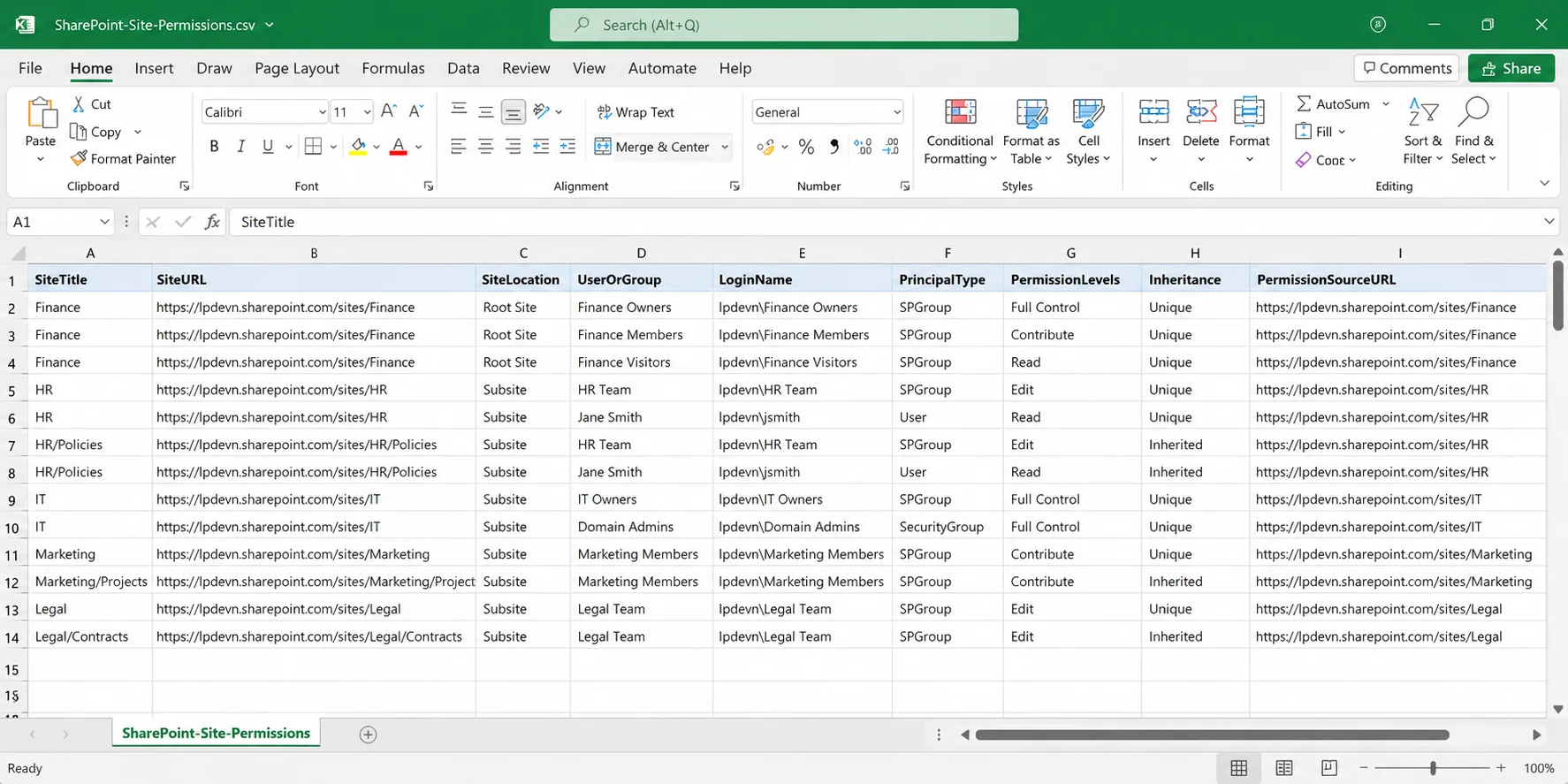
- Filter the results by site, user/group, permission level, or inheritance.
Use these filters to identify sites or subsites with unique permissions, review users and groups with assigned access, and compare permission assignments across the site collection.
Technical Note: Permissions at the site and subsite levels are reported by this script. Unique permissions assigned to individual lists, libraries, folders, files, or list items are not recursively enumerated. To create a comprehensive item-level permissions inventory, additional scripting is needed if your environment uses extensive item-level permission assignments.
How to Check Permissions for a Single SharePoint Server Site
For a quick permissions check without PowerShell, open the SharePoint Server site and go to Settings → Site settings → Users and Permissions → Site permissions.
You can review the site’s users, groups, and permission levels or use Check Permissions to investigate access for a specific user or group.
Note: As with SharePoint Online, this is useful for an individual site but does not provide a convenient downloadable permissions report for centralized analysis.
Limitations of Native SharePoint Permissions Reporting
Native SharePoint reporting can provide useful visibility, but administrators should understand its limitations:
- Instead of ongoing permission monitoring, SharePoint Online data access governance reports are snapshots.
- The availability of Data access governance reporting depends on the applicable Microsoft 365 licensing and administrative permissions.
- The Site Permissions page is useful for reviewing individual sites but does not provide centralized permissions reporting across the SharePoint environment.
- SharePoint Server PowerShell scripts require administrative access and additional scripting when permissions need to be analyzed recursively at the list, library, folder, file, or item level.
These limitations become more significant in large environments where administrators may need both visibility into current permissions and an audit trail showing who changed permissions, what changed, and when.
How Lepide Helps with SharePoint Permissions Reporting
Lepide Auditor for SharePoint provides centralized auditing and reporting for SharePoint Online and SharePoint Server, helping administrators overcome some of the limitations of native SharePoint reporting.
Security teams can determine who has access to SharePoint files and folders and track permission changes over time. Lepide maintains a granular record of changes to user permissions, group memberships, and access levels, helping administrators investigate who made a change, what changed, and when it occurred.
Lepide can also help identify users with unnecessary or elevated permissions and provides predefined and custom reports for investigating SharePoint activity and permission changes. Real-time alerts can help teams detect potentially damaging changes that require further investigation.
The key distinction is that permissions analysis helps administrators understand who currently has access, while permission auditing records changes to permissions over time. Together, they provide better visibility into SharePoint access and potentially risky permission changes.
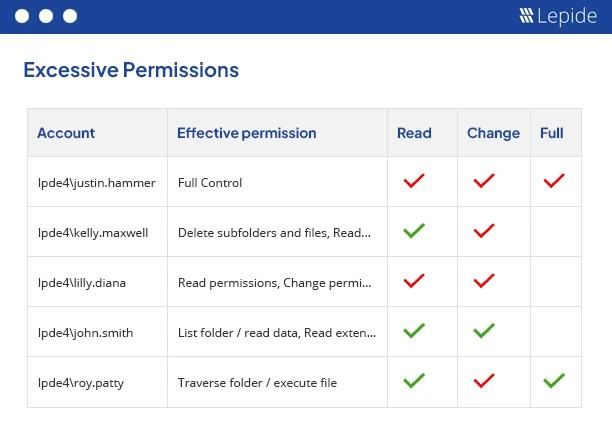
Schedule a demo to see how Lepide can help you analyze SharePoint access, track permission changes, identify excessive permissions, and simplify SharePoint auditing.
Frequently Asked Questions (FAQs)
Yes, in SharePoint Online, the Site permissions across your organization Data access governance report can be downloaded as a CSV file for further analysis. In SharePoint Server, PowerShell can be used to collect site and subsite permission assignments and export the results to CSV.
To review permissions assigned at the site level, open Site permissions. To investigate a particular user’s access, use Check Permissions. For broader analysis, the Site permissions across your organization report provides visibility into permission exposure across SharePoint and OneDrive sites. The Site permissions for users report can be used to identify which sites a specific user can access and whether access is granted directly, through groups, or to specific items.
This depends on the reporting technique. IInstead of providing a comprehensive row-by-row effective permissions listing, the SharePoint Online organization-wide Data access governance report provides metrics that help identify sites and content with unique permissions and potential permission exposure. The SharePoint Server PowerShell script above identifies whether each site or subsite uses unique permissions or inherits permissions from a parent site and identifies the source of inherited permissions.