An inactive user account in Active Directory is an account that has not been used to log in for a specified period, typically 30, 60, or 90 days. In organizations comprising thousands or even hundreds of thousands of user accounts and computer objects, how can you be expected to effectively find and manage inactive user accounts in Active Directory?
Quick Answer: There are three native methods to find potentially inactive accounts in Active Directory:
- dsquery– A command-line tool that queries AD for inactive accounts using a threshold expressed in weeks (e.g., dsquery user -inactive 2 for approximately 14 days).
- PowerShell– Uses the Get-ADUser and Get-ADComputer cmdlets with the Active Directory module for more flexible queries and CSV export capabilities.
- Active Directory Users and Computers (ADUC)– Uses Custom Search and an LDAP filter based on lastLogonTimestamp to find potentially inactive users through a graphical interface.
Common Inactivity Thresholds:
- 30 days – A shorter threshold for identifying potentially inactive accounts.
- 60 days – A moderate threshold that allows for longer periods of inactivity.
- 90 days – A longer threshold that may help reduce false positives for infrequently used accounts.
Inactive user accounts can be a security risk because they may still have access to resources or systems, and their credentials may be compromised without being noticed.
According to Lepide’s 2026 analysis of 10 live production environments, 9 out of 10 organizations (90%) had enabled inactive accounts in Active Directory. The median organization had 607 such accounts, while the highest recorded count was 1,421. Additionally, 80% of the environments contained accounts that had been dormant for multiple years, and 40% contained accounts that had never logged on.
Active Directory user and computer accounts can become obsolete for many reasons; including long leaves or employees quitting an organization. Disabling and removing unused or stale user and computer accounts in your organization, helps to keep Active Directory safe and secure from insider attacks.
This article explains the steps to handle inactive accounts by using native methods and by using Lepide’s AD Inactive User Reporter free tool.
How to List Inactive User and Computer Accounts using Native Methods
The inactivity threshold for user and computer accounts varies depending on an organization’s security policies and operational requirements. Common thresholds include 30, 60, and 90 days.
There are three native methods to find inactive accounts in Active Directory:
- Using dsquery
- Using PowerShell
- Using Active Directory Users and Computers (ADUC)
Method 1: Using dsquery
Follow these steps to find inactive accounts using dsquery:
- Open Command Prompt on a system with the AD DS command-line tools installed.
- Run the following command to get a list of inactive user accounts. The -inactive parameter specifies weeks, not days; 4 means approximately 28 days:
dsquery user -inactive 4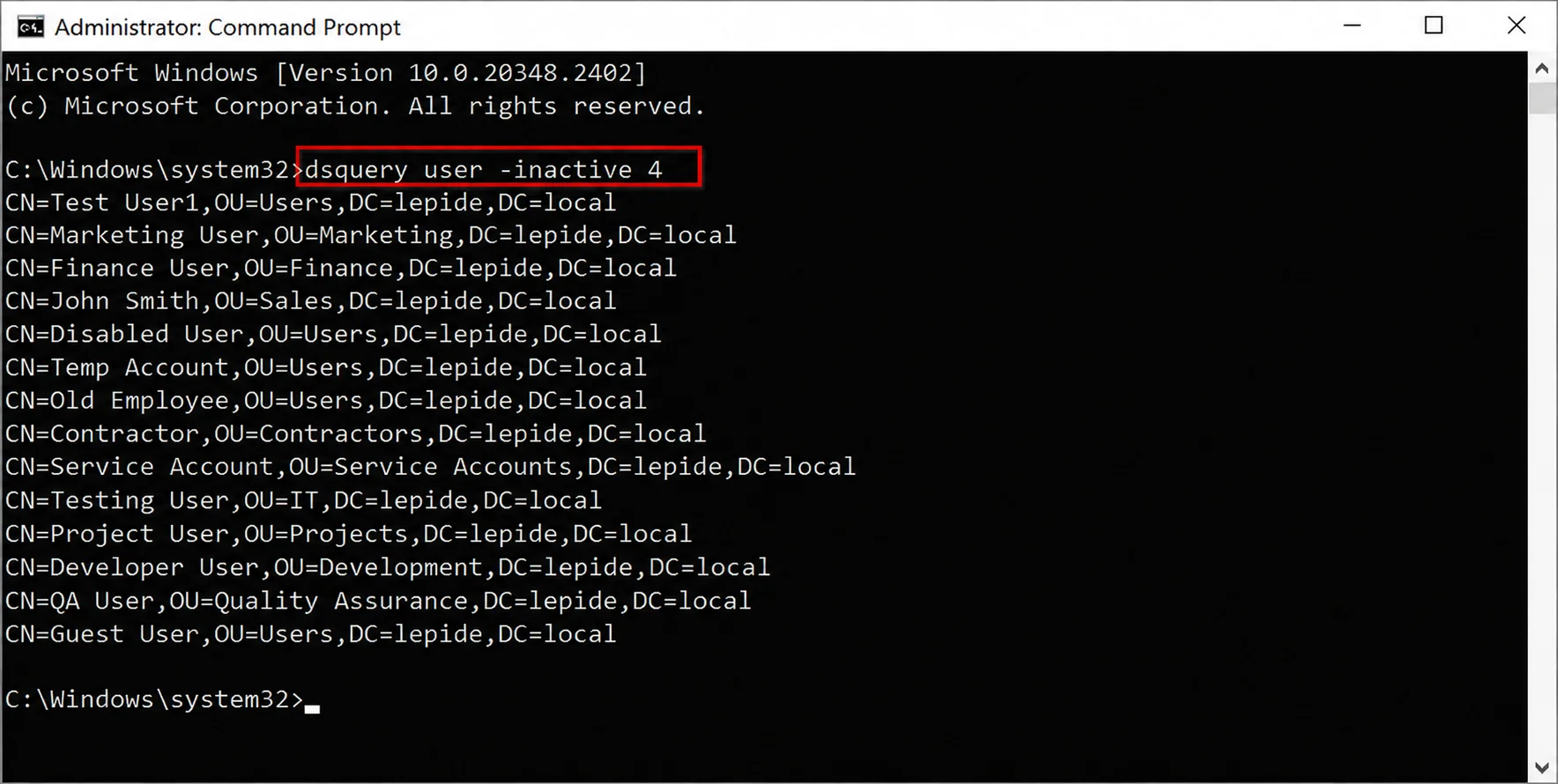
- Run the following command to get a list of inactive computer accounts:
dsquery computer -inactive 2 - Required Module: ActiveDirectory PowerShell module (available through RSAT or the relevant Windows Server feature).
- Permissions Needed: Read access to Active Directory user and computer objects for discovery. Disabling, moving, or deleting accounts requires the appropriate delegated permissions on the target objects; Domain Admin membership is not normally necessary.
- Supported Environment: A currently supported Windows Server or Windows client version with the Active Directory PowerShell module installed. Run the commands using an account with the required permissions.
- Open Windows PowerShell- Open Windows PowerShell on a system with the Active Directory PowerShell module installed.
- Find inactive Active Directory user accounts- Run the following script to identify user accounts that have not logged on within the specified inactivity period. The script also includes accounts with no recorded logon if they were created before the cutoff date.
Import-Module ActiveDirectory

$DaysInactive = 90
$CutoffDate = (Get-Date).AddDays(-$DaysInactive)

$InactiveUsers = Get-ADUser -Filter * -Properties LastLogonDate,Enabled,whenCreated |
Where-Object {
    ($null -ne $_.LastLogonDate -and $_.LastLogonDate -lt $CutoffDate) -or
    ($null -eq $_.LastLogonDate -and $_.whenCreated -lt $CutoffDate)
} |
Select-Object Name,SamAccountName,Enabled,LastLogonDate,whenCreated,DistinguishedName

$InactiveUsers | Format-Table Name,SamAccountName,Enabled,LastLogonDate,whenCreated -AutoSize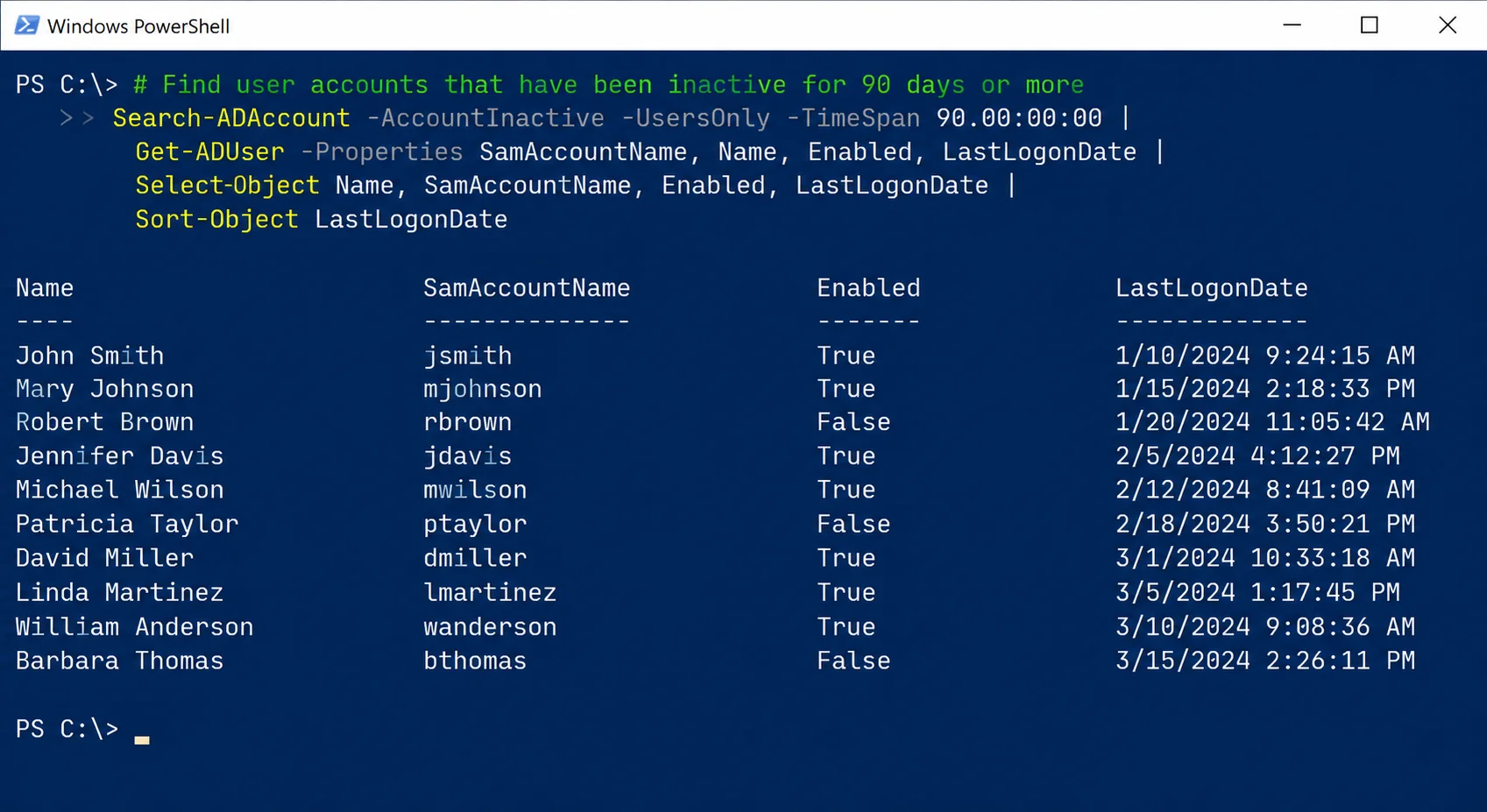
- Export inactive user accounts to CSV- Run the following commands in the same PowerShell session to export the results:
New-Item -Path 'C:\Temp' -ItemType Directory -Force | Out-Null

$InactiveUsers | Export-Csv -Path 'C:\Temp\Inactive_Users.csv' -NoTypeInformation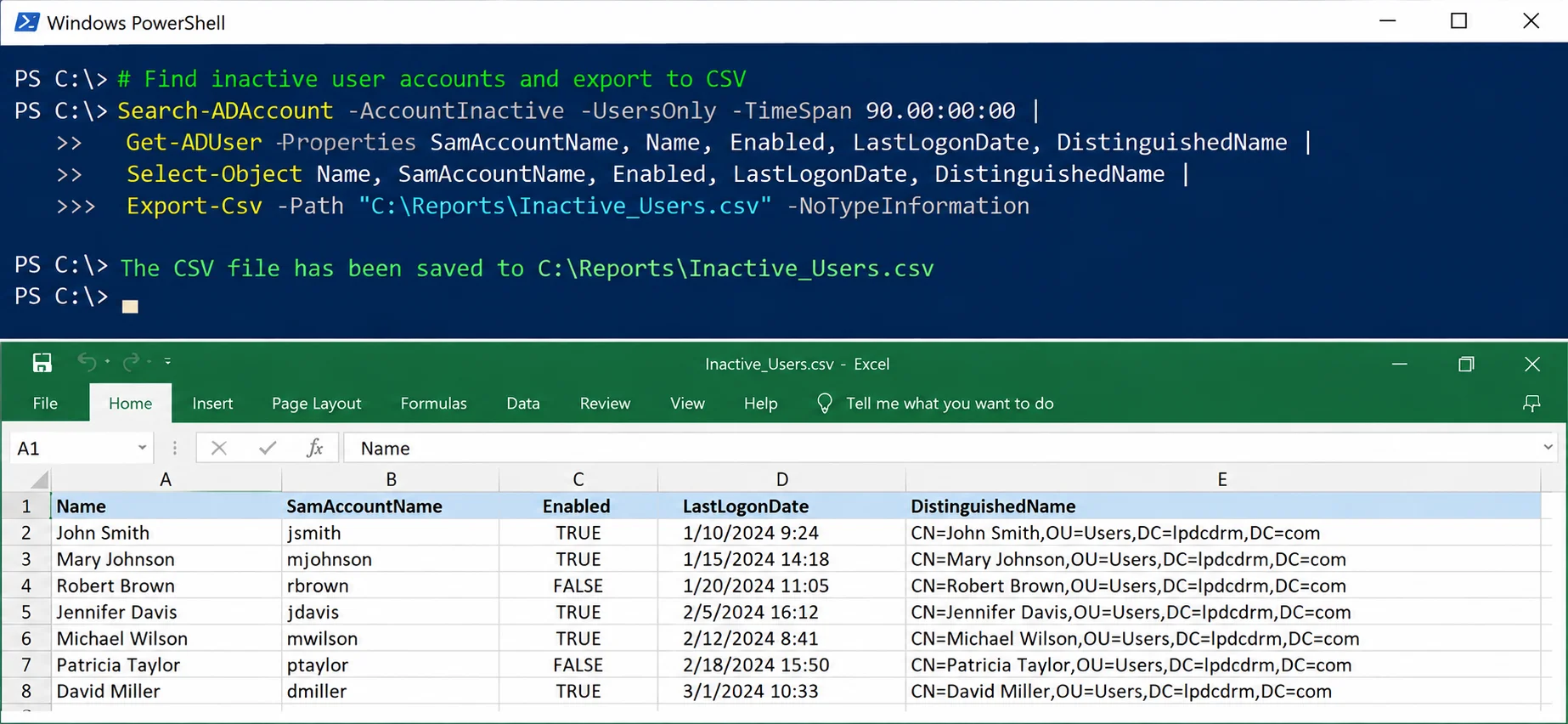
- Review the exported CSV file- Open C:\Temp\Inactive_Users.csv in Microsoft Excel to review the identified accounts.
- Find inactive Active Directory computer accounts- Run the following PowerShell script to identify computer accounts that have not logged on within the specified inactivity period. The script also includes computer accounts with no recorded logon if they were created before the cutoff date.
Import-Module ActiveDirectory $DaysInactive = 90 $CutoffDate = (Get-Date).AddDays(-$DaysInactive) $InactiveComputers = Get-ADComputer -Filter * -Properties LastLogonDate,Enabled,whenCreated | Where-Object { ($null -ne $_.LastLogonDate -and $_.LastLogonDate -lt $CutoffDate) -or ($null -eq $_.LastLogonDate -and $_.whenCreated -lt $CutoffDate) } | Select-Object Name,DNSHostName,Enabled,LastLogonDate,whenCreated,DistinguishedName $InactiveComputers | Format-Table Name,DNSHostName,Enabled,LastLogonDate -AutoSize - Export inactive computer accounts to CSV- Run the following commands in the same PowerShell session to export the identified computer accounts:
New-Item -Path 'C:\Temp' -ItemType Directory -Force | Out-Null $InactiveComputers | Export-Csv -Path 'C:\Temp\StaleComputers.csv' -NoTypeInformation - Review the exported CSV file- Open C:\Temp\StaleComputers.csv in Microsoft Excel to review the identified computer accounts.
- Press Windows + R, type dsa.msc, and click OK to open Active Directory Users and Computers.
- Right-click the domain or organizational unit you want to search and select Find.
- In the Find dropdown, choose Custom Search, then open the Advanced tab.
- Enter the following LDAP filter, replacing FILETIME_CUTOFF with the calculated Windows FILETIME integer for your chosen cutoff date before clicking Find Now. The placeholder is not a valid LDAP value:
(&(objectCategory=person)(objectClass=user)(lastLogonTimestamp<=FILETIME_CUTOFF)) - Click Find Now to view matching user accounts. Review the results and verify account activity and ownership before taking any action.
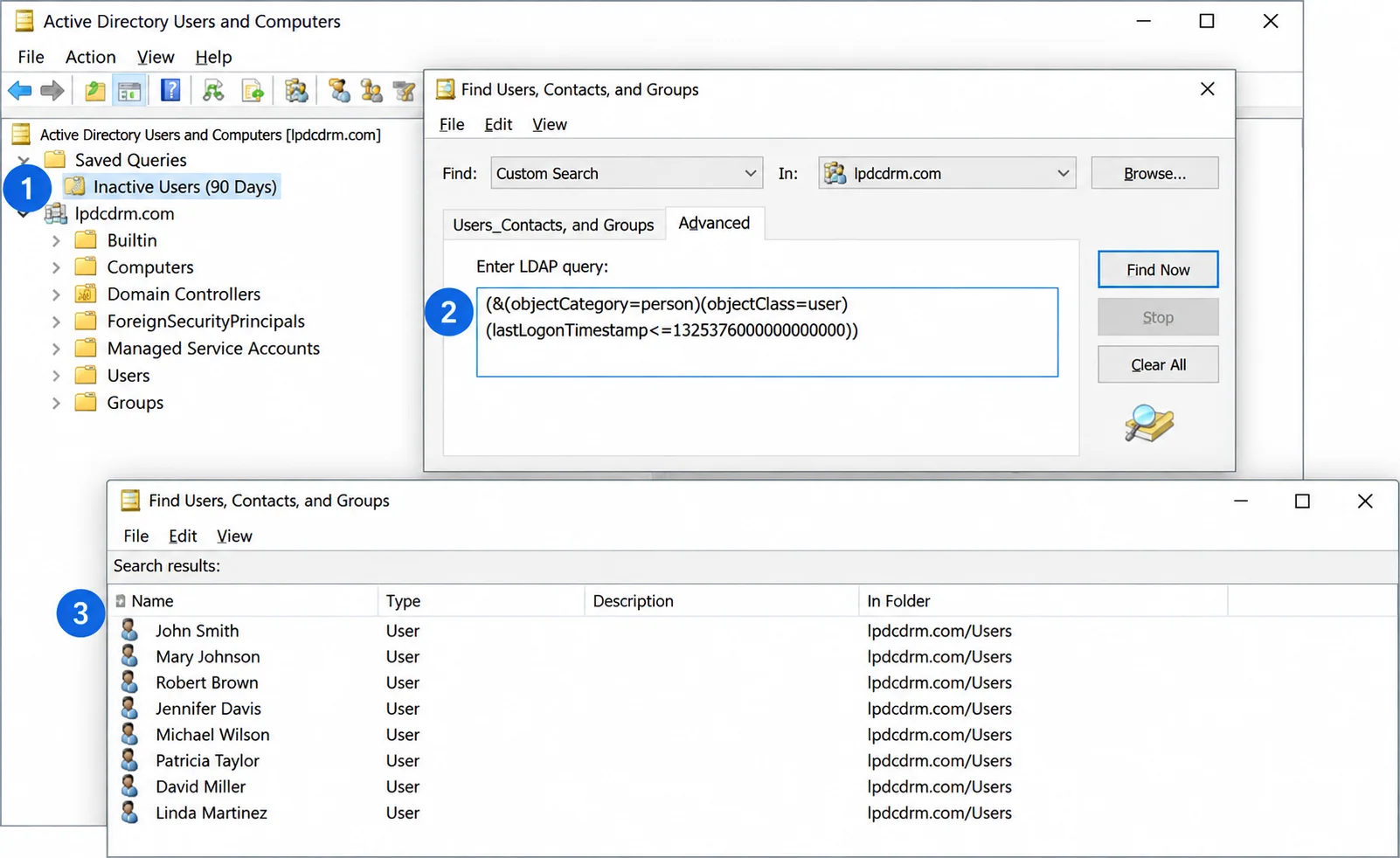
To calculate the cutoff for 90 days ago, run this read-only PowerShell expression, then replace FILETIME_CUTOFF with the resulting integer in the LDAP filter:
(Get-Date).AddDays(-90).ToFileTimeUtc()
Method 2: Using PowerShell
Prerequisites
2.1 – Get List of Inactive Active Directory User Accounts and Export to CSV
Follow these steps to identify potentially inactive Active Directory user accounts and export the results to CSV for further review.
Important: LastLogonDate is derived from the replicated lastLogonTimestamp attribute, which may lag behind actual sign-in activity. Verify account activity, ownership, and dependencies before disabling or deleting accounts, particularly service and privileged accounts.
2.2 – Get List of Inactive Computer Accounts and Export to CSV
Follow these steps to identify potentially inactive Active Directory computer accounts and export the results to CSV for further review.
Important: LastLogonDate is derived from the replicated lastLogonTimestamp attribute and may not reflect the most recent authentication. Verify computer activity and dependencies before disabling or deleting accounts, especially servers, infrequently used devices, and systems that may have been offline for extended periods.
Method 3- Using Active Directory Users and Computers (ADUC)
Active Directory Users and Computers (ADUC) lets administrators search for potentially inactive user accounts through a custom LDAP filter. Unlike PowerShell, ADUC does not calculate a rolling 30-, 60-, or 90-day inactivity cutoff automatically.
Important:This search uses the replicated lastLogonTimestamp attribute, which can lag behind actual sign-in activity. It excludes accounts with no lastLogonTimestamp value and does not establish that a returned account is safe to disable or delete. For more flexible searches and CSV export, use PowerShell below.
How to Find Stale Privileged Accounts in Active Directory Using PowerShell
Privileged Active Directory accounts require additional attention because they may retain elevated permissions even when they are no longer actively used. Review enabled user accounts belonging to built-in privileged groups such as Domain Admins, Enterprise Admins, Schema Admins, and Administrators to identify potentially stale accounts.
- Open Windows PowerShell on a system with the Active Directory module installed and sufficient read permissions.
- Run the following script to list enabled members of these groups whose recorded logon date is more than 90 days old, or is missing:
Import-Module ActiveDirectory

$cutoff = (Get-Date).AddDays(-90)
$groups = @('Domain Admins', 'Enterprise Admins', 'Schema Admins', 'Administrators')

foreach ($group in $groups) {
    Get-ADGroupMember -Identity $group -Recursive |
        Where-Object { $_.objectClass -eq 'user' } |
        ForEach-Object {
            $user = Get-ADUser -Identity $_.DistinguishedName -Properties LastLogonDate, Enabled, whenCreated

            if ($user.Enabled -and (
                ($null -ne $user.LastLogonDate -and $user.LastLogonDate -lt $cutoff) -or
                ($null -eq $user.LastLogonDate -and $user.whenCreated -lt $cutoff)
            )) {
                [PSCustomObject]@{
                    Group          = $group
                    Name           = $user.Name
                    SamAccountName = $user.SamAccountName
                    LastLogonDate  = $user.LastLogonDate
                }
            }
        }
}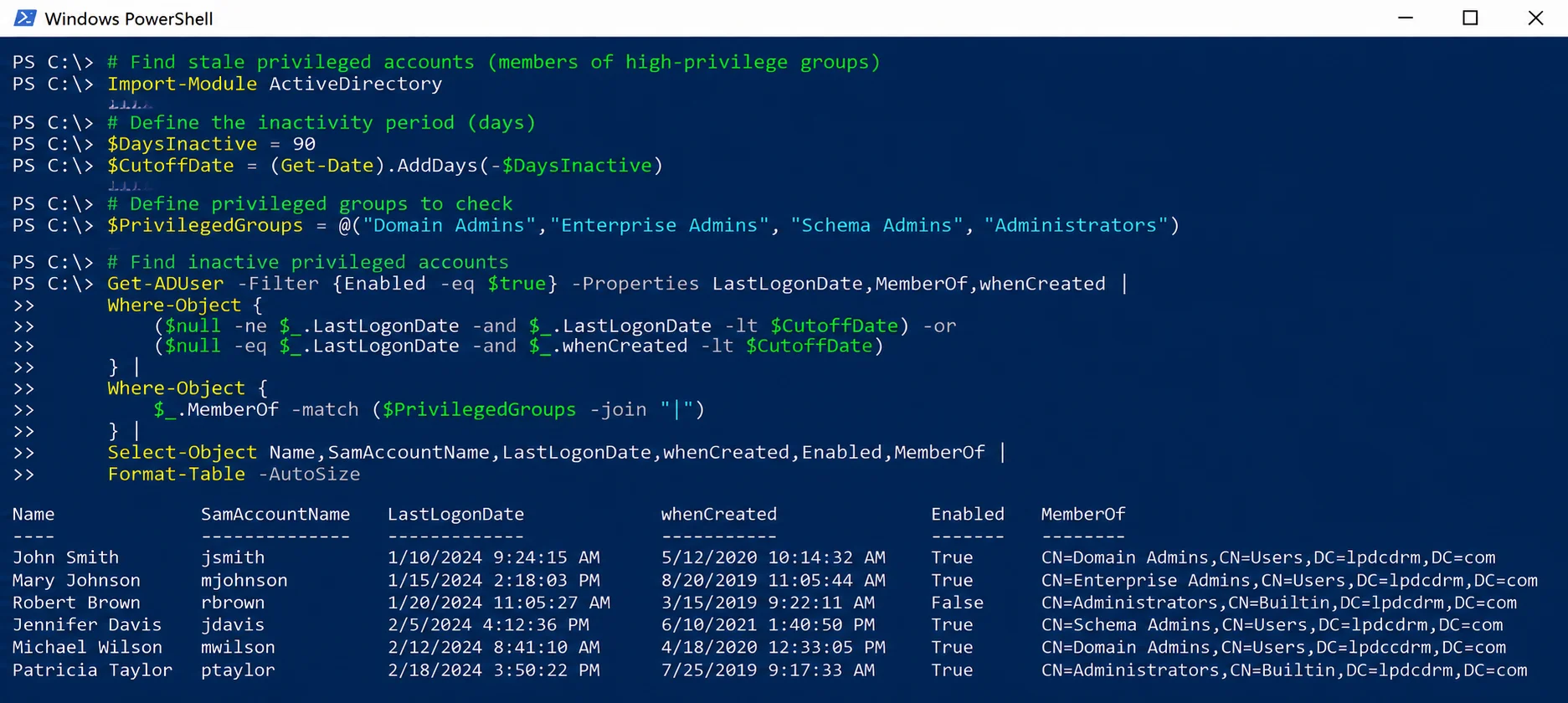
- Review the results and verify each account’s actual activity, owner, and operational dependencies before making any changes. An account may appear more than once if it belongs to multiple listed groups. The Group column identifies the privileged group queried, including indirect membership through nested groups.
Important: LastLogonDate is derived from the replicated lastLogonTimestamp attribute and may lag behind actual authentication activity. A missing date is not definitive proof that an account has never been used. This script examines membership in the specified groups, not every possible delegated administrative privilege. In multi-domain forests, group scope and domain context also affect which memberships are returned. Do not automatically disable or delete accounts based solely on this report.
How to Manage Inactive User and Computer Accounts using Native Methods
After listing inactive accounts, you manage them by performing the below given methods (you can choose any method from these):
- Reset passwords of inactive accounts
- Disable the Inactive Accounts
- Move the account to an Organizational unit
- Delete the inactive accounts
Method 1 – Reset Passwords of Inactive Accounts
Reset the password of an inactive account only when required by your organization’s security or incident-response procedures. A password reset does not replace disabling or removing an account that is no longer needed. If a reset is required:
- Navigate to “Start” → “Administrative Tools” → “Active Directory Users and Computers”.
- Right-click the inactive user and click “Reset Password”.
- Enter a new password.
- Click “OK”.
Method 2 – Disable the Inactive Accounts
Define inactivity thresholds according to your organization’s security policies. Before disabling an account, verify its ownership, employment status, recent authentication activity, and dependencies such as scheduled tasks and services. After approval, you can disable a user account with PowerShell:
# Preview the action first
Disable-ADAccount -Identity 'username' -WhatIf

# After verification and approval, run without -WhatIf
Disable-ADAccount -Identity 'username'
For a computer account, use its distinguished name or another unambiguous AD identity:
Disable-ADAccount -Identity 'CN=PC01,OU=Workstations,DC=example,DC=com' -WhatIf
# After verification and approval:
Disable-ADAccount -Identity 'CN=PC01,OU=Workstations,DC=example,DC=com'
You can also disable approved accounts in Active Directory Users and Computers by right-clicking an account and selecting Disable Account.
Note:dsquery user -disabled -limit 30 and dsquery computer -disabled -limit 30 only list already-disabled objects (up to 30 results); they do not disable accounts or set a 30-day inactivity threshold.
Method 3 – Move the account to an Organizational unit
After disabling inactive accounts and verifying that they are no longer required for active operations, move them to a designated holding Organizational Unit (OU) for further review. In Active Directory Users and Computers (ADUC), right-click the user or computer account, select Move, and choose the designated holding OU. Alternatively, you can drag and drop the account into the appropriate OU. Keep the accounts in the holding OU for a defined review period, such as 30 days, or as required by your organization’s retention policy. Before permanently deleting any account, verify that it is no longer needed and obtain the necessary approval.
Method 4 – Delete the inactive accounts
Delete inactive accounts only after verifying that they are no longer required, confirming they have been disabled for the organization’s approved retention period, and obtaining authorization. Exclude service accounts, privileged accounts, and other business-critical identities until dependencies have been reviewed.
For an individually approved user account, preview the deletion and then run the command without -WhatIf:
Remove-ADUser -Identity 'username' -WhatIf
# After verification and approval:
Remove-ADUser -Identity 'username'
For an individually approved computer account:
Remove-ADComputer -Identity 'CN=PC01,OU=Workstations,DC=example,DC=com' -WhatIf
# After verification and approval:
Remove-ADComputer -Identity 'CN=PC01,OU=Workstations,DC=example,DC=com'
Warning: Do not pipe all results from dsquery … -inactive directly into dsrm. The inactivity filter is expressed in weeks and does not establish that accounts are disabled or approved for deletion.
Disadvantages of Using the Native Methods
All these steps have to be performed manually, which consumes a lot of time and effort. Also in the absence of an automated system, the steps mentioned above are not performed automatically at scheduled intervals, creating more manual work for IT teams.
This task becomes even more complicated when dealing with hundreds of accounts, as users will need an in-depth understanding of PowerShell cmdlets to extract the required information. ADUC also requires administrators to construct LDAP filters manually for logon-timestamp-based inactivity searches; it does not provide a dedicated inactivity search filter.
The Lepide Inactive User Reporter Freeware Tool
A more straightforward approach is to use the Lepide Active Directory Inactive User Reporter freeware tool. This solution will give you regular reports on stale accounts, helping you to identify and remove those that could be exploited by hackers or insiders. The steps to download and use this freeware tool are given below:
- Download the Freeware Inactive User Reporter
- Run the inactive-users.exe file and the dialog box shown below will be displayed
- Enter the Domain name, User Name and Password
- Click the button to Enumerate Domain Controllers
- Specify the Inactivity Period (Days)
- If required, check the box to Enable report to be sent via email
- If this option is checked, you will need to click Configure to configure the email settings and then click Save once done
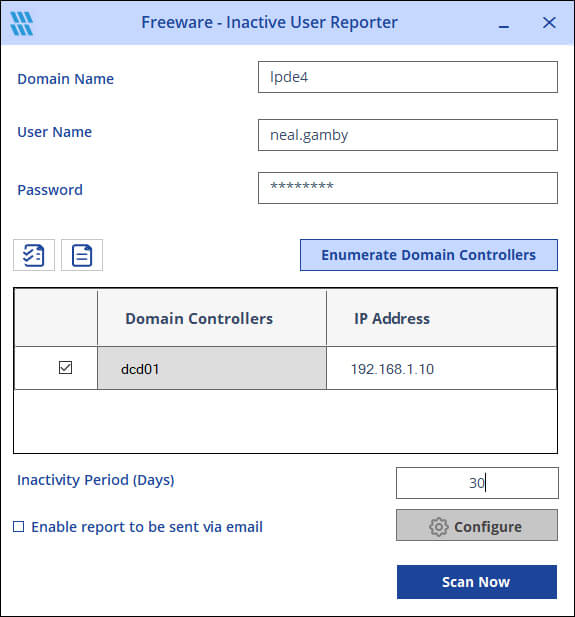
- Click Scan Now and the report will be generated

Native Methods vs. Lepide Tool Comparison
Frequently Asked Questions
There is no default inactivity period set by Active Directory itself. Organizations typically define their own thresholds based on security policies, with 30, 60, or 90 days being the most common choices.
You can automate cleanup by creating PowerShell scripts that run as scheduled tasks, or by using third-party tools like Lepide Inactive User Reporter that offer built-in scheduling and automated email reporting features.
Disabling or deleting Active Directory accounts requires appropriate delegated permissions on the target user or computer objects. Domain Admin membership is not normally necessary. For read-only queries to identify inactive accounts, standard domain user permissions are generally sufficient, provided the account has read access to the relevant Active Directory objects.
According to Lepide’s State of Identity and Data Security 2026 report, the median organization among 10 assessed production environments had 607 enabled inactive Active Directory accounts, with the highest count reaching 1,421. These findings reflect the assessed environments and should not be treated as representative of all organizations.