Quick Steps Summary
Method 1: Attribute Editor – Best for checking a single user
- Open Active Directory Users and Computers with Advanced Features enabled
- Open user Properties → Attribute Editor tab → Find LastLogon value
Method 2: PowerShell – Best for bulk queries or scripting
- Quick command: Get-ADUser -Identity username -Properties LastLogonDate | Select-Object Name, LastLogonDate
- Use the full script below to query all domain controllers
Method 3: Lepide Auditor – Best for ongoing monitoring and reporting
- Use Lepide Auditor for pre-built reports and real-time tracking
Tracking user logon activities in Active Directory can help you to avoid security breaches by showing unauthorized access attempts. Every time a user logs on, the logon time is recorded into the “Last-Logon-Timestamp” attribute by the domain controller. Last logon time reports are essential to being able to understand what your users are doing. For example, with these reports you can determine the last logon time of users, and then find and disable inactive accounts thereby minimizing the risk of unauthorized logon attempts in the network. Such reports can also help investigate security breaches. This article will explain how to generate last logon reports using PowerShell scripts and the Attribute Editor. It will also look at how the same report can be produced faster and more easily through the Lepide Active Directory Auditor.
What is Last logon in Active Directory?
The last logon in Active Directory is a time stamp representation of the last time a domain controller successfully authenticated the user or computer object.
There are 3 basic attributes that tell you the last time an object was last authenticated against a Domain Controller. These are:
- LastLogonDate
- LastLogon
- LastLogonTimeStamp
and they are explained below.
LastLogon vs LastLogonTimeStamp vs LastLogonDate
When a user logs on to the computer, the LastLogon attribute is updated in the domain controller, but this attribute is not replicated across other domain controllers. LastLogon is very helpful in identifying a stale account or if you want to know whether a user has logged into a computer or not.
The LastLogon attribute is in a number format which is not human-readable and requires converting using PowerShell into a readable date/time format.
It is often suggested that LastLogonTimeStamp is the best option to use because unlike the LastLogon attribute, it replicates across all domain controllers and gives you a more accurate reading of the last time the user logged on. However, this may not always be the case, because there is no specific time when it updates and LastLogonTimeStamp will only update if it is 14 days or more since the last recorded value.
Also, like the LastLogon attribute, when running a query on LastLogonTimeStamp, it returns an unconverted timestamp which means it is necessary to use PowerShell to convert it into something which can be understood.
The LastLogonDate attribute is a replica of the LastLogonTimeStamp, but the output is a human readable date format that we can understand without using PowerShell to convert it.
Find the Last Logon Time Using the Attribute Editor
The LastLogon time can be found using the Attribute Editor and the steps to do this are as follows:
- From Active Directory Users and Computers, make sure Advanced Features is turned on.
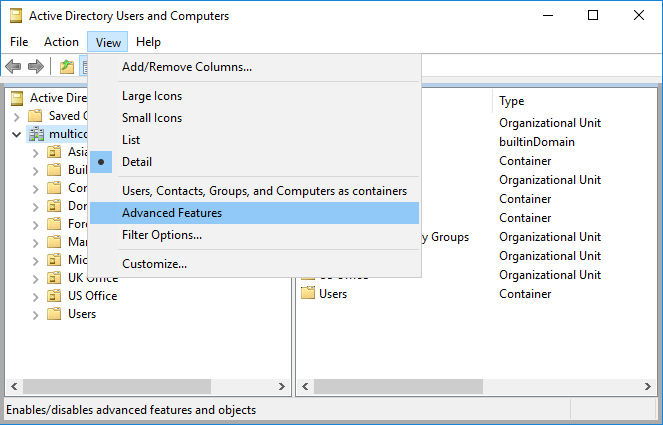
- Browse and open the user account to show Properties
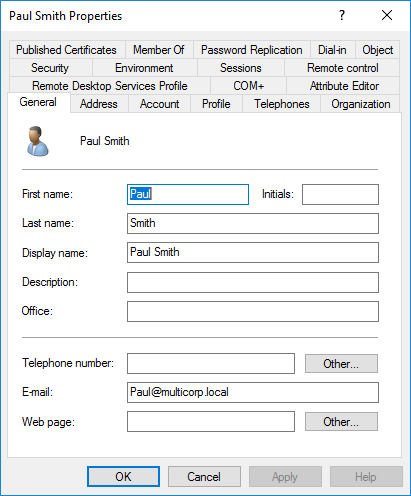
- Click on the Attribute Editor tab
- Scroll down to view the last Logon time:
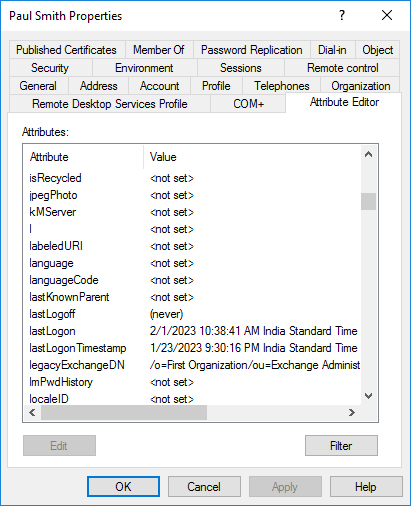
- If you have multiple domain controllers, you will need to check this value on each one to find the most recent time as the LastLogon attribute is not replicated across domain controllers.
Track AD User Last Logon Time using PowerShell
The following scripts are compatible with Windows Server 2008 R2 and later, and require the Active Directory PowerShell module (included with RSAT or AD DS role).
Start Windows PowerShell through the Start Menu or by using “Run”. You can also type “PowerShell” in the Start Menu search and press “Enter”.
Quick command for a single user:
Get-ADUser -Identity username -Properties LastLogonDate | Select-Object Name, LastLogonDateFull script to query all users across all domain controllers:
Import-Module ActiveDirectory

function Get-LastLogonEvents
{
$dcs = Get-ADDomainController -Filter {Name -like "*"}
$users = Get-ADUser -Filter *
$time = 0

foreach($user in $users)
{
foreach($dc in $dcs)
{
$hostname = $dc.HostName
$currentUser = Get-ADUser $user.SamAccountName | Get-ADObject -Server $hostname -Properties lastLogon
if($currentUser.LastLogon -gt $time)
{
$time = $currentUser.LastLogon
}
$dt = [DateTime]::FromFileTime($time)
Write-Host $currentUser "last logged on at:" $dt
$time = 0
}
}
}
Get-LastLogonEvents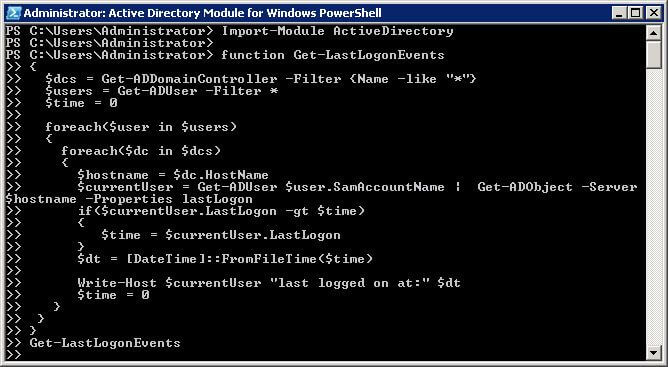
Press the “Enter” key once at the end of the script to execute it.
It shows the following output on the screen:
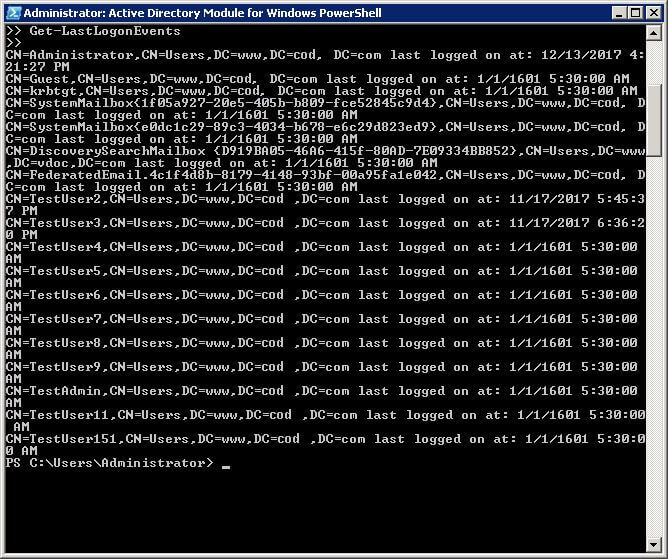
You can modify the provided script to export the output being displayed on the screen to a CSV or text file.
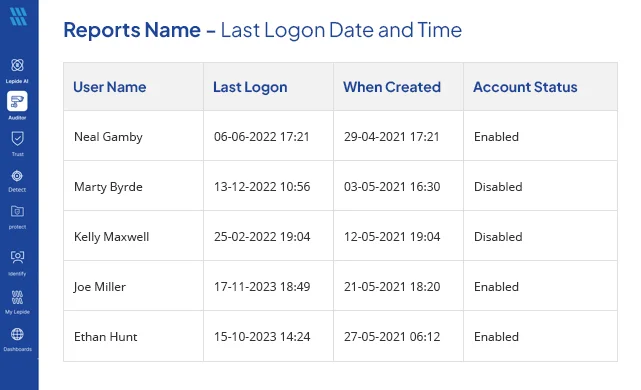
Track Last Logon Date and Time Lepide Active Directory Auditor
Lepide Active Directory Auditor gives you detailed information about all Active Directory activities. Our Active Directory auditing solution has predefined report that helps you track the last logon date and time of users easily. Below is the screenshot of AD Users’ last logon data and time report.