SharePoint Online enables users to collaborate by sharing files, folders, and sites with both internal and external users. While this flexibility improves productivity, it can also increase the risk of unauthorized access, accidental data exposure, and compliance violations if sharing activity is not properly monitored.
Organizations often need visibility into how access to content is being granted, modified, and removed. Auditing sharing changes helps administrators identify potentially risky activity, investigate security incidents, and demonstrate compliance with regulatory requirements.
Examples of sharing-related events that can be audited include:
- Shared a file, folder, or site
- Unshared a file, folder, or site
- Created an access request
- Broke sharing inheritance
- Restored sharing inheritance
- Changed a sharing policy
Monitoring these events helps organizations understand who changed access to SharePoint content, when the change occurred, and what action was performed.
Prerequisites
Before searching audit records, ensure that your account has the necessary permissions. You will typically require one of the following roles:
- Global Administrator
- Compliance Administrator
- Audit Reader
Note: You should also verify that auditing is enabled within your Microsoft 365 environment.
A solution to this time-consuming and complex process is to use the Lepide Auditor. With the Lepide Auditor, you can generate the All Modifications in SharePoint Online Report showing you all SharePoint Online sharing changes within a specified date range.
Here are two ways to audit sharing setting changes in SharePoint online:
- Using the Microsoft Complaince Purview Portal (Native Method)
- Using the Lepide Auditor
Using the Microsoft Compliance Purview Portal
Follow these steps to audit sharing changes using Microsoft Purview:
- Sign in to the Microsoft Compliance Purview portal.
- Navigate to Solutions > Audit.
- Select New Search.
- Under New Search, configure the Activities filter by selecting the following sharing-related events:
- Broke sharing inheritance
- Restored sharing inheritance
- Changed a sharing policy
- Created an access request
- Shared a file, folder, or site
- Unshared a file, folder, or site
- Set your desired date range and any additional filters.
- Click Search to run the audit query.
- Review the results:
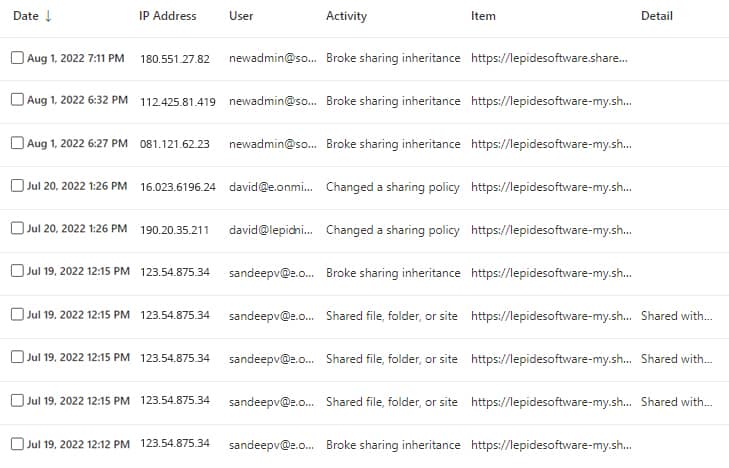
Figure: SharePoint Online Settings
- Select an action to view the Details relevant to that action
Limitations of Native SharePoint Auditing
This native way to audit changes to SharePoint sharing settings is both time-consuming and complex. Key limitations include:
Using the Lepide Auditor
This native way to audit changes to SharePoint sharing settings is both time-consuming and complex. A more straightforward solution to this is to use the Lepide Auditor for SharePoint.
Lepide SharePoint Online auditor overcomes the complexity of the native method by providing a straightforward way to list all sharing settings changes using the All Modifications in SharePoint Online Report:
- Click the User & Entity Behavior Analytics icon and select SharePoint Online Modification Reports, All Modifications in SharePoint Online
- Select a Date Range, select the filters you require and click Generate Report
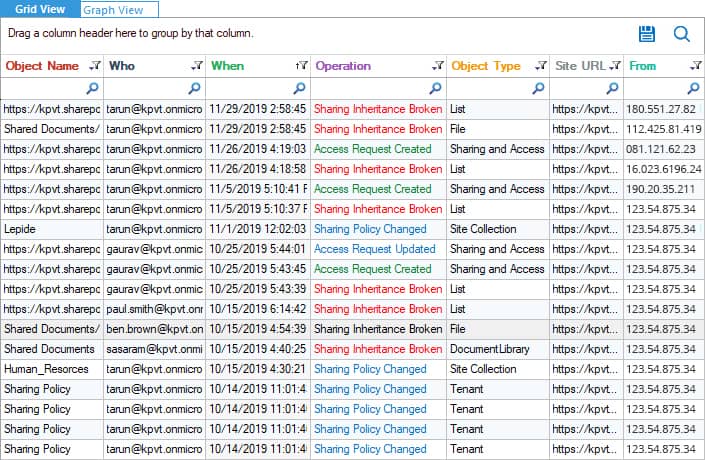
Figure: SharePoint Online Modification Reports – Lepide Auditor - The report can be sorted, filtered, grouped, saved, and exported.
Conclusion
In conclusion, you can see that Lepide Auditor for SharePoint Online provides a straightforward way to report on SharePoint Online sharing settings changes resulting in a comprehensive yet clear to understand report.
Frequently Asked Questions
Audit log retention depends on your Microsoft 365 licensing and audit configuration. Audit Standard typically retains logs for 90 days, while Audit Premium provides longer retention periods for eligible Microsoft 365 subscriptions.
You can track sharing-related events including file, folder, and site sharing; unsharing actions; sharing inheritance changes; sharing policy modifications; and access requests.
Consider a third-party auditing tool when you need longer audit log retention, more advanced reporting and filtering capabilities, or faster investigation of sharing-related activities across multiple SharePoint sites.