Monitoring user activity across Exchange Online, Microsoft Teams, and OneDrive has become a core part of protecting Microsoft 365 environments. As organizations rely more heavily on these platforms for daily communication and collaboration, security and IT teams need visibility into what users are doing.
Microsoft Purview Audit provides a centralized way to search audited activities across Microsoft 365 workloads, including Exchange Online, Microsoft Teams, and OneDrive. The specific events available depend on the workload, licensing, and audit configuration.
How to Monitor Mailbox, Teams, and OneDrive Activity with Purview Audit
Microsoft Purview Audit provides a centralized interface for searching audited activities across Microsoft 365 services. Administrators can use Audit Search to look for user and administrator activity across Exchange Online, Microsoft Teams, and OneDrive from a single interface rather than checking each service independently. This makes it simpler to determine precisely what happened, when, and by whom.
Step 1: Open Microsoft Purview Audit
To begin an investigation, you first need to access the audit search tool.
- Sign in to the Microsoft Purview portal using an account with sufficient permissions.
- In the left-hand navigation menu, go to Solutions > Audit.
- Once inside the Audit solution, open Audit Search.
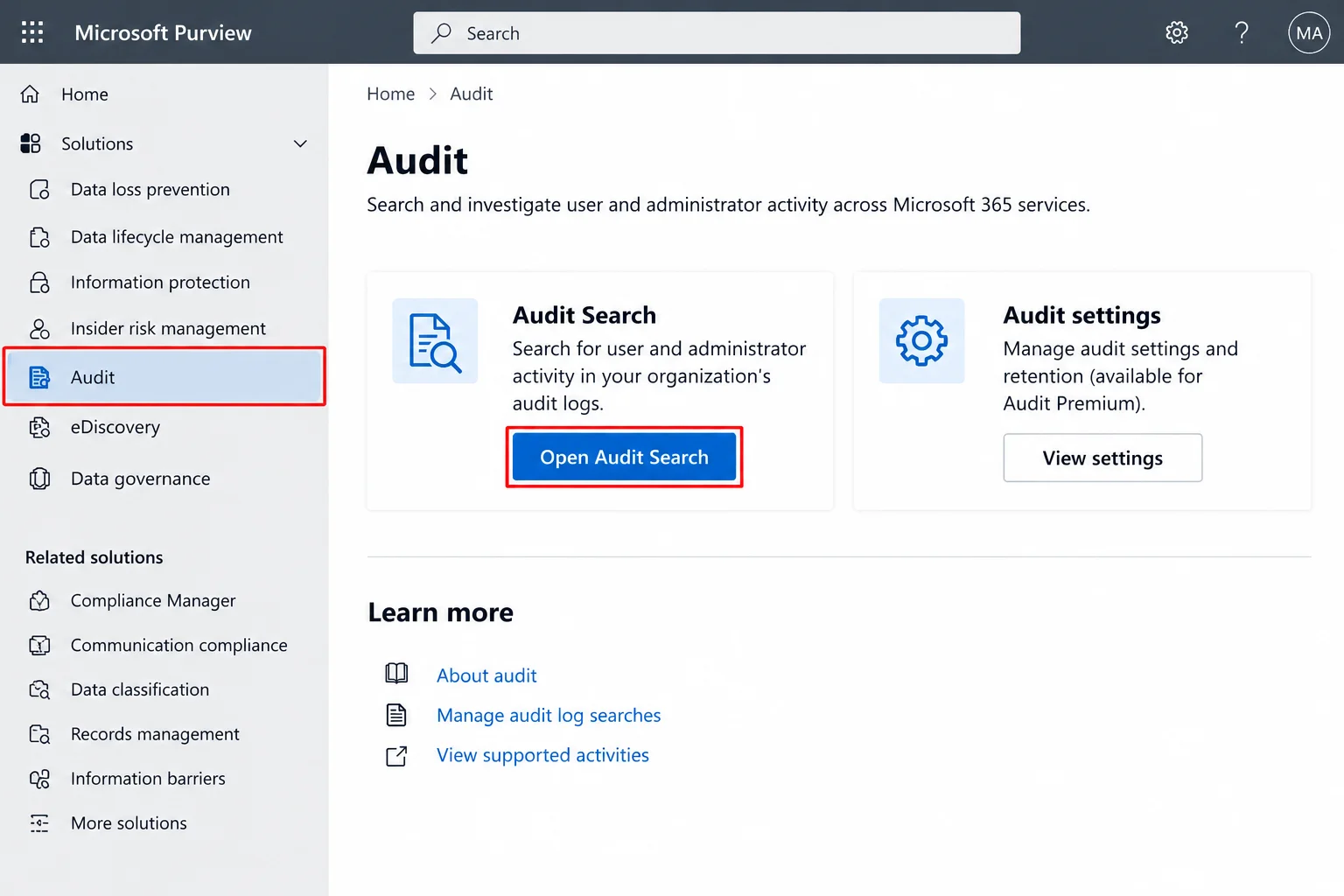
- Confirm that your account has the required audit permissions.
In Microsoft Purview, the Audit Reader role group can search and export audit logs, while the Audit Manager role group can also manage audit settings. These role groups include the underlying View-Only Audit Logs and Audit Logs roles.
Step 2: Verify Auditing is Enabled
Audit (Standard) and Audit (Premium) provide different retention and advanced auditing capabilities, and retention can also depend on the license assigned to the user whose activity generated the audit record. Before you begin an investigation, verify the following:
- Verify that auditing is enabled and that the required Microsoft 365 subscription, licensing, and permissions are in place.
- If auditing or a specific audit capability has only recently been enabled or configured, allow time for events to become available in search results.
Step 3: Configure the Audit Search
Once you are in Audit Search, you can narrow down results using several filters:
- Users: Search for activity performed by one or more specific accounts.
- Date range: Define the time window you want to investigate. Audit timestamps are displayed and searched in UTC.
- Activities: Select the specific actions that need to be tracked.
- Workloads: Filter by service, such as Exchange, Teams, or OneDrive.
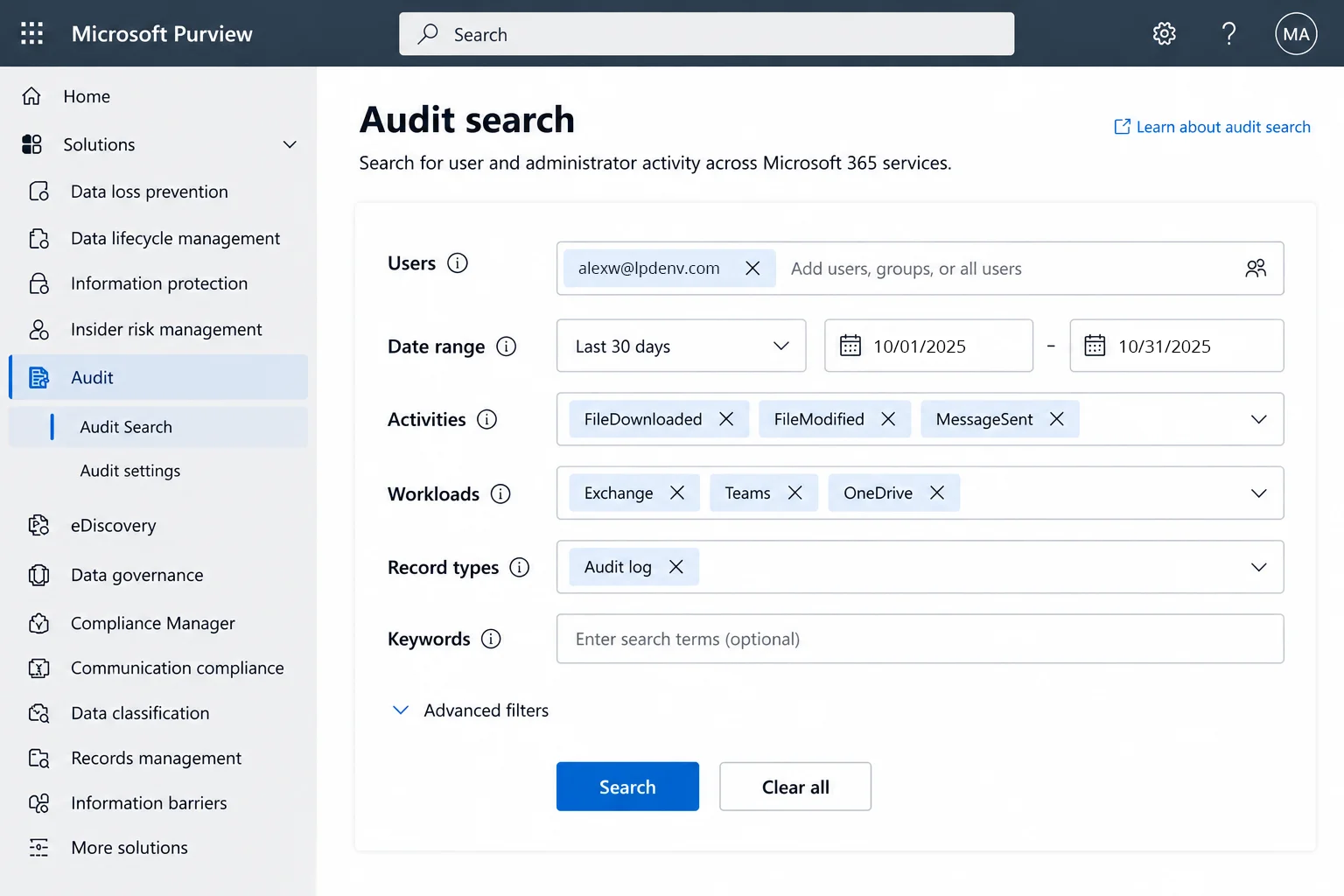
Here are some of the most monitored activities for each workload:
Step 4: Run the Search
After selecting the appropriate filters, select Search to retrieve matching audit events. The resulting records can help administrators determine:
- Date and time of the activity
- The user who performed it
- The specific activity performed
- The Microsoft 365 workload involved
- The source IP address, where available
- The affected object or resource, such as a mailbox, Team, channel, or OneDrive file, depending on the event
Step 5: Review Event Details
Search results provide an initial view of the activity, but investigations often require examining individual audit records in greater detail. Depending on the event, details can include:
- User account
- Operations performed
- Date and time
- Source IP address
- Client or device information, where available
- Object or resource affected
- Operation status
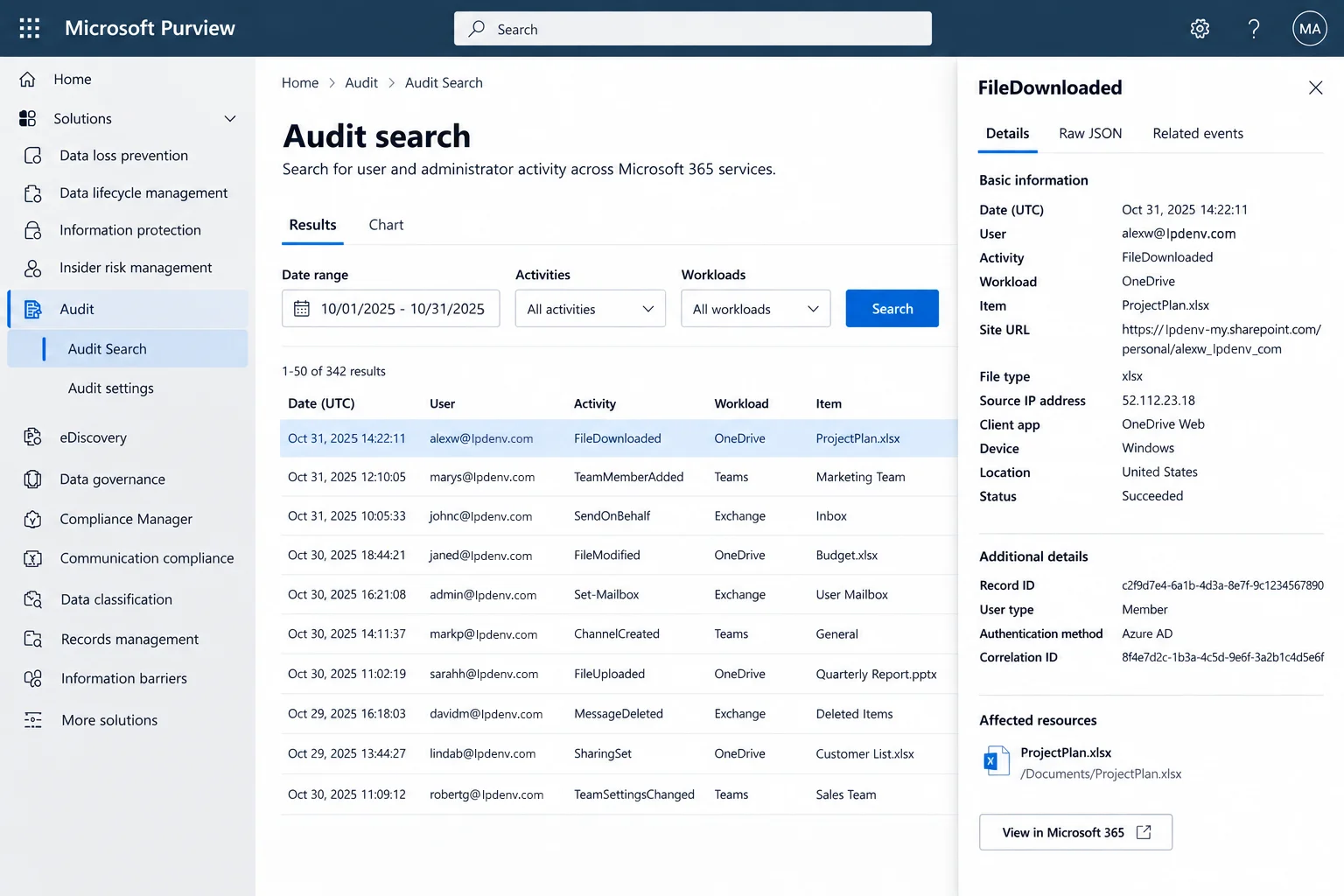
This level of detail helps administrators investigate whether activity was expected, identify anomalies such as activity from unexpected locations, and build a timeline of events during a security investigation.
Step 6: Export Audit Results
Microsoft Purview allows administrators to export audit search results to CSV. Exporting the results can be useful for:
- Compliance Reporting
- Incident Investigations
- Offline Analysis
- Record-keeping
- Sharing investigation data with authorized teams
A single Audit (Standard) search can export up to 50,000 records, while Audit (Premium) supports exports of up to 1,000,000 records. Searches that exceed these limits should be narrowed or divided into smaller date ranges.
Limitations of Purview Audit for Monitoring Microsoft 365 Activity
Even though Microsoft Purview Audit provides extensive audit data, organizations frequently encounter challenges when attempting to analyze behavior across numerous Microsoft 365 workloads.
- Investigating activity across multiple workloads can still require carefully scoped searches and manual analysis, particularly when an incident involves related events across Exchange Online, Teams, and OneDrive.
- Large volumes of audit data can make it difficult to isolate the events that matter during an investigation.
- Correlating related events across workloads may require additional analysis, particularly when reconstructing a multi-stage incident involving several Microsoft 365 services.
- Native audit search is primarily designed for searching and investigating audit events rather than providing a unified security operations view across all user activity.
- Organizations may need to export audit logs for deeper analysis, adding manual steps when investigations require correlation, filtering, or analysis outside the Purview portal.
- Organizations requiring continuous monitoring, broader behavioral analytics, or centralized alerting across multiple data sources may need additional security or auditing tools alongside Purview Audit.
These limitations mean that while Purview Audit is a strong starting point, many organizations look for additional tools to simplify ongoing monitoring and speed up investigations.
Effective Monitoring Needs Identity and Access Control
Seeing that a user downloaded a file from OneDrive or accessed a mailbox is useful, but the activity alone may not explain the underlying risk.
Microsoft 365 monitoring is more useful when user activity is considered alongside identity and access conditions. Security teams need to be aware not only of what the user has done but also of what the user could have done, how the user obtained this access, and whether their actions pose any risk.
This unified view can help teams move from searching individual audit events to understanding the broader access and activity patterns behind them.
How Lepide Simplifies Microsoft 365 Auditing and Monitoring
Lepide Auditor for Microsoft 365 provides centralized auditing and reporting for Microsoft 365 mailboxes, Microsoft Teams, and OneDrive for Business, helping security teams monitor user activity without relying solely on manual audit log searches.
-
- For Microsoft 365 Mailboxes, Lepide provides visibility into mailbox access by both owners and non-owners, mailbox login activity, mailbox permissions, and actions like creation, modification, movement, and deletion of items from mailboxes. Pre-configured reports and customizable real-time alerts allow administrators to detect and analyze any suspicious activity.
- For Microsoft Teams, Lepide helps administrators monitor user activity, including logins and access to sensitive information. Pre-configured reports and real-time alerts help highlight significant changes in the environment.
- For OneDrive for Business, Lepide can monitor actions at the file and folder level, including the creation, deletion, viewing, moving, and renaming of files. Lepide provides visibility into changes made to permissions, external sharing, and access to confidential information.
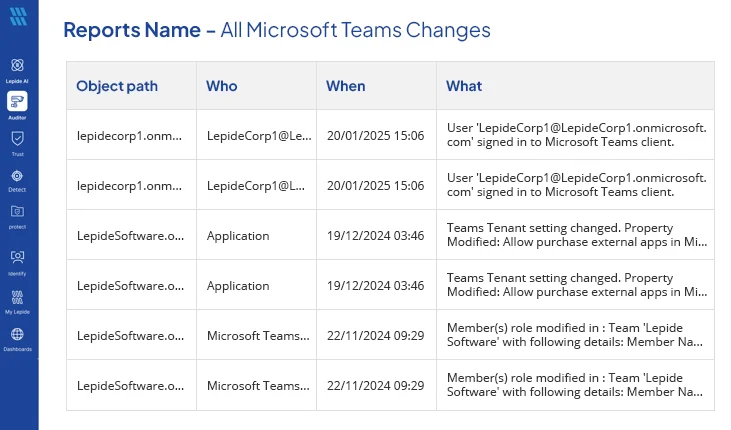
Lepide accomplishes this by incorporating this activity into well-structured, easy-to-understand reports and providing real-time alerts on key events to reduce the manual work involved in monitoring Microsoft 365 activity.
Want better visibility into mailbox, Teams, and OneDrive activity? Schedule a demo of Lepide to see how you can simplify Microsoft 365 auditing and monitoring.
Frequently Asked Questions
Mailbox activity can be monitored using Microsoft Purview Audit Search. Filter by the Exchange Online workload and select activities such as mailbox sign-in, message access, messages sent or deleted, and inbox-rule changes, depending on the available audit events and mailbox configuration.
In Audit Search, filter results by the Teams workload to track supported Teams audit activities such as team creation or deletion, membership changes, channel changes, and other Teams configuration and user activities.
Yes, Purview Audit lets you track OneDrive activities such as file access, downloads, uploads, modifications, deletions, sharing, and permission-related activities, helping to spot unauthorized access or oversharing of sensitive files
Microsoft 365 audited activities are recorded in the organization’s audit log and can be searched through Microsoft Purview Audit.
In Audit (Standard), audit records are generally retained for 180 days. With Audit (Premium), Exchange, SharePoint, OneDrive, and Microsoft Entra audit records generated by appropriately licensed users are retained for one year by default. Audit retention policies and eligible add-on licenses can provide longer retention, including up to 10 years in supported configurations
Microsoft 365 offers built-in alert policies for certain activities, but these can be limited for continuous, granular monitoring. Third-party solutions like Lepide can provide more comprehensive and granular alerting across mailbox, Teams, and OneDrive activity.