- Unauthorized changes to privileged AD groups could give an attacker higher access within your domain.
- Protect your environment by enabling Audit Security Group Management (Success) on all domain controllers and watch for what comes next event IDs: 4728 4732 4756 for group addition and 4729 4733 4757 for group removal, and alerting on unexpected changes.
What Should You Monitor?
Prioritize high-privilege groups such as Domain Admins, Enterprise Admins, Schema Admins, and Administrators. Compare member additions/removals to an approved baseline for rapid detection of malicious activity, unauthorized access, and to limit the risk of privilege escalation.
This guide shows how to track elevated AD group modifications using native Windows tools and how you can simplify the process with Lepide Auditor.
Why Do Privileged Group Changes Matter?
Privileged Active Directory groups give access to some of the most privileged resources in an IT environment. Privileged groups include Domain Admins, Enterprise Admins, Schema Admins, and Administrators. These groups can influence domain security, directory configuration, and the running of administrative functions.
Attackers may add an account to a privileged group if they’ve compromised an account to retain access or further elevate privileges. Unauthorized removals can also indicate malicious activity, while accidental changes can lock administrators out of critical systems or disrupt operations.
Monitoring these changes allows security teams to recognize the telltale signs of suspicious privilege escalation, to investigate the actions of the admin, and to intervene before an incident spreads. It’s all about being able to detect malicious changes within minutes, not the next quarterly access review.
Method 1 – Monitor Privileged AD Group Changes Using Security Group Management
Windows Server provides built-in auditing capabilities to track changes to security group membership. The audit policy must be activated to log events in the Security logs of domain controllers.
Here’s what to do to set up auditing, locate the events, and track down the account.
Prerequisite: Ensure that the GPO applies to all relevant domain controllers. Verify that no higher-precedence GPO overrides the required audit settings. Security Group Management auditing records group membership changes in the Security log of the domain controller that processes them.
Step 1: Enable Audit Security Group Management
- Sign in with an account authorized to manage Group Policy.
- Press Windows + R, type gpmc.msc, and press Enter.
- Expand Forest → Domains → your domain.
- Create a new GPO linked to the Domain Controllers OU, or edit an existing GPO that applies there.
- Right-click the GPO and select Edit.
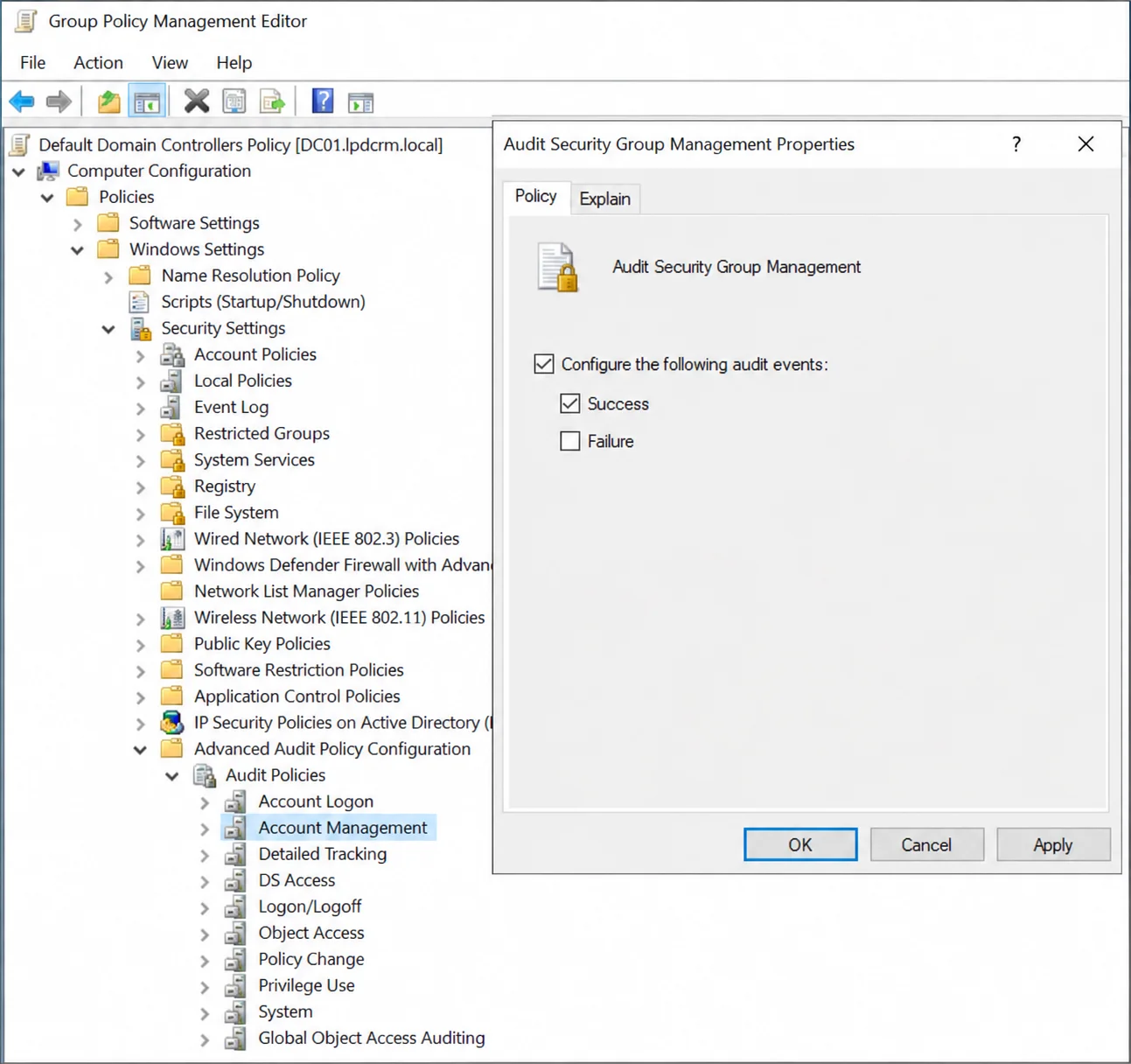
- Go to Computer Configuration → Policies → Windows Settings → Security Settings → Advanced Audit Policy Configuration → Audit Policies → Account Management
- Double-click Audit Security Group Management.
- Select Configure the following audit events.
- Check Success, then click Apply → OK.
Step 2: Apply and Verify the Audit Policy
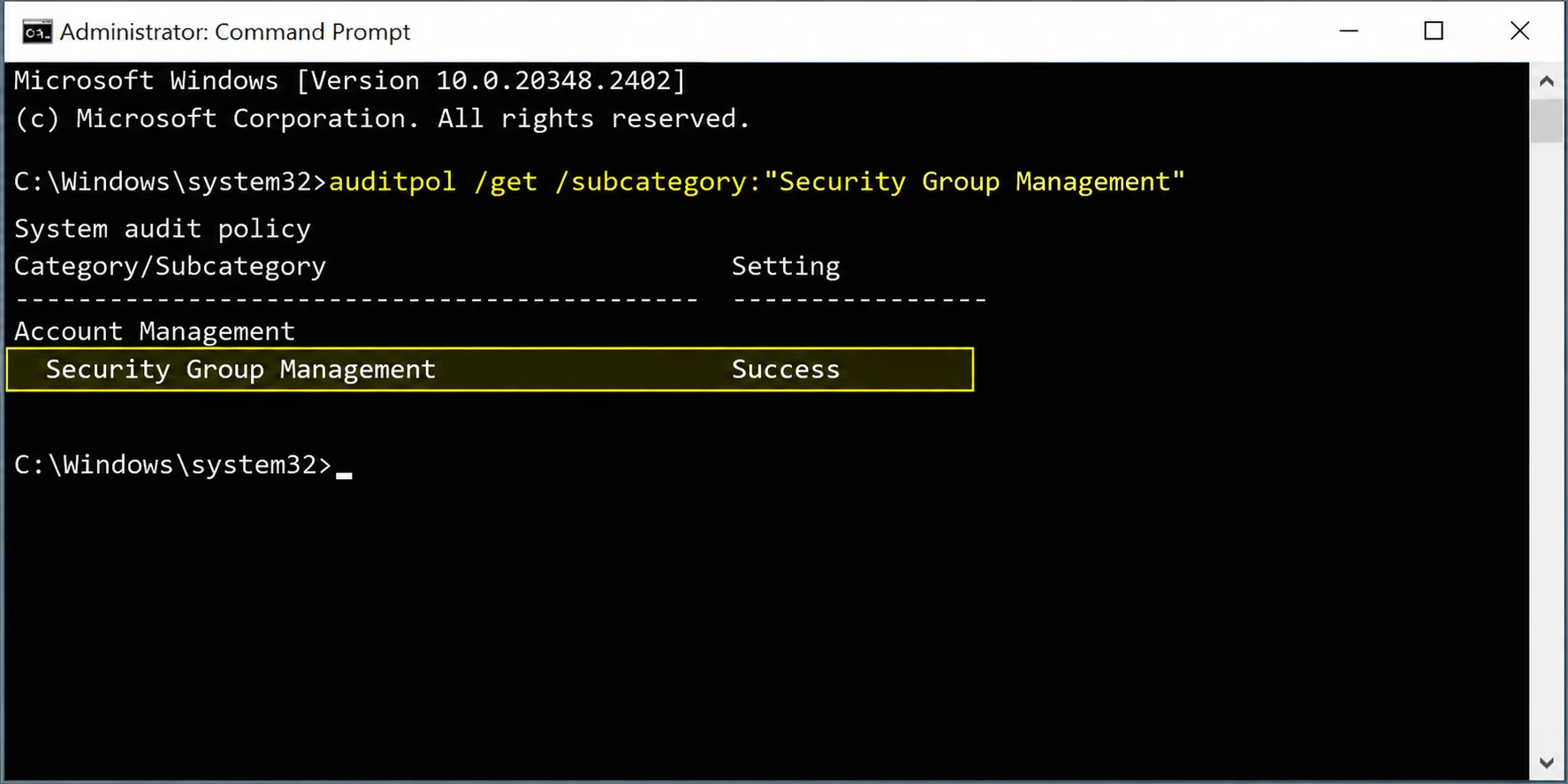
- Open Command Prompt as administrator on a domain controller.
- Refresh policy:
gpupdate /force - Verify the effective audit policy:
auditpol /get /subcategory:"Security Group Management" - Confirm that Security Group Management shows Success.
- Repeat on every relevant domain controller.
Step 3: Identify the Event IDs for Privileged Group Changes
Windows uses a different event ID depending on the group’s scope and whether a member was added or removed.
Changes to Domain Admins typically appear as Events 4728 and 4729. Changes to Enterprise Admins and Schema Admins typically appear as Events 4756 and 4757. The built-in Administrators group in Active Directory is a domain local security group, so membership additions and removals are recorded under Event IDs 4732 and 4733.
Step 4: Search Privileged Group Changes Using Event Viewer
- Sign in to the relevant domain controller.
- Press Windows + R, type eventvwr.msc, and press Enter.
- Go to Windows Logs → Security.
- Click Filter Current Log.
- Enter these event IDs: 4728, 4729, 4732, 4733, 4756, 4757.
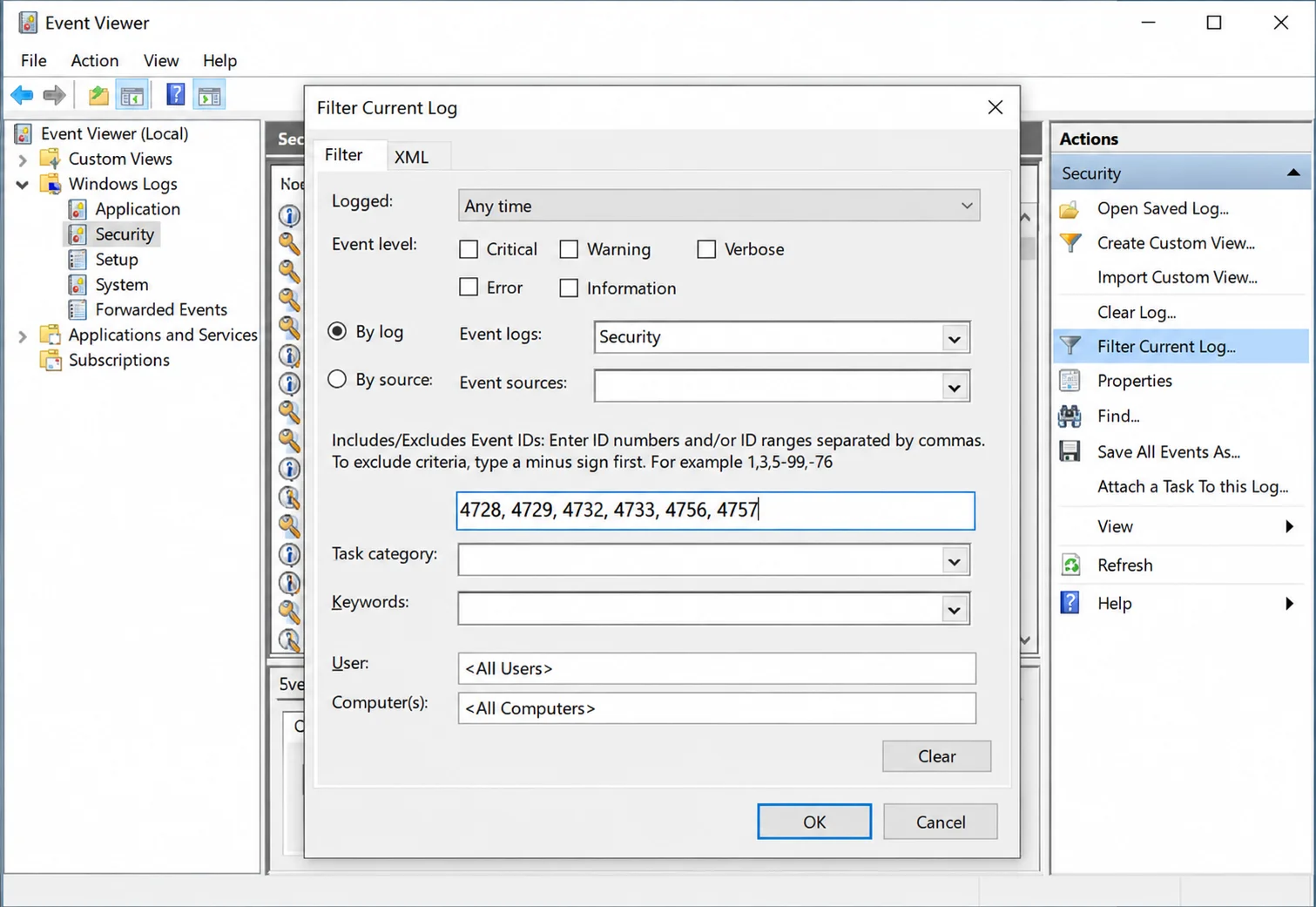
- Click OK.
- Open the matching events and check the affected group.
- Confirm that the Group Name or Group SID belongs to a privileged group.
Technical Note: The event ID filter retrieves changes to security groups generally. Administrators must examine the affected group to isolate privileged group changes.
Step 5: Identify Who Modified Privileged Group Membership
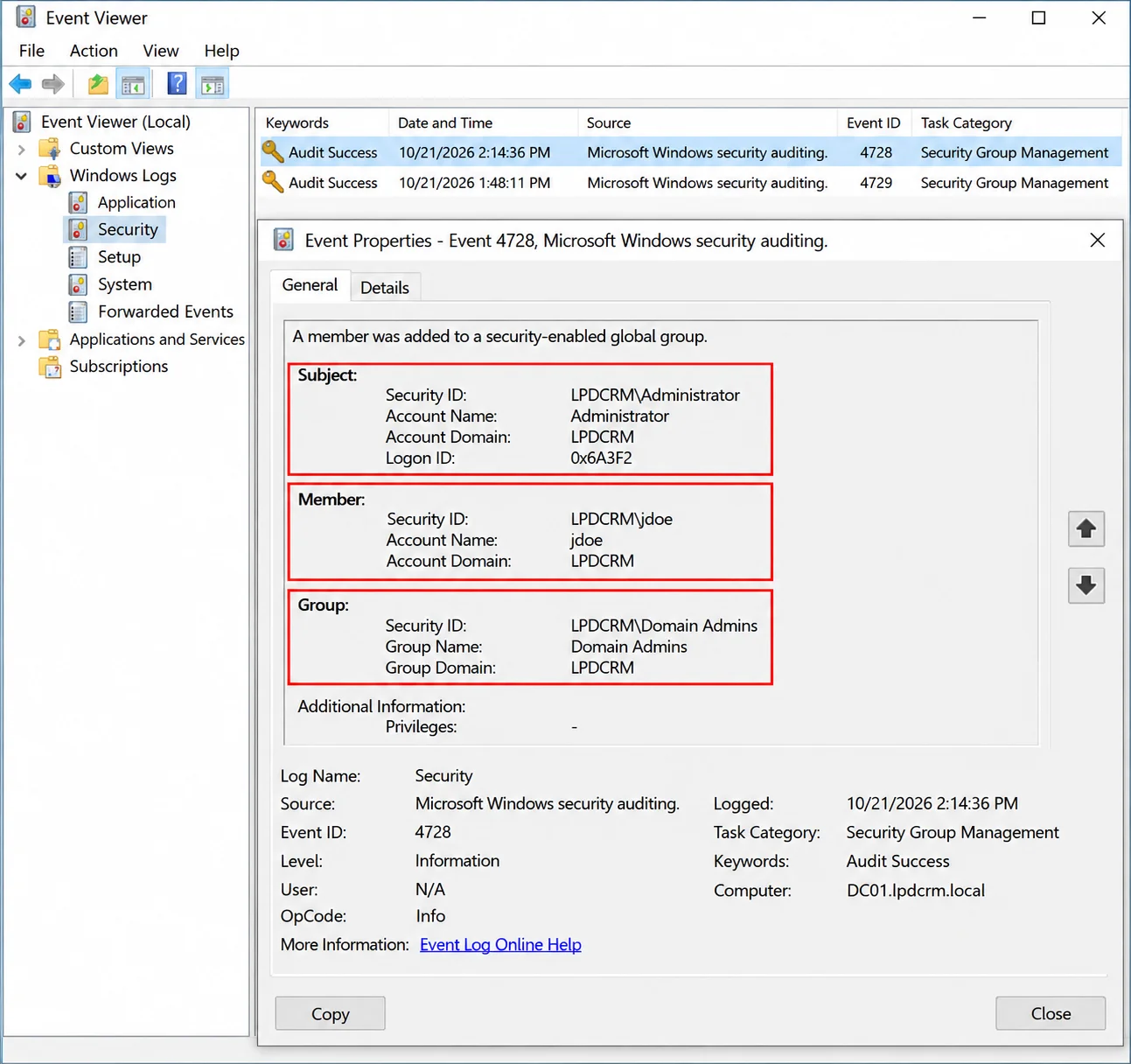
- Double-click a relevant event.
- Open the General tab.
- Locate the Subject section to identify the account that performed the change.
- Review the Member section to identify the account added or removed.
- Review the Group section to identify the affected privileged group.
- Record the timestamp and domain controller.
These are the fields to focus on:
Method 2 – Track Privileged Group Changes with PowerShell
Another way to get group membership change events in PowerShell without browsing all of the events in Event Viewer is shown in these examples that query the Security log. Run these queries against the Security logs of all relevant domain controllers, because group membership changes are logged on the domain controller that processes the change. Alternatively, query a central event collection system where these events are forwarded.
- Retrieve Security Group Membership Events From the Previous Seven DaysRun PowerShell as an administrator with permission to read the Security log.
$StartTime = (Get-Date).AddDays(-7)

Get-WinEvent -FilterHashtable @{
    LogName   = 'Security'
    Id        = 4728, 4729, 4732, 4733, 4756, 4757
    StartTime = $StartTime
} |
Select-Object TimeCreated, Id, MachineName, Message
This command gathers matching events logged locally in the Security log during the last seven days. The output displays the date/time, event ID, computer name, and event message. You can review the message to find the group name and member name.
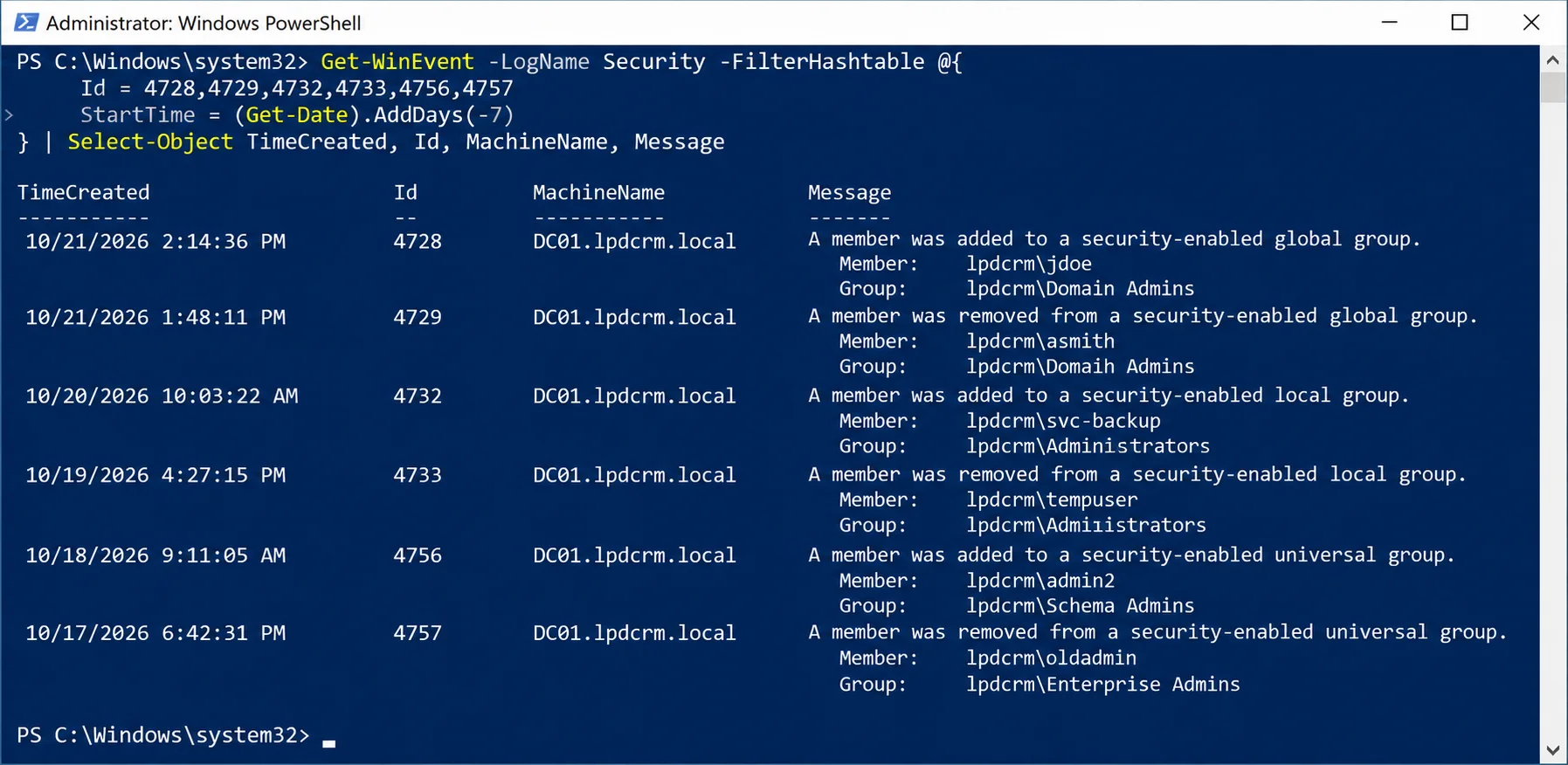
If you need to search a specific time window, replace $StartTime with the required date and add an EndTime value to the filter.
- Filter Changes to the Domain Admins GroupTo narrow the results to Domain Admins, compare the event’s target group SID with the SID of the Domain Admins group. The following example assumes that the Active Directory PowerShell module is installed and that the account running the command can query Active Directory.
Import-Module ActiveDirectory

$GroupSID = (Get-ADGroup -Identity "Domain Admins").SID.Value
$StartTime = (Get-Date).AddDays(-7)

Get-WinEvent -FilterHashtable @{
    LogName   = 'Security'
    Id        = 4728, 4729
    StartTime = $StartTime
} |
Where-Object {
    $xml = [xml]$_.ToXml()

    $target = $xml.Event.EventData.Data |
        Where-Object { $_.Name -eq 'TargetSid' }

    $target.'#text' -eq $GroupSID
} |
Select-Object TimeCreated, Id, MachineName, Message
Verify Privileged Group Change Auditing
Before relying on your monitoring configuration, verify that it records the expected events. Use a dedicated test security group in a nonproduction environment.
- Open Active Directory Users and Computers by running dsa.msc.
- Select a dedicated test security group.
- Add a test user to the group.
- Remove the test user.
- Open Event Viewer on the domain controller that processed the changes.
- Navigate to Windows Logs → Security.
- Filter for the relevant addition and removal event IDs.
- Confirm that the events include the expected Subject, Member, Group, and timestamp information.
The event IDs depend on the test group’s scope. For example, a global security group uses Event IDs 4728 and 4729, while a universal security group uses Event IDs 4756 and 4757.
Limitations of Native Privileged AD Group Monitoring
Native auditing works, but it leaves gaps that grow with the size of your environment.
- Events are Scattered: Each domain controller logs the changes it processes, so you must gather logs from all of them.
- No Privileged-Group View: Event Viewer treats every security group alike, so you must read each event to find the ones that matter.
- Logs Get Overwritten: With short retention periods, evidence can disappear before anyone looks.
- Real-Time Alerting Requires Additional Configuration: Windows Event Viewer supports attaching a task to an event, and Windows Event Forwarding can centralize event collection. However, automated notifications and centralized privileged-group alerting require additional configuration or tools.
- Indirect Privileged Access Requires Additional Analysis: Group membership events record direct membership changes. They do not automatically calculate effective privileged access resulting from nested group memberships.
How to Monitor Privileged AD Group Changes Using Lepide Auditor
Lepide Auditor collects Active Directory changes from across your domain controllers into one place, so the same job takes minutes instead of requiring a seven-step setup.
- Open the Active Directory Auditing Reports: Sign in to your Lepide Auditor console and access your Active Directory reports. Since group membership alterations are listed with other directory changes, you can operate from one console rather than multiple domain controllers.
- Locate Privileged Group Membership Changes: Search the group membership report and filter on the groups you’re interested in (Domain Admins, Enterprise Admins, Schema Admins, Administrators, etc.). Additions and removals appear together, so you can see both at a glance.
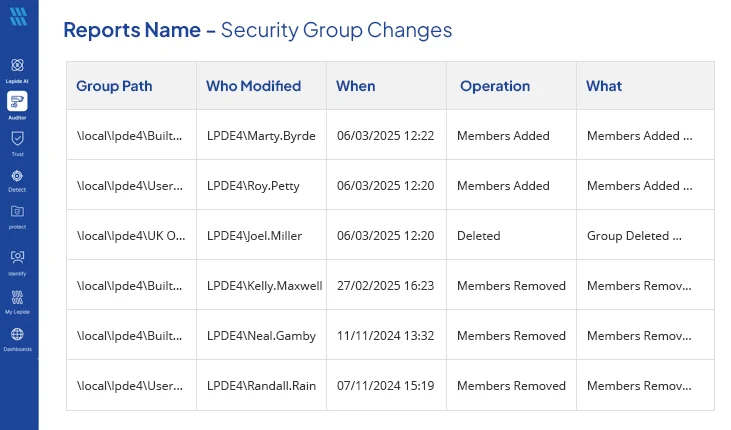
- Identify Who Made the Change: Open any entry to see the administrator responsible, the affected account, the group, the action (added or removed), and the timestamp. All of the information appears on one line, rather than splitting out the Subject, Member, and Group fields across multiple events.
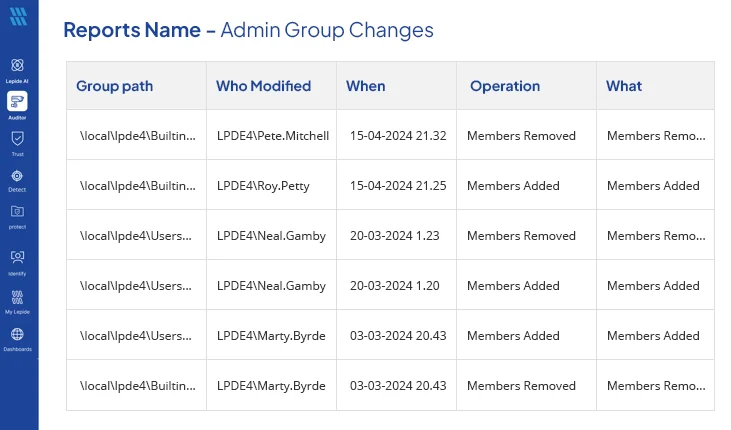
- Configure Alerts for Privileged Group Changes: Generate an alert that triggers when a member is added to or removed from the privileged groups you identified, and decide on your notification preferences. This alleviates the delay associated with native auditing.
- Review Historical Privileged Group Changes: To query historical activity, run the same report over a previous date range and filter by group, administrator, or impacted account. Historical change reports help investigate membership modifications and compare them with an independently maintained baseline of approved privileged-group members. Historical activity alone cannot establish whether a change was authorized or malicious.
Best Practices and Conclusion
- Audit all Domain Controllers: Ensure the appropriate Advanced Audit Policy settings are enabled across all domain controllers, and verify the configuration after policy changes.
- Maintain Approved Membership Baseline: Keep an up-to-date list of authorized members who should be in each privileged group, and review it regularly to identify unexpected additions or removals.
- Configure Alerts for Privileged Group Changes: Set up notifications for any additions and deletions involving Domain Admins, Enterprise Admins, Schema Admins, and Administrators, so that security teams can investigate changes promptly.
- Retain Audit Logs and Historical Reports: Preserve security logs for an appropriate period and use historical change reports to investigate suspicious activity and establish when membership changes occurred.
- Review Nested Group Membership: Verify nested groups and their membership relationships to identify indirect paths to privileged access.
Privileged group changes are among the clearest early indicators of AD takeover. Native auditing can catch them, but it requires you to gather logs from all controllers and read each event yourself. Whatever method you decide upon, ensure someone is notified within minutes of a change.