Password errors occur when users attempt to log into Active Directory (AD) with incorrect passwords. Mistyping a password is an easy mistake to make and happens on a regular basis with no cause for concern. However, if there are a large number of employees with bad password attempts occurring within a short period of time then this is cause for concern as it could indicate a brute force attack where a hacker is trying to guess user passwords. It is critical, therefore, that an effective password policy is in place and that the account lockout policy is configured to mitigate brute force attacks.
Here are some reasons for monitoring bad password attempts in Active Directory:
- To identify password spraying attempts or brute force attacks on user accounts.
- To troubleshoot and resolve user account lockout issues.
- To generate Active Directory Reports for auditing and compliance.
How Bad Password Attempts are Logged in AD
In order to authenticate Active Directory, a user needs to provide a valid username and password. If the user has entered an incorrect password, an error message will be displayed on the Windows sign-in screen and details of the error are written to the badPasswordTime attribute in the user’s AD user properties. It also increases the badPwdCount attribute value by one. This can be seen in the Attribute Editor.
Key AD Attributes
- badPasswordTime: Stores the timestamp of the last failed password attempt for a user account.
- badPwdCount: Tracks the number of consecutive failed login attempts since the last successful logon.
- Account Lockout Threshold: Defines the number of failed attempts allowed before an account is locked out.
If the badPwdCount value exceeds the threshold specified in the Account lockout threshold parameter of your Account Lockout Policy, the user account will be locked for a period of time.
However, if you haven’t configured a lockout policy, or if you’ve set a high lockout threshold value that has not been reached, you won’t be able to find the source of bad password login attempts.
Understanding Bad Password Patterns
A few isolated bad password attempts typically indicate simple user error—forgotten passwords or typos. However, patterns such as 10+ failed attempts within minutes across multiple accounts, or sequential attempts against many usernames with common passwords, may indicate password spraying or brute force attacks requiring immediate investigation.
In this article, we will have a look at how to identify the computer name and IP address of the device from which the login attempts with a bad password are being made. This can help you quickly detect brute force attacks or resolve user account lockout issues. We will look at two native ways to do this; by using the Event Log and by using PowerShell, and then we will look at a more straightforward approach using Lepide Auditor.
Find Bad Password Attempts in AD using Event Logs
Prerequisites
Before attempting these methods, ensure you have:
- Permissions: Domain Admin rights or delegated audit permissions
- Group Policy: Audit Logon policy enabled (Success/Failure)
- Supported Environments: Windows Server 2008 R2, 2012, 2016, 2019, or 2022 with Active Directory Domain Services
Steps to Find Bad Password Attempts
- Open the Group Policy Management Console (gpmc.msc);
- Expand the Domain Controllers Organizational Unit and edit the Default Domain Controllers Policy
- Go to the following Group Policy section: Computer Configuration, Policies, Windows Settings, Security Settings, Advanced Audit Policy, Audit Policies, Logon/Logoff
- Enable the Audit Logon policy. To only track bad password attempts in domain controller security logs, select Failure only; check bad password attempts in active directory
- Force the update of the GPO settings by using the command gpupdate /force (or wait for 5 minutes which is the default policy refresh interval for Domain Controllers).
- Now if a user tries to log in with an incorrect password, an event with the Event ID 4625 will appear on the domain controller which they are trying to authenticate against (logonserver).
- Open the Event Viewer (eventvwr.msc)
- Expand Windows Logs
- Right-click on Security and select Filter current log; PowerShell bad password attempts
- Enter the Event ID 4625 in the Event ID field; trace bad password attempts
- Only failed login events are listed
- Open the latest event an account failed to log on.
- The event description contains lots of useful information including the name of the user who attempted to authenticate, the account for which Logon Failed and the Failure Reason
- Scroll down the event description, and the name and IP of the computer from which the failed login attempt was made will be listed here
Find the Source of Bad Passwords in AD using PowerShell
You can use the following PowerShell command to get the information on accounts locked out because of wrong password attempts:
Get-ADUser -Filter * -Properties AccountLockoutTime,LastBadPasswordAttempt,BadPwdCount,LockedOut |
Where-Object {$_.BadPwdCount -gt 0 } |
Where-Object {$_.LockedOut -cnotin $False}
How Lepide Auditor Helps in Tracking Bad Password Attempts
Lepide Auditor for Active Directory provides a much more straightforward way to report and alert on bad password attempts in Active Directory. The Failed Logons Report provides information about Who, Where, When and the Reason for failed logons. Along with this, because failed logon attempts could indicate the start of a data breach, the Potential Brute Force attack Threat model could be enabled to send an alert if the threshold for failed password attempts is met. An example of the Report and the Threat model are shown below:
The Failed Logon Report in Lepide Auditor for Active Directory
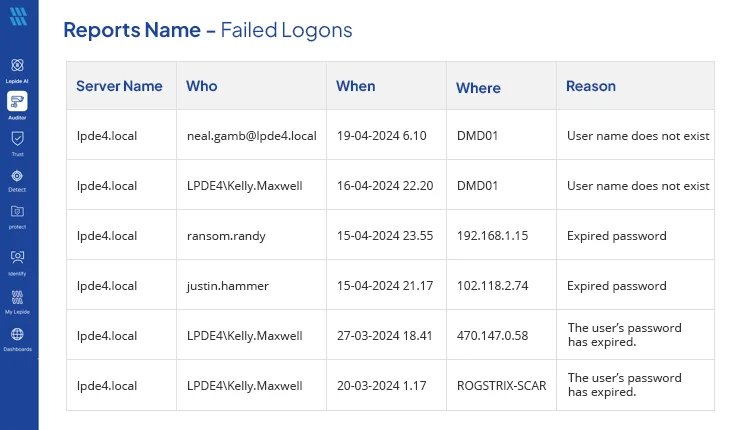
To run the Failed Logon Report in Lepide Auditor:
- From the States & Behavior screen, expand the Active Directory component and click on Failed Logon Report
- Select a date range and filter by ‘User name is correct but the password is wrong’ to see only failed logons for bad passwords
- Click Generate Report
- The report is generated and can be grouped, filtered, saved and exported
The Potential brute force attack threat model:
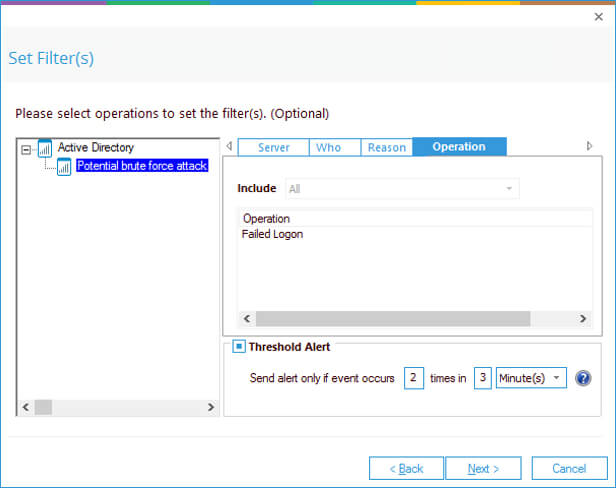
The Potential brute force threat model can be configured to generate a real-time alert and respond to a threat once the threshold values, set by the user, have been met.
Using custom script execution, the response could be to shut down users, servers and take other actions to mitigate the effects of a security breach.