Have you ever had to identify a specific person who accessed or changed a file or folder and discovered that there was no simple solution? File and folder activity tracking provides the proof you need, whether you are looking into a suspected security incident, monitoring insider threats, satisfying a compliance auditor, or just trying to figure out why a crucial file disappeared.
File and folder access and modification events can be recorded by Windows’ built-in auditing feature; however, auditing needs to be turned on before the action takes place. If auditing was not configured beforehand, Windows generally has no native audit record of the earlier file access or modification. Because of this, proactive configuration is necessary rather than optional for anyone who is concerned about file system visibility.
In this guide, you will learn:
- Step-by-step instructions for turning on and configuring native Windows file auditing
- Which Event IDs to search for and their significance
- Why large-scale native auditing fails
- A faster, more reliable way to see who did what, when, and where using Lepide file server auditing software.
Why Tracking File and Folder Activity Matters
It’s crucial to comprehend the significance of this capability before getting into the how-to:
- Security Investigations: Determine whether an unauthorized account accessed sensitive files. Additional evidence may be required to establish whether files were copied or exfiltrated.
- Insider Threat Detection: Detect employees accessing files outside their role or downloading unusual volumes of data.
- Compliance Reporting. Regulations like HIPAA, PCI DSS, GDPR, and SOX often require organizations to demonstrate who can access and modify sensitive data.
- Troubleshooting: Find out quickly who deleted, moved, or changed a file that a team is now unable to locate.
Native Method: How to See Who Accessed or Modified a File or Folder
Step 1: Enable Object Access Auditing
Windows will not generate the required file-access events unless the Audit File System is enabled and a matching auditing entry is configured on the file or folder. First, enable the Audit Object Access policy through Group Policy (domain environments) or Local Security Policy (Standalone machines).
- Open the Group Policy Management Editor (or Local Security Policy via secpol.msc).
- Navigate to Computer Configuration → Windows Settings → Security Settings → Advanced Audit Policy Configuration → Object Access.
- Enable Audit File System for both Success and Failure events. Success shows what happened, Failure can reveal unauthorized access attempts.
- Run gpupdate /force to refresh Group Policy immediately, or wait for the next automatic refresh.
Step 2: Configure Auditing on the Target File or Folder
Enabling the policy alone doesn’t tell Windows what to audit. You need to add a specific auditing entry:
- Right-click the file or folder → Properties → Security tab → Advanced.
- Open the Auditing tab, and click Add.
- Choose the users or groups to monitor (or select “Everyone” for full visibility).
- Select which events to audit: Read, Write, Modify, Delete, Change Permissions, etc.
- Apply the setting, and confirm propagation to subfolders/files if required.
Step 3: Search relevant Event IDs in Event Viewer
The following Event IDs are relevant for tracking file and folder access and modifications on a Windows File Server.
Follow these steps to identify the account that accessed a file:
- Open Windows Event Viewer.
- Navigate to Windows Logs → Security.
- Select Filter Current Log from the right-hand pane.
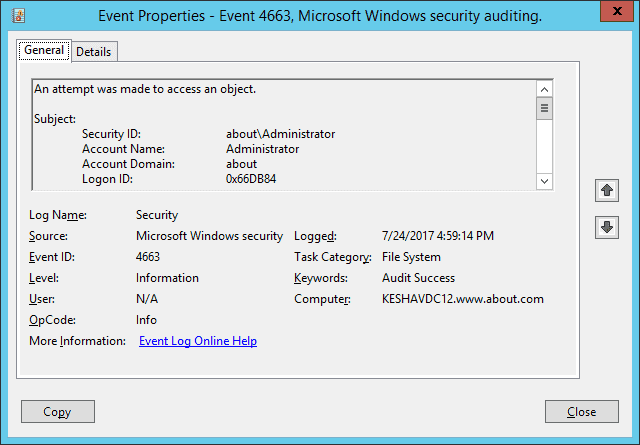
- Enter 4663 in the Event IDs field and select OK.
- Open a matching event and review the following details:
- Object Name: Confirm that it shows the relevant file path.
- Accesses: Look for a read-related permission, such as ReadData.
- Account Name: Shows the account that accessed the file.
- Logged: Shows when the event was recorded by Windows.
Note: Native Windows auditing only records events after auditing has been properly configured, and it can become difficult to manage in environments with many users, shared folders, and file servers. Security logs fill up quickly, event details are scattered across raw log entries, and correlating activity across multiple servers requires significant manual effort.
How Lepide Helps You See Who Accessed or Modified a File or Folder
Although Windows Event Viewer can provide file-access information, reviewing individual Security log events can be time-consuming, particularly when activity is distributed across multiple Windows file servers. Lepide File Server Auditor centralizes this information and presents it through searchable reports and dashboards.
- Identify Who Accessed or Modified a File: Lepide records file and folder access, modification, creation, copying, and deletion events. Its audit reports show which account performed the action, what object was affected, when the event occurred, and where the activity originated.
- Search and Filter File Activity: Administrators can search, sort and filter audit data to investigate activity involving a particular file, folder, user, or time range without manually correlating individual Windows event logs.
- Monitor Failed Access Attempts: Lepide records failed file and folder access attempts, helping administrators identify accounts that tried to access data without the required permissions.
- Track File and Folder Permission Changes: Lepide reports changes to file and folder permissions and shows which users have access, their level of access, and where that access was granted.
- Receive Real-Time Alerts: Administrators can configure alerts for events such as unexpected file access, file modifications, deletions, copying, and permission changes, enabling them to investigate suspicious activity promptly.
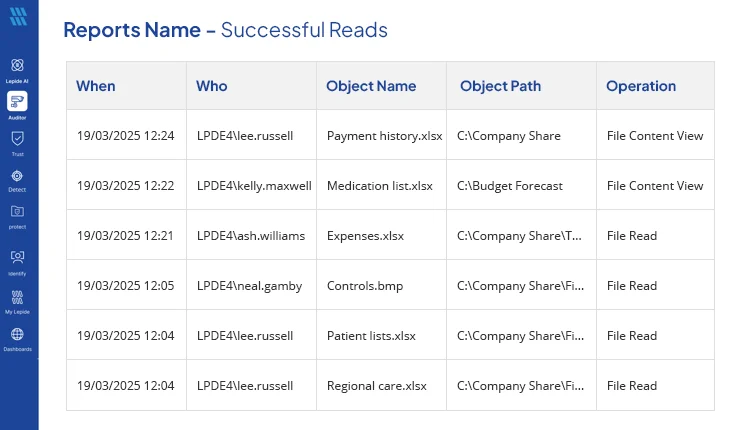
By centralizing Windows file server activity, Lepide provides a more direct way to determine who accessed or modified a file or folder without searching each server’s security log separately.
Frequently Asked Questions
Yes, but only if the file or folder had a corresponding auditing entry set up before it was opened and Object Access Auditing was enabled. Once configured, “Read” access events will show up in Event Viewer’s Security log.
No, Windows does not retroactively log file activity. There won’t be a record of who made the change using native tools if auditing wasn’t activated and set up prior to the changes.
File and folder access and modification events appear under Event Viewer → Windows Logs → Security, provided Object Access Auditing has been enabled and applied to the relevant files or folders.
In the Security log, look for Event ID 4660 (object deletion), frequently in conjunction with Event ID 4663 (access attempt). Correlate Event ID 4660 with Event ID 4663, typically by using the Handle ID, to identify the deleted item and the account that performed the deletion.
Yes, to record NTFS activity on files in a shared folder, enable Audit File System on the server hosting the files and configure auditing entries on the underlying files or folders. To audit access at the SMB share layer, enable Audit Detailed File Share.