In this post, I’ll show you how to use PowerShell to generate an NTFS permissions report, an essential part of effective permissions management. If you’re responsible for managing permissions across files and folders, especially in enterprise environments, understanding how to extract and analyze access control data is important. This guide demonstrates how the Get-Acl cmdlet can be used to retrieve detailed permission information.
Key Definitions
NTFS permissions are access control settings applied to files and folders on Windows NTFS-formatted drives that determine which users or groups can read, write, modify, or execute resources.
Get-Acl is a PowerShell cmdlet that retrieves the security descriptor (access control list) for a specified resource, returning detailed information about who has access and what level of permissions they hold.
Prerequisites
Before running these commands, ensure you have:
- Windows PowerShell 3.0 or later (PowerShell 5.1+ recommended)
- Read access to the folders you want to audit
- Administrative privileges may be required for certain protected directories
How to use Get-Acl to find NTFS Permissions
The PowerShell Get-Acl cmdlet can be used to return permissions on objects like files, folders, and registry keys. The example below gets the permissions set on the C:\temp folder and all the available properties.
(Get-Acl -Path C:\temp).AccessWhat Get-Acl Returns
The Get-Acl cmdlet returns the following key properties:
Limitation
Important: Get-Acl alone cannot recursively return permissions for all folders in a hierarchy. You must combine it with Get-ChildItem -Recurse to enumerate folders and then pass each result to Get-Acl.
If you want to know the permissions set on all folders in a directory tree, you need to use the Get-ChildItem cmdlet with the -Recurse parameter to list all the folders in the tree and then pass the results to Get-Acl using a ForEach loop.
Step-by-Step: Recursive NTFS Permissions Script
The script below retrieves permissions for all folders in a directory tree:
-
- Define the folder path and retrieve all subfolders recursively using Get-ChildItem -Directory -Recurse
- Initialize an empty array to store the output results
- Loop through each folder and use Get-Acl to retrieve its access control list
- For each access control entry (ACE), extract the relevant properties into an ordered list
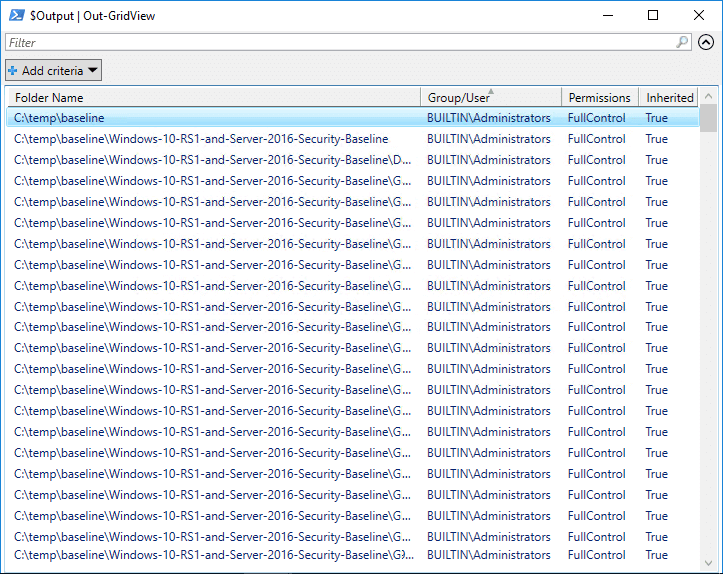
- Output the results to Out-GridView for easy sorting and filtering
$FolderPath = Get-ChildItem -Directory -Path "C:\temp" -Recurse -Force
$Output = @()
ForEach ($Folder in $FolderPath) {
    $Acl = Get-Acl -Path $Folder.FullName
    ForEach ($Access in $Acl.Access) {
$Properties = [ordered]@{'Folder Name'=$Folder.FullName;'Group/User'=$Access.IdentityReference;'Permissions'=$Access.FileSystemRights;'Inherited'=$Access.IsInherited}
$Output += New-Object -TypeName PSObject -Property $Properties
}
}
$Output | Out-GridView
How Lepide Helps
It’s critical that you understand both current and historic File Server permissions to help prevent privilege abuse and maintain a policy of least privilege. Our Lepide File Server Auditor can easily analyze current effective permissions held by users on files and folders, as well as changes made to permissions, inherited permissions, direct permissions and indirect permissions. Click here to know more.
The following screenshot of Lepide File Server Auditor shows current permissions by users:
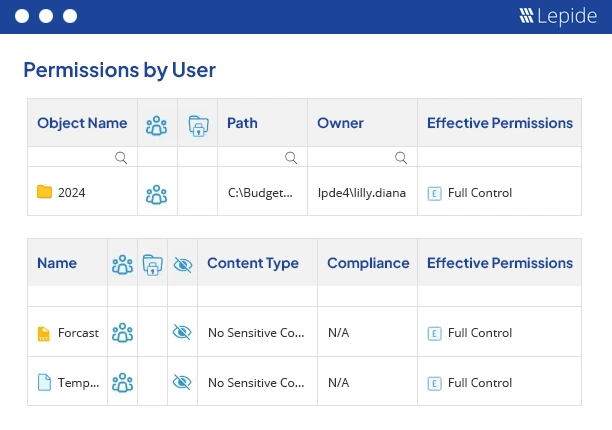 Figure 1: Permissions by users report
In addition to the permissions reports shown above, you can also remove excessive for an object.
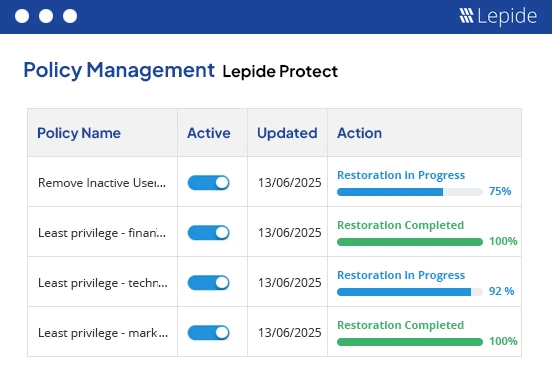 Figure 3: Remove Excessive Permissions
Apart from doing permission analysis, you can also audit changes made to your files and folders in real-time and get detailed audit reports with Lepide File Server Auditor.