Quick Reference
For users who need the essential command immediately:
Get-ChildItem -Directory -Path "E:\Share80" -Recurse -Force | ForEach-Object { Get-Acl $_.FullName } | Select-Object Path, Owner, Access | Export-Csv -Path "C:\mydata\FolderPermissions.csv"NTFS permissions are the access control settings on Windows file systems that determine which users or groups can read, write, modify, or execute files and folders. CSV export refers to outputting data to a Comma-Separated Values file format, which can be opened in spreadsheet applications like Excel for analysis and reporting.
Managing permissions is one of the most critical security concepts to implement, and it forms the foundation of effective permissions management. It is essential that only eligible users have access to critical systems and data, and so you need to ensure that their NTFS permissions include only the bare minimum necessary for their role. For organizations using permissions management software, or even those managing access manually, this task becomes vital in reducing risk exposure.
One way to generate a list of security permissions to files and shared folders on Windows servers is to get folder permissions using Microsoft PowerShell.
Using a PowerShell script, you can generate a PowerShell folder permissions report and export this to a CSV file for analysis. This makes it easier to identify users with unnecessary permissions and align them with your data security policy, streamlining the process of managing permissions effectively and minimizing the risk of a data breach.
However, the reporting of PowerShell folder permissions in this way requires a good knowledge of PowerShell scripting and the analysis can be time consuming with the amount of data produced.
In this article, we will look at how to use PowerShell to get folder permissions and then look at an alternative, more straightforward approach using the Lepide Auditor for File Server.
Get Folder Permissions and Export them to CSV Using PowerShell
Requirements: PowerShell 3.0 or later. No additional modules are required as Get-Acl and Get-ChildItem are built-in cmdlets.
- Open the Powershell ISE: Launch the PowerShell Integrated Scripting Environment from your Start menu or by searching for “PowerShell ISE.”
- Create the script to display permissions in a grid view: Use the code below (Note – Specify the path to the required folder and to where the result must be exported):
$FolderPath = Get-ChildItem -Directory -Path "E:\Share80" -Recurse -Force $Output = @() ForEach ($Folder in $FolderPath) { $Acl = Get-Acl -Path $Folder.FullName ForEach ($Access in $Acl.Access) { $Properties = [ordered]@{'Folder Name'=$Folder.FullName;'Group/User'=$Access.IdentityReference; 'Permissions'=$Access.FileSystemRights;'Inherited'=$Access.IsInherited} $Output += New-Object -TypeName PSObject -Property $Properties } } $Output | Out-GridViewRun the script - Run the script: Press F5 or click the Run button to execute the script.
- Review the output: An example of the output is as follows
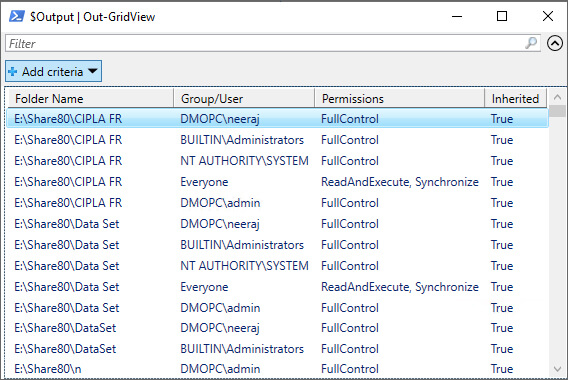
- Export permissions to a CSV file: Use the command below to export the permissions to a CSV file,:
$FolderPath = Get-ChildItem -Directory -Path "E:\Share80" -Recurse -Force
$Output = @()
ForEach ($Folder in $FolderPath) {
$Acl = Get-Acl -Path $Folder.FullName
ForEach ($Access in $Acl.Access) {
$Properties = [ordered]@{'Folder Name'=$Folder.FullName;'Group/User'=$Access.IdentityReference;
'Permissions'=$Access.FileSystemRights;'Inherited'=$Access.IsInherited}
$Output += New-Object -TypeName PSObject -Property $Properties
}
}
$Output | Export-Csv -path "C:\mydata\FolderPermissions.csv"
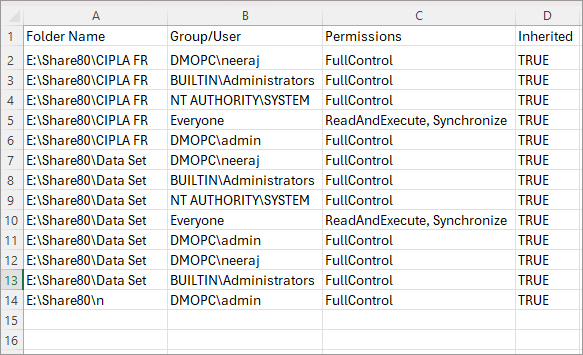
An example of the CSV file is as follows:
Key Parameter Reference
Common Errors and Solutions
How Lepide Helps
An alternative method to get and export folder permissions which requires no knowledge of PowerShell scripting is to use Lepide Auditor for File Server.
By running the Permissions by Object report from the Lepide Solution, you can see all permissions for a specific object. An example is shown below:
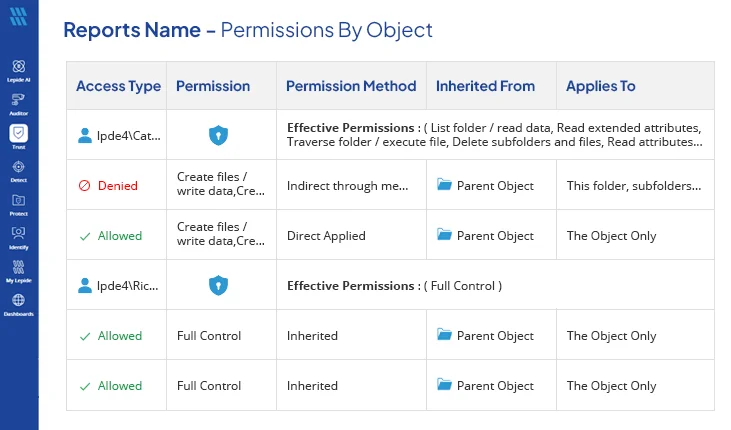
In this example, the selected object is Employee’s Account details. The report shows the permissions for the selected object and includes information on how the permissions are derived – Direct, Inherited or Indirect via a Group.
To run this report:
- Select Lepide Trust, Reports
- From here, expand Current Permission Analysis
- Select Permissions by Object
- Select Generate Report
- Expand the File Server icon and permissions for the selected folder will be displayed
The report is generated and can be exported to CSV format. It can also be filtered and saved
PowerShell vs. Lepide Auditor Comparison
Frequently Asked Questions
The script captures FileSystemRights (such as Read, Write, Modify, FullControl), the user or group identity, the folder path, and whether the permission is inherited from a parent folder.
Add a Where-Object filter after collecting the output: $Output | Where-Object {$_.Inherited -eq $true} to show only inherited permissions, or use $false to show only explicitly assigned permissions.
Run PowerShell ISE as Administrator by right-clicking and selecting “Run as administrator.” If errors persist, your account may lack permissions on specific folders—consider using a domain admin account or adjusting folder permissions.
Yes, modify the $FolderPath line to include multiple paths: $FolderPath = "E:\Share80", "E:\Share81" | Get-ChildItem -Directory -Recurse -Force