Active Directory password expiration notification is a security feature that alerts users when their domain password is approaching its expiration date. Configuring these notifications helps prevent account lockouts, reduces helpdesk calls, and ensures users maintain strong, regularly updated credentials—a critical component of organizational security hygiene.
Applies to: Windows Server 2016, 2019, 2022, Windows 10/11
We get it, changing your Active Directory password regularly is a bit of a pain. Wouldn’t it be much easier to have just one password for everything, instead of having to remember a new one every few months?
Unfortunately, you simply cannot afford to allow password complacency to become a habit. That is exactly what attackers are looking for.
As an IT Administrator, it is your job to ensure you have an appropriate means of reminding users when their passwords are due to expire.
In this article we will take you through the steps needed to remind users when their passwords are due to expire using the native method.
Steps to Enable Password Expiry Notification using GPO
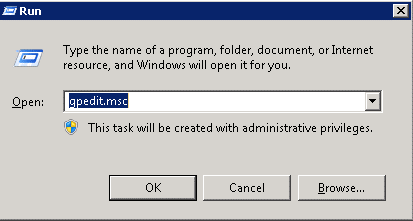
Step 1: Open Group Policy Objects Editor Console
To do this, simply go to Start – Run and then type in gpedit.msc and click Ok.
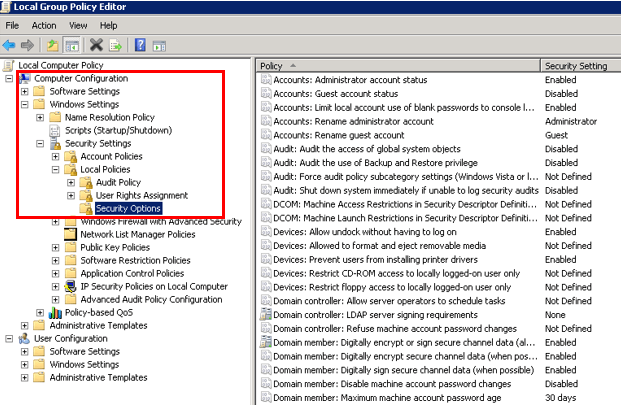
Step 2: Explore Security Options
In the Group Policy Objects editor, go to Computer Configuration – Windows Settings – Security Settings – Local Policies – Security Options.
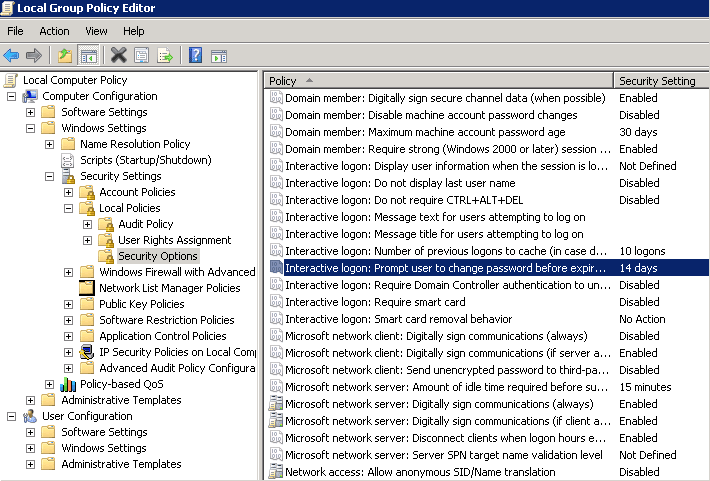
Step 3: Choose the Policy for Password Notifications
Now you need to select the policy named “Interactive Logon: Prompt user to change password before expiration”. The current security setting is enabled to a default figure of 14 days.
Step 4: Modify the Security Setting
Right click on the policy and modify the setting accordingly. You can adjust the number of days to your own liking.
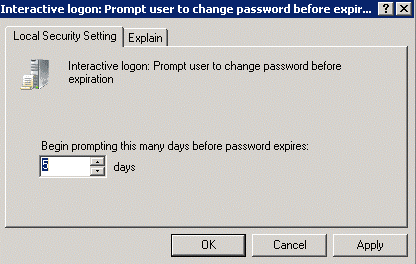
Once complete, users will get a warning message that will say something similar to the following whenever they connect to the domain: “Your password will expire in 5 days. Do you want to change it now?”
Limitations of the Native Method
The native GPO notification method has several limitations that may affect its effectiveness in your environment:
- Users who lock instead of log off will not see warning messages since notifications only appear at logon
- Remote workers connecting via VPN may miss notifications if they don’t perform interactive logons
- Users with locked or disabled accounts cannot receive password expiration warnings
- Non-Windows devices (Mac, Linux, mobile) do not display GPO-based notifications
- Users on extended leave may return to find their passwords already expired
Alternative Solution: Lepide Password Expiration Notification
Lepide Password Expiration Notification tool can send fully customizable, automated emails to users that notify them when their password is due to expire. Follow-up notifications can be sent if your users fail to change their passwords the first time.
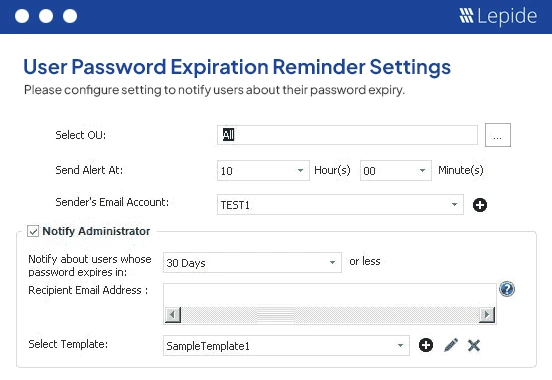
You can also use the Lepide Password Expiration Notification tool to limit the number of helpdesk calls due to expired passwords by generating a list of users with soon-to-expire passwords. You can then follow up with those users manually to ensure they change their passwords on time.
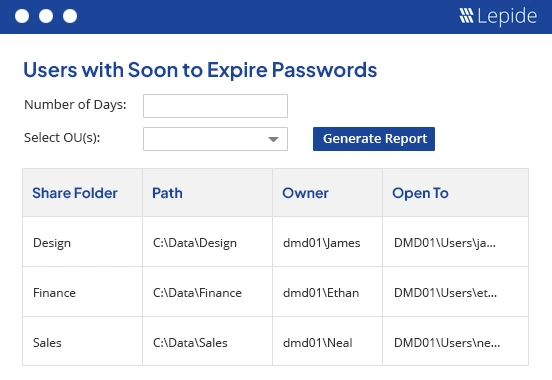
Comprehensive reports on soon-to-expire passwords, logon failures, password changes, and more can be viewed from one consolidated platform – the simplest way to automate password expiration notifications.