File and folder permissions in Windows are security settings that control which users or groups can access, modify, or manage specific files and directories on your system. Users with unrestricted access permissions to files and folders are the ultimate target for cyber-criminals. If such accounts are compromised, then the attacker effectively holds the keys to your kingdom.
Continuous tracking of who has access to what on the File server is a vital part of ensuring that your permissions management practices don’t sprawl out of control. In any secure IT environment, managing permissions efficiently is key to minimizing risk and maintaining compliance.
In this article, we are explaining to check permissions of File and Folders using native method and how Lepide File Server Auditor simplified the process.
Windows Permission Types at a Glance
It is important to note that these are just the standard permission types. You can also create custom permission sets that give users specific permissions to perform certain actions on files or folders.
Here are some examples of how these permissions might be used:
- You might give the “Full Control” permission to the administrator account so that they can manage all files and folders on the computer.
- You might give the “Modify” permission to a user account so that they can edit files in a particular folder.
- You might give the “Read & Execute” permission to a user account so that they can run programs that are stored in a particular folder.
- You might give the “List Folder Contents” permission to a user account so that they can view the contents of a folder, but not open individual files or folders.
- You might give the “Read” permission to a user account so that they can read the contents of a file.
- You might give the “Write” permission to a user account so that they can write to a file.
By carefully setting file and folder permissions, you can help to protect your computer from unauthorized access and ensure that users only have access to the files and folders that they need.
NTFS Permissions vs. Share Permissions
When both permission types apply, Windows uses the most restrictive combination to determine effective permissions, which are the actual access rights a user has after all permissions are evaluated.
Steps to Check Files and Folders Permissions
Keeping sensitive data under close surveillance helps keep your network infrastructure in a constant state of security. To do this, event-by-event analysis is crucial.
Let’s have a look at the steps you need to take to check who has access to what on the files or folders in your File server:
- Step 1: Locate the File or Folder – Navigate to the document in drive for which you want to view the permissions.
- Step 2: Open Properties – Right-click the folder or file and click “Properties” in the context menu.
- Step 3: Access Advanced Security Settings – Switch to “Security” tab and click “Advanced”.
- Step 4: View User Permissions – In the “Permissions” tab, you can see the permissions held by users over a particular file or folder. Permission inheritance determines whether settings are passed down from parent folders—a broken inheritance icon indicates custom permissions at that level.
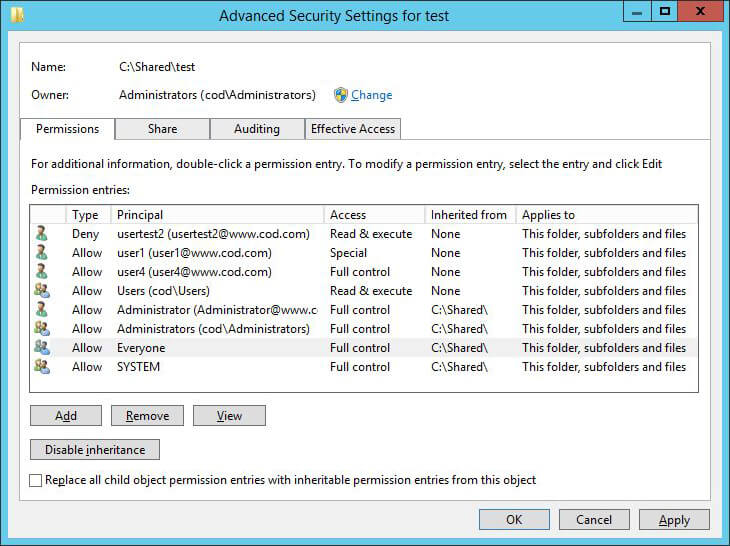
Figure 1: Permissions of users on a folder - Step 5: Access Effective Permissions – Click “Effective Access” tab.
- Step 6: Select User or Group – Click “Select a user” to add the user or group whose effective permissions you want to view. A list of all the effective permissions held by the user will be displayed on the bottom panel of the “Advanced Security Settings” window.
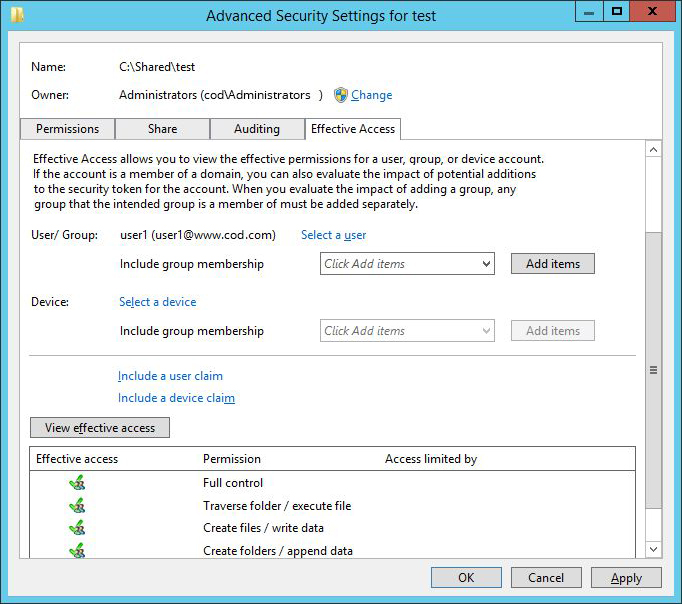
Figure 2: Effective Permissions of users on a folder - Step 7: View Share Permissions – To view the share permissions set on a shared file or folder, switch to the “Share” tab. You can see a list of permission entries.
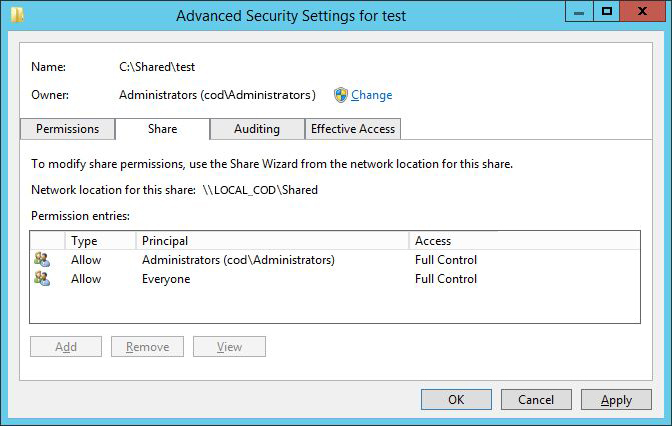
Figure 3: Share permissions applied on a shared folder
How Lepide File Server Auditor Analyze Permissions of Files & Folders
With a comprehensive permissions management software like Lepide File Server Auditor in place, you can easily analyze current effective permissions held by users on files and folders, as well as modifications made to permissions.
The following screenshots show our “Current permissions” reports, which let you analyze the current permissions set on shared files and folders:
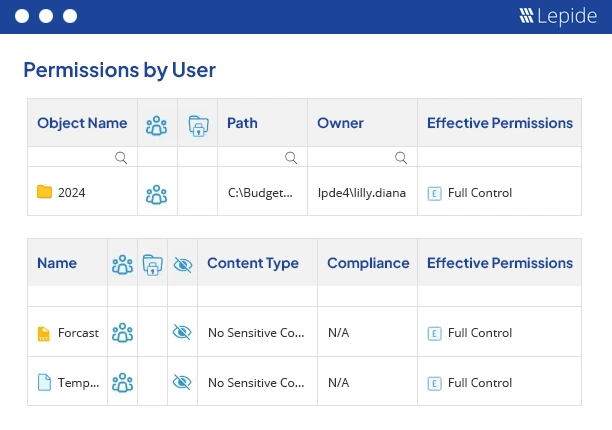
Our solution allows you to view permissions assigned to everyone, filter and sort the reports, identify stale objects and also indicate if the permission inheritance is broken at that level.
Effective permissions on an object are calculated after carefully analyzing and comparing both the NTFS and share permissions being applied. The screenshot given below allows you to analyze the permission flow for an object:
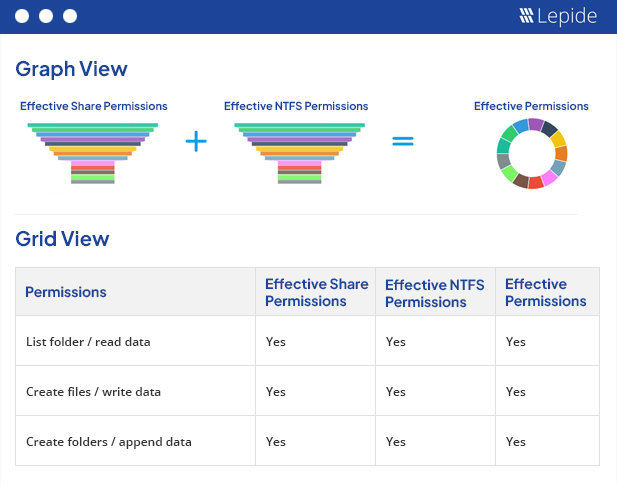
All the 13 default permissions are represented using different colors and icons in our reports.
In addition to the reports shown here, Lepide File Server Auditor generates reports for inherited permissions, direct permissions and indirect permissions. You can also keep track of all changes in the permissions of files and folders and roll back any applied permission, making managing permissions easier and more secure than ever.
Lepide can add more context to your permissions management, by classifying files that contain sensitive data. With this context, you can track who has access to sensitive, regulated data, and get alerts when permissions are changed. Lepide can also suggest whether the applied permissions are excessive based on the data usage patterns of the employee in question.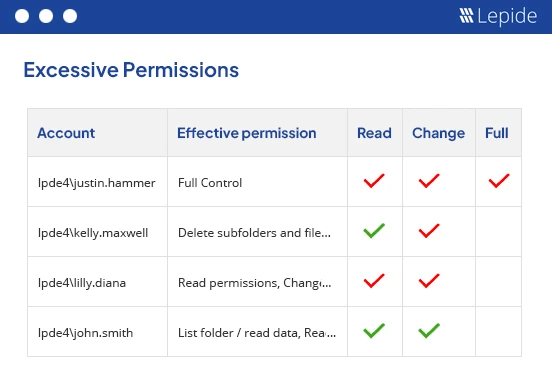 Figure 6: Reverse Permissions
There really is no better way to audit and track permissions in a file server than with Lepide. What’s more, Lepide can add more context to your permissions auditing, by classifying files that contain sensitive data. With this context, you can track who has access to sensitive, regulated data, and get alerts when permissions are changed. Lepide can also suggest whether the applied permissions are excessive based on the data usage patterns of the employee in question.
Frequently Asked Questions
Full Control includes all Modify capabilities plus the ability to change permissions and take ownership of files. Modify allows reading, writing, and deleting but cannot alter security settings.
Properties → Security → Advanced → Effective Access tab → Select a user → View permissions displays the combined result of all applied permissions.
NTFS permissions are access controls applied to files and folders on drives formatted with the NTFS file system. They provide granular security settings that apply both locally and over the network.
Permission inheritance is when files and subfolders automatically receive the same permissions as their parent folder. You can disable inheritance to set custom permissions at any level.