Last Updated on April 30, 2026 by Ashok Kumar
Both NTFS and Share permissions play vital roles in securing data within Windows environments. They are foundational to preventing unauthorized access to critical folders and ensuring that only the right people have access to the right data. However, they operate in different ways and are suited for different scenarios. In this blog, we will explore what NTFS and Share permissions are, how they differ, and how you can apply best practices for managing permissions effectively. This knowledge is crucial for any robust permissions management strategy.
What Are NTFS Permissions?
NTFS (New Technology File System) is the standard file system for Windows NT and later operating systems. NTFS permissions allow administrators to manage data access on NTFS-formatted drives and apply to both local and network users. They provide more granular control than Share permissions, making them a key component of effective permissions management.
NTFS Permission Types
| Type | Description |
|---|---|
| Full Control | Create, read, write, edit, delete files/folders; change permissions. |
| Modify | Edit and delete files and properties. |
| Read & Execute | Read files and run executables/scripts. |
| List Folder Contents | View directory contents, folder attributes, and execute files. |
| Read | Read files, file properties, and folders. |
| Write | Write to files and add new files to folders. |
How to Configure NTFS Permissions
- Right-click the file or folder and select Properties.
- Navigate to the Security tab.
- Click Edit to modify permissions.
- Click Add to include new users or groups, or select existing ones.
- Check or uncheck the permission boxes (Full Control, Modify, Read, etc.) as needed.
- Click Apply, then OK to save changes.
What Are Share Permissions?
Share permissions are applied to folders shared over the network and don’t apply to local users. They determine who can access shared folders and what level of access they have. Unlike NTFS permissions, Share permissions apply uniformly to all contents of the shared folder. Understanding how these permissions interact is a fundamental part of managing permissions across your environment.
Share Permission Types
| Type | Description |
|---|---|
| Full Control | Full read/write access; change permissions. |
| Change | Read, write, edit, delete content. |
| Read | Read and execute programs; default for the “Everyone” group. |
How to Configure Share Permissions
- Right-click the folder you want to share and select Properties.
- Navigate to the Sharing tab.
- Click Advanced Sharing and check Share this folder.
- Click Permissions to open the Share permissions dialog.
- Add users or groups and assign permission levels (Read, Change, or Full Control).
- Click Apply, then OK to save changes.
Differences Between NTFS and Share Permissions
Understanding the distinctions is crucial for effective permissions management:
| Features | NTFS Permissions | Share Permissions |
|---|---|---|
| Scope | Local and network users | Network users only |
| Granularity | Fine control over individual files and folders | Applies uniformly to entire shared folder |
| File System Support | NTFS volumes only | NTFS, FAT, and FAT32 (legacy file systems with limited features) |
| Precedence Rules | When combined with Share, most restrictive wins | When combined with NTFS, most restrictive wins |
| Best Use Cases | Detailed access control, local security | Simple network sharing, broad access control |
| Configuration Location | Security tab in Properties | Advanced Sharing in Properties |
| Concurrent Access Control | No | Can limit simultaneous users |
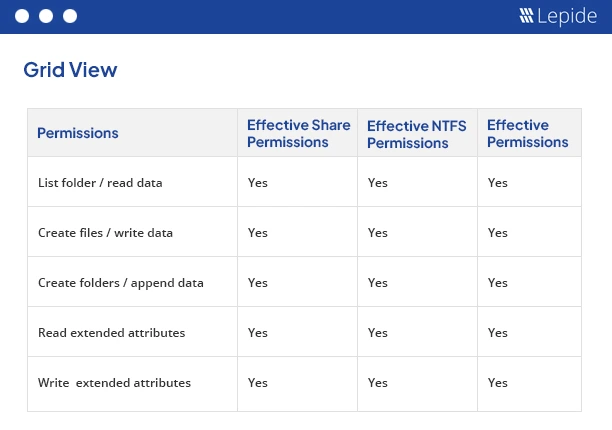
Combined Use Example: When used together, the most restrictive permission takes precedence. For example, if Share is set to “Read” and NTFS is set to “Modify,” the effective permissions (the actual access a user receives after all permission rules are evaluated) result in “Read.”
Best Practices for Managing Permissions
Effective permissions management is rooted in the principle of least privilege – users should only have the access they need to perform their tasks. Managing permissions in a strategic and scalable way ensures security and efficiency.
Here are some best practices:
- Use groups, not individual accounts: Assign permissions to groups for easier management. When a user changes roles, you just need to switch their group.
- Be cautious with Admin access: Only give Full Control to those who genuinely need it. Audit these accounts regularly.
- Organize by security needs: Group folders by department or function into parent folders and apply permissions at the top level to reduce complexity.
How Lepide Helps
When permissions management becomes complex across large environments, tools like Lepide Trust and Lepide Protect become essential. These solutions act as advanced permissions management software that simplifies oversight.
The Lepide Data Security Platform offers a powerful NTFS permissions reporting tool. It allows IT teams to, analyze who has access to what across shared files and folders, instantly identify permissions inconsistencies and overexposure, view predefined reports showing effective permissions across Active Directory and Windows File Systems, and revert unwanted permission changes with a few clicks.
With Lepide Trust, organizations gain visibility into trust relationships, account privileges, and potential insider threats, enhancing overall identity and access governance through smarter permissions management.
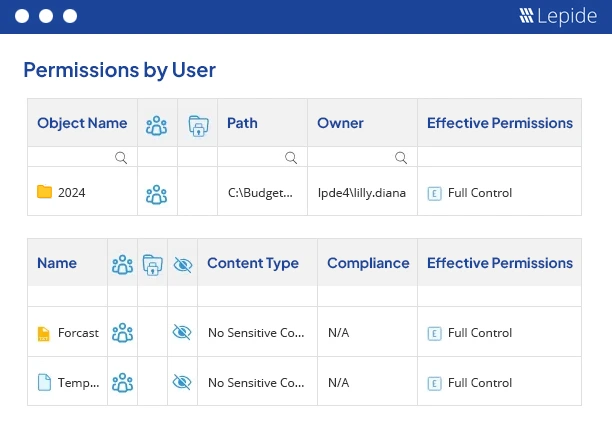
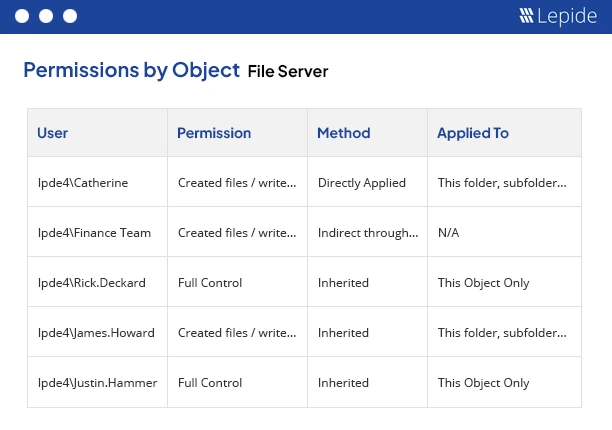
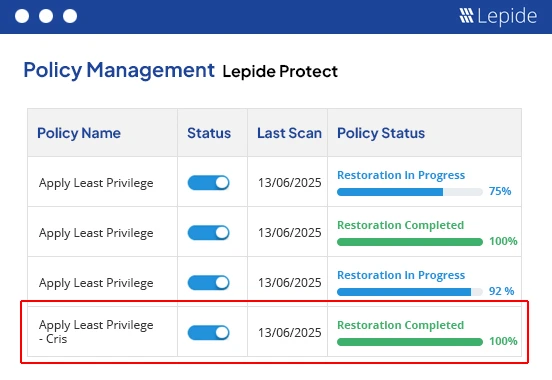
Lepide Protect adds a layer of intelligent automation and threat response, allowing security teams to enforce permissions policies and protect sensitive data from misuse or breach. Below are some screenshots of the permission analysis from the Lepide Data Security Platform.
Permissions by User
Permissions by Object
Analyze Effective Permissions
Apply Least Privilege
Frequently Asked Questions
When both NTFS and Share permissions are applied, the most restrictive permission takes precedence. For example, if a user has NTFS “Modify” but Share “Read,” their effective access will be “Read.”
Use Share permissions for simple network access control when sharing folders with remote users. Use NTFS permissions when you need granular control over specific files and folders, or when securing data for both local and network users. For maximum security, use both together.
No. NTFS permissions only work on NTFS-formatted volumes. Drives formatted with FAT or FAT32 do not support NTFS permissions and can only use Share permissions for network access control.