GPO auditing is the process of tracking and recording changes made to Group Policy Objects in Active Directory to help maintain security, compliance, and accountability.
In Microsoft Windows, Group Policy provides centralized management and configuration of operating systems, applications, and user settings in an Active Directory environment.
Group Policy settings are stored in Group Policy Objects (GPOs), which can be linked to sites, domains, and Organizational Units (OUs).
Quick Summary
To audit Group Policy changes using native Windows tools, follow these four steps:
- Enable Audit Directory Service Changes and Audit File System on domain controllers.
- Configure auditing for Group Policy Container (GPC) objects using ADSI Edit.
- Configure file system auditing for the SYSVOL Policies folder, where Group Policy Templates (GPTs) are stored.
- Review the relevant Directory Service Changes and File System events in the Security event log.
Prerequisites
Before you begin, ensure you have the following:
- Permissions: Appropriate administrative or delegated permissions to configure audit policies and auditing entries (SACLs).
- Required Tools: Group Policy Management Console (GPMC), ADSI Edit, File Explorer, and Event Viewer.
- Access: Access to the domain controllers on which the auditing configuration will be applied.
In large organizations, multiple administrators may manage the network through the Group Policy Management Console (GPMC). Auditing Group Policy changes helps administrators determine who made a change, when it occurred, and which GPO was affected.
A Group Policy Object consists of two primary components:
- Group Policy Container (GPC): Stored in Active Directory and contains GPO-related attributes and metadata.
- Group Policy Template (GPT): Stored in SYSVOL and contains the files associated with the GPO’s policy settings.
For more complete native auditing of GPO changes, auditing should therefore be configured for both the relevant Active Directory objects and the corresponding Group Policy files in SYSVOL.
Step 1 – Configure Directory Service Changes and File System Auditing
First, configure the advanced audit policies required to generate events for changes to the Active Directory and SYSVOL components of GPOs.
Enable Audit Directory Service Changes
Perform the following steps:
- Go to Start → Administrative Tools.
- Launch Group Policy Management Console.
- Navigate to Forest → Domains → [Your Domain] → Domain Controllers.
- Right-click the GPO used to configure auditing for your domain controllers, such as Default Domain Controllers Policy, and select Edit.
- In the Group Policy Management Editor, navigate to: Computer Configuration → Policies → Windows Settings → Security Settings → Advanced Audit Policy Configuration → Audit Policies → DS Access
- Double-click Audit Directory Service Changes.
- Select Configure the following audit events and enable Success.
- Click Apply, and then click OK.
Audit Directory Service Changes records changes to appropriately configured Active Directory objects, including modifications, creation, deletion, movement, and undeletion.
You do not need to enable Directory Service Replication or Detailed Directory Service Replication simply to audit normal GPO modifications.
Enable Audit File System
Next, navigate to:
Computer Configuration → Policies → Windows Settings → Security Settings → Advanced Audit Policy Configuration → Audit Policies → Object Access
- Double-click Audit File System.
- Select Configure the following audit events.
- Enable Success.
- Enable Failure only if your auditing or compliance requirements include unsuccessful file access attempts.
- Click Apply, and then click OK.
Audit File System works together with auditing entries configured on the SYSVOL files and folders. Only access that matches the configured SACL can generate the corresponding file system audit events.
Common mistake to avoid: Ensure that the audit policy applies to the domain controllers. Applying the settings to a GPO that does not affect the Domain Controllers OU can result in the required audit events not being generated.
Step 2 – Configure Group Policy Container Object Auditing
After enabling Directory Service Changes auditing, configure an auditing entry for the Active Directory container that stores GPO objects.
Perform the following steps:
-
- Launch ADSIEdit.msc.
- In the left pane, right-click ADSI Edit and select Connect to.
- Connect to the Default naming context.
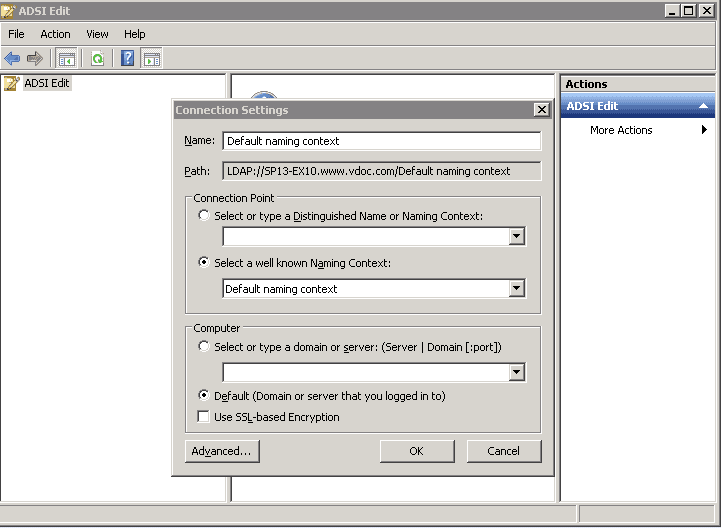
Figure: Connection Settings - Click OK.
- Expand the Default Naming Context and navigate to: DC=<domain>,DC=<com> → CN=System → CN=Policies
The exact distinguished name depends on your Active Directory domain. - Right-click CN=Policies and select Properties.
- Open the Security tab and click Advanced.
- Navigate to the Auditing tab.
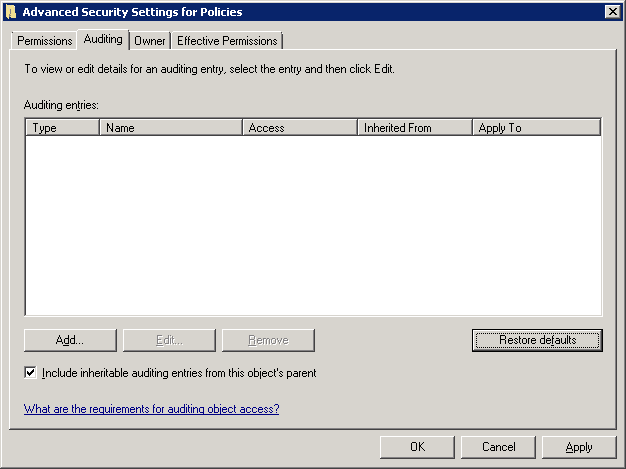
Figure: Navigate to auditing tab - Click Add to create an auditing entry.
- Select the security principal whose changes should be audited.
Note: If you need to audit changes regardless of which account performs them, you can select Everyone. However, consider the resulting event volume and use an appropriately scoped principal where your requirements allow it. - Configure the auditing entry as Success for the operations you need to monitor.
- Select the relevant permissions, such as object creation, deletion, write operations, and permission changes, according to your auditing requirements.
Note: Do not use Full Control on the assumption that it enables both successful and failed auditing. The permissions determine which operations are audited, while the auditing entry’s Type determines whether Success, Failure, or both types of access attempts are audited.
- Configure the Applies to scope so that the auditing entry applies to the required GPO objects beneath CN=Policies.
Note: Ensure that the scope includes the required descendant objects. A setting that applies only to the Policies container itself will not provide the intended auditing of descendant GPO objects.
- Click OK, and then click Apply to save the auditing configuration.
The audit policy and SACL work together: enabling Audit Directory Service Changes alone does not guarantee that every AD object modification generates an event. The affected object must also have an appropriate auditing entry.
Step 3 – Configure SYSVOL Folder Auditing
The Group Policy Template portion of each GPO is stored in SYSVOL. Individual GPOs are represented by folders identified by their GUIDs beneath the domain’s Policies directory.
Rather than auditing the entire SYSVOL tree unnecessarily, configure auditing for the relevant Policies directory.
Perform the following steps:
-
- On the domain controller, open File Explorer.
- Navigate to the domain’s SYSVOL Policies directory.
- Right-click the Policies folder and select Properties.
- Open the Security tab and click Advanced.
- Navigate to the Auditing tab.
- Click Add.
- Select the security principal whose activity should be audited.
- Select Success, and configure Failure auditing only if unsuccessful access attempts also need to be monitored.
- Select the file and folder operations you need to audit, such as:
- Creating files or folders
- Writing or modifying data
- Deleting files or folders
- Changing permissions
- Configure the auditing entry so that it applies to the required child folders and files beneath the Policies directory, including individual GPO folders.
- Click OK to save the configuration.
Be selective when configuring SYSVOL auditing. Auditing unnecessarily broad file access can generate a large number of Security events.
Step 4 – View GPO Changes in Event Viewer
After the required audit policies and SACLs are applied, qualifying GPO-related activity can generate events in the Windows Security log.
Because a GPO consists of both an Active Directory component and a SYSVOL component, these changes are recorded through different auditing mechanisms.
Review Active Directory/GPC Changes
To review changes to Group Policy Container objects:
- Open Event Viewer.
- Navigate to: Windows Logs → Security
- Look for relevant Directory Service Changes events:
These event IDs are not exclusive to Group Policy. They can be generated for other audited Active Directory objects as well.
When reviewing an event, inspect the Object DN, object GUID, attributes, account information, and other available fields to determine whether the affected object belongs to a GPO under the CN=Policies,CN=System,… hierarchy.
For example, Event ID 5136 indicates that an Active Directory object was modified. Depending on the change, related 5136 events can contain information about the previous and new attribute values. The following image for the event ID 5136 shows the GPO modification event with all the necessary information.
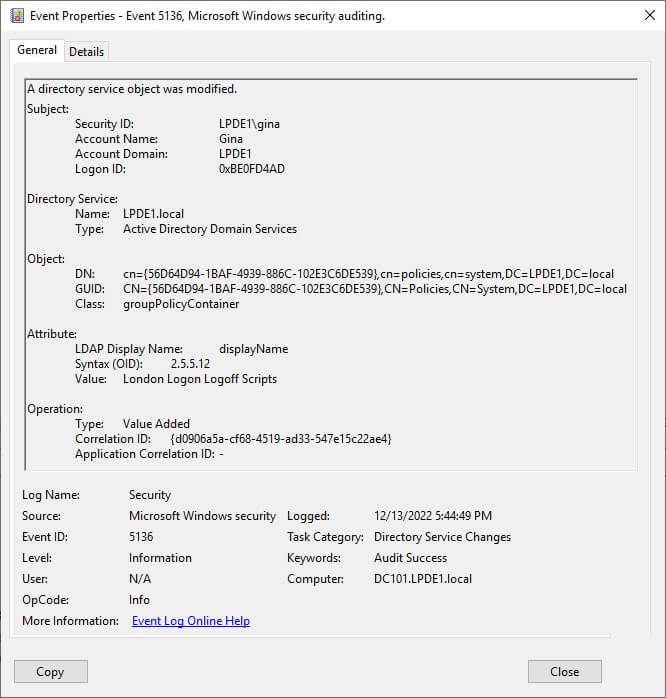
When the event identifies a GPO using its GUID, correlate that GUID with the GPO’s display name using Group Policy Management, PowerShell, or the corresponding Active Directory object.
Review SYSVOL/GPT Changes
Changes to the Group Policy Template stored in SYSVOL are audited through File System/Object Access auditing, rather than the Directory Service Changes events listed above.
Review the Security log for relevant file system audit events, such as Event ID 4663, which can show that an audited operation was performed against a file or folder when the corresponding SACL is configured.
Examine information such as:
- Account performing the operation
- Object/file path
- Access type
- Process information
- Timestamp
The affected SYSVOL path can contain the GPO GUID, which can then be correlated with the corresponding GPO name.
For a more complete investigation, administrators may therefore need to correlate Active Directory/GPC events with SYSVOL/GPT file system events.
Common Issues and Troubleshooting
If the expected audit events are not appearing in Event Viewer, check the following:
- Audit policy not applied: Run gpresult /h report.html to confirm that the appropriate GPO applies to the domain controller. You can also use auditpol /get /category:* to verify the effective advanced audit configuration.
- SACL not configured correctly: Audit events are generated only when the affected object’s auditing entries match the operation being performed.
- Incorrect inheritance: Verify that the auditing entries configured on CN=Policies and the SYSVOL Policies directory apply to the required descendant objects, files, and folders.
- Wrong OU targeting: Ensure the audit policy applies to the Domain Controllers OU.
- Checking the wrong domain controller: Check the Security log on the domain controller that processed the change.
- Replication issues: If expected information is missing across domain controllers, verify Active Directory and SYSVOL/DFSR replication health rather than relying on a fixed waiting period.
- Event log retention: Ensure that the Security log is appropriately sized and configured so that required audit events are not overwritten before they can be reviewed or collected.
How Lepide Change Reporter (Free Tool) Helps
Native Windows auditing can provide detailed information about GPO-related activity, but administrators may need to configure multiple audit policies and SACLs and then correlate events from Active Directory and SYSVOL to understand what changed.
Lepide Change Reporter simplifies this process by providing consolidated reporting on Active Directory and Group Policy changes. It can help administrators identify which Group Policy was changed, when and where the change occurred, and which account performed it.
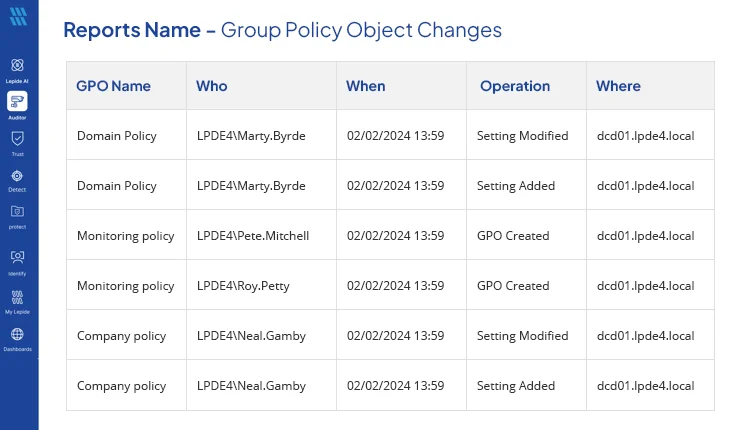
It can also present before and after values for supported changes in a more accessible format, reducing the manual effort required to investigate and correlate native Windows Security events.