AD User Account Status refers to the current state of a user account in Active Directory, indicating whether the account is enabled, disabled, locked out, or expired. Checking this status is essential for security auditing and compliance management.
Key PowerShell Cmdlets for AD User Account Status
- Get-ADUser – Retrieves user account properties including enabled status, lockout state, and expiration date
- Search-ADAccount – Finds accounts matching specific criteria such as locked out, expired, or disabled status
The frequent checking of the status of user accounts in Active Directory (AD) is essential for meeting compliance and security considerations. This can determine whether a user account is enabled, disabled, locked or has expired. Checking your Active Directory account status should form part of a regular audit to highlight any risks and therefore reduce your chances of a security breach.
Understanding AD account status properties
The following are some account status properties to check:
In this article, we will look at how to check AD account status using the native method of PowerShell and then an alternative method using the Lepide Active Directory User Status Reporter tool, which requires no scripting, provides a visual interface, and offers one-click export to CSV.
How to Check AD User Account Status with PowerShell Commands
Prerequisites
Before running the PowerShell commands in this article, ensure you have:
- ActiveDirectory PowerShell module installed (included with RSAT or available on domain controllers)
- Windows Server 2008 R2 or later, or Windows 7/8/10/11 with RSAT installed
- PowerShell 3.0 or later (PowerShell 5.1+ recommended)
- Read permissions on Active Directory user objects (Domain Users can query basic properties; Domain Admins or delegated permissions required for full property access)
Using PowerShell, you can efficiently identify AD user account status by using the Get-ADUser and Search-ADAccount cmdlets.
To get AD users’ account status using PowerShell, follow these steps:
- Open Windows PowerShell as an administrator
- Run the Get-ADUser command with the appropriate parameters
- Review the output or export to CSV for reporting
To find the status of all users
Get-ADUser -Filter * -Properties Enabled | Select-Object Name, EnabledExample Output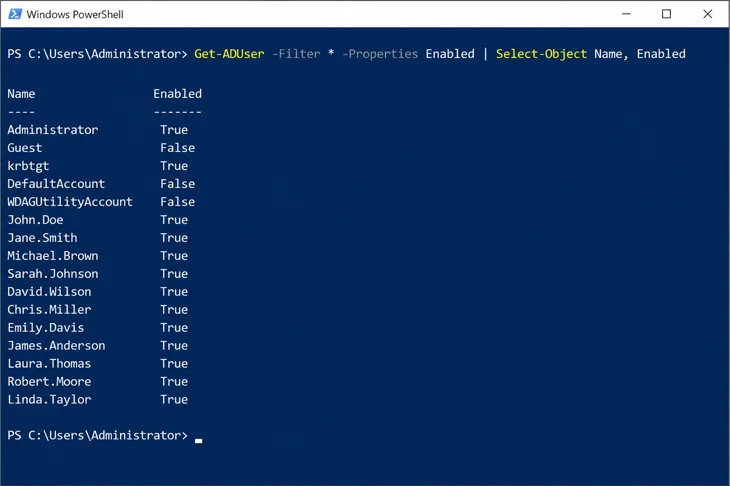
To export the account status to a CSV file, execute the following script
Get-ADUser -Filter * -Properties Enabled | Select-Object Name, Enabled
To export the account status to a CSV file, execute the following script:
Get-ADUser -Filter * -Properties Enabled, LockedOut, PasswordExpired, AccountExpirationDate, LastLogonDate |
Select-Object Name, SamAccountName, Enabled, LockedOut, PasswordExpired, AccountExpirationDate, LastLogonDate |
Export-Csv -Path "C:\Reports\AD_User_Account_Status.csv" -NoTypeInformation
To check the status of a specific user
To check the status of a specific user, use the -Identity parameter and request the relevant properties.
Get-ADUser -Identity 'Bob' -Properties Enabled, LockedOut, AccountExpirationDate | Select-Object name, Enabled, LockedOut, AccountExpirationDate
Example Output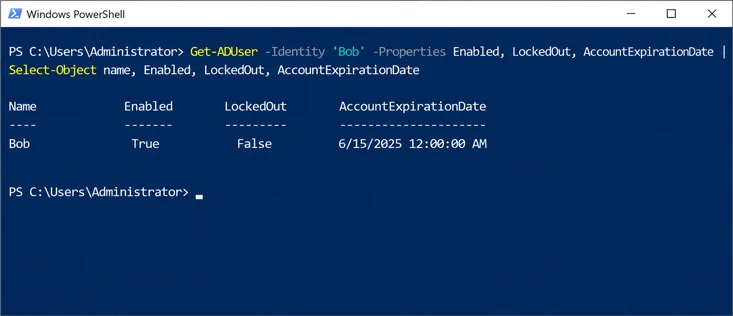
Enabled this indicates whether the user account is enabled (True) or disabled (False).
To find all enabled AD users
You can find all active user accounts by setting the Enabled filter to $true
Get-ADUser -Filter 'Enabled -eq $true' | Select-Object name, SamAccountNameTo find all disabled AD users
This will generate a list of all user accounts that are currently disabled
Get-ADUser -Filter 'Enabled -eq $false' | Select-Object name, SamAccountNameTo Find all locked-out user accounts
The Search-ADAccount cmdlet is the most efficient way to find all accounts that are currently locked out due to incorrect password attempts
Search-ADAccount -LockedOut -UsersOnly | Select-Object Name, SamAccountName, LastLogonDateExample Output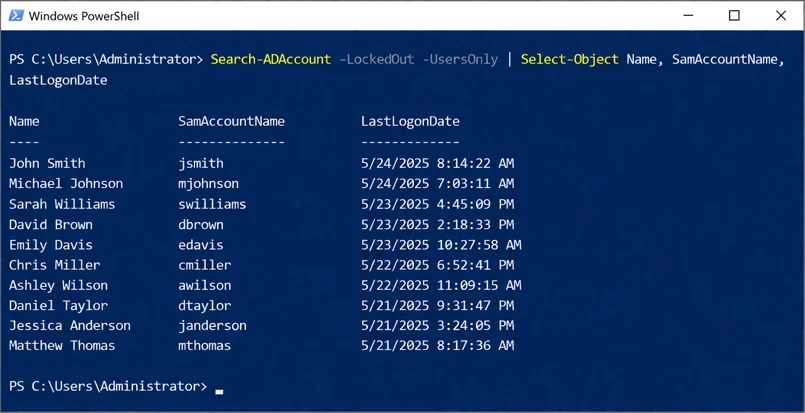
To find all expired user accounts
This command will retrieve all user accounts where the AccountExpirationDate has passed, which is useful for cleaning up temporary or contract accounts.
Search-ADAccount -AccountExpired -UsersOnly | Select-Object Name, SamAccountName, AccountExpirationDateHow Lepide Free Tool Helps
An alternative solution which requires no PowerShell expertise is to use the Free Active Directory User Status tool from Lepide. This free tool provides a visual interface for viewing AD user account status, requires no scripting knowledge, and offers one-click export to PDF or CSV. It will provide you with a snapshot of your Active Directory environment and highlight the risks so that you can reduce your chances of a security breach.
To use the Lepide Active Directory User Status Tool
- Download the free tool and enter your AD details
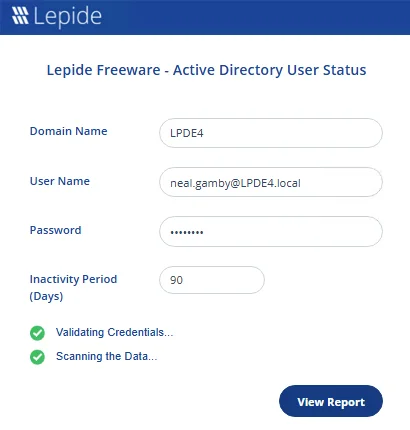
- Click View Report to see the analysis
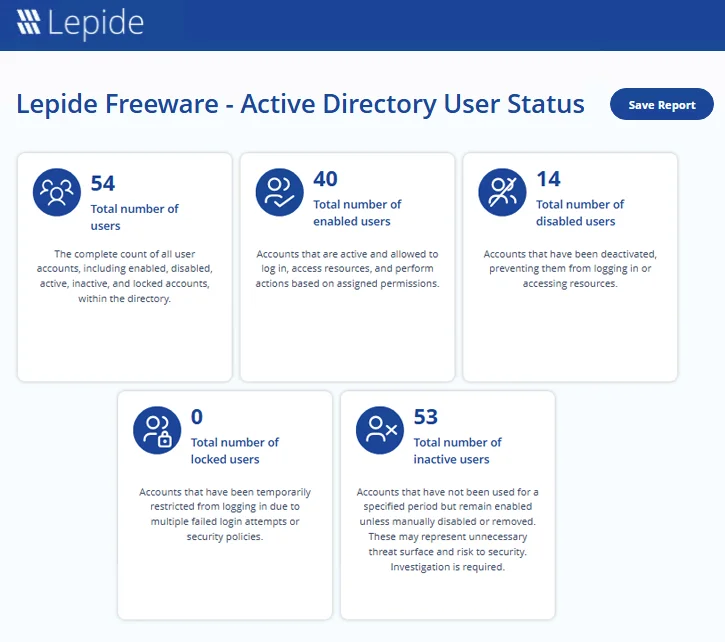
- The report can be saved to PDF or CSV format