An inactive user account in Active Directory is an account that has not been used to log in for a specified period, typically 30, 60, or 90 days. In organizations comprising thousands or even hundreds of thousands of user accounts and computer objects, how can you be expected to effectively find and manage inactive user accounts in Active Directory?
- dsquery – A command-line tool that quickly queries AD for inactive accounts using simple syntax (e.g., dsquery user -inactive 15).
- PowerShell – Uses the Get-ADUser and Get-ADComputer cmdlets with the ActiveDirectory module for more flexible queries and CSV export capabilities.
- 30 days – Recommended for high-security environments
- 60 days – Standard threshold for most organizations
- 90 days – Suitable for low-risk environments
Inactive user accounts can be a security risk because they may still have access to resources or systems, and their credentials may be compromised without being noticed.
Active Directory user and computer accounts can become obsolete for many reasons; including long leaves or employees quitting an organization. Disabling and removing unused or stale user and computer accounts in your organization, helps to keep Active Directory safe and secure from insider attacks.
This article explains the steps to handle inactive accounts by using native methods and by using Lepide’s AD Inactive User Reporter free tool.
Why is it Important to Find and Manage Inactive Users in AD?
Inactive users in Active Directory (AD) can present several security risks:
- Unauthorized access – Inactive user accounts may still have access to certain resources, such as network drives or applications, which can be used to gain unauthorized access to sensitive data.
- Password guessing attacks – Attackers can use inactive user accounts to launch password-guessing attacks, especially if passwords are weak or have not been changed for a long time.
- Privilege escalation – Inactive user accounts that have administrative privileges can be used to escalate privileges and gain access to more sensitive systems and data.
- Malware propagation – Inactive user accounts can be used as a vector for malware propagation, allowing attackers to spread malware throughout the network.
- Compliance violations – Inactive user accounts can violate compliance requirements, such as GDPR, PCI DSS, and others that require organizations to maintain control over user accounts.
For the above reasons, it’s vital that you are able to proactively find and effectively manage inactive Active Directory user accounts.
How to List Inactive User and Computer Accounts using Native Methods
The period after which unused user and computer accounts become inactive varies from organization to organization, but it is usually around 15 to 90 days.
There are two methods to find inactive accounts:
- Using dsquery
- Using PowerShell
Method 1: Using dsquery
Follow these steps to find inactive accounts using dsquery:
- Open Command Prompt as an administrator.
- Run the following command to get a list of inactive user accounts (replace 15 with your desired inactivity period in days):
dsquery user -inactive 15 - Run the command given below in the “Command Prompt” to get a list of inactive computer accounts:
dsquery computer -inactive 15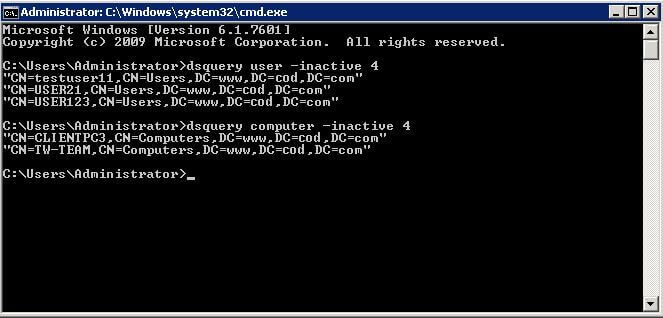
Figure 1: Tracking inactive accounts
Method 2: Using PowerShell
Prerequisites
- Required Module: ActiveDirectory PowerShell module (part of RSAT – Remote Server Administration Tools)
- Permissions Needed: Read access to Active Directory user and computer objects; Domain Admin or delegated permissions for disabling/deleting accounts
- Supported Versions: Windows Server 2008 R2 and later; Windows 7 and later (with RSAT installed)
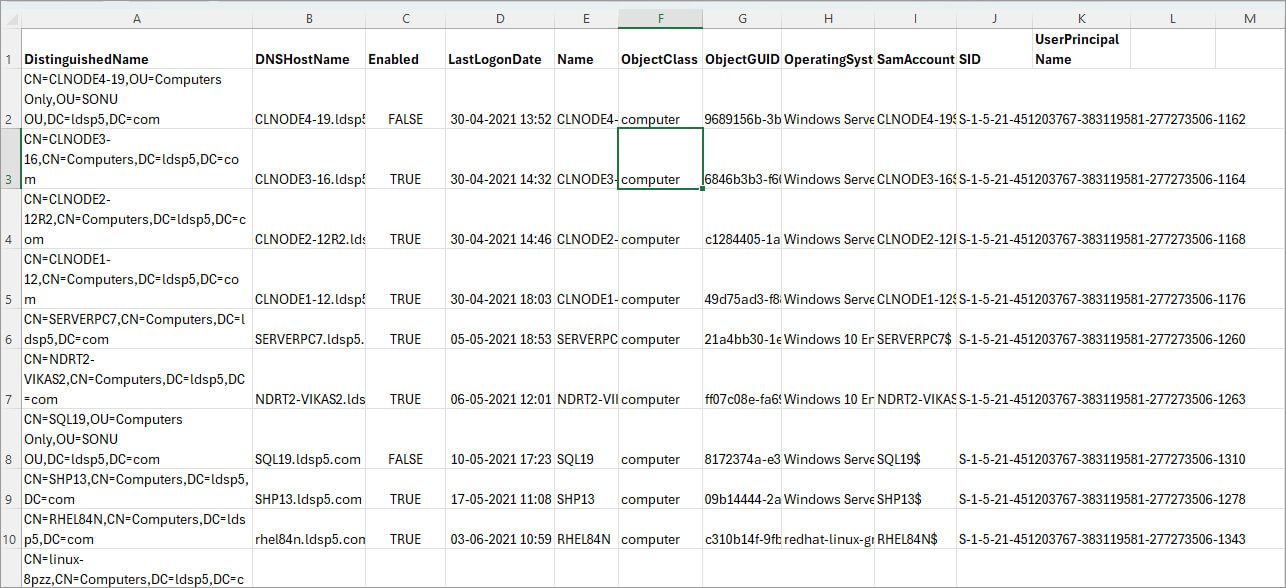
Get List of Inactive Computer Accounts and Export to CSV
Follow these steps to find and export inactive computer accounts:
- Open the PowerShell ISE
- Copy and run the following complete script, adjusting the $DaysInactive value as required:
# Specify inactivity range value (change 30 to your desired number of days) $DaysInactive = 30 # Convert $DaysInactive to LastLogonTimeStamp property format for the -Filter switch $time = (Get-Date).Adddays(-($DaysInactive)) # Identify inactive computer accounts and export to CSV file Get-ADComputer -Filter {LastLogonTimeStamp -lt $time} -ResultPageSize 2000 -resultSetSize $null -Properties Name, OperatingSystem, SamAccountName, DistinguishedName, LastLogonDate | Export-CSV "C:\Temp\StaleComps.CSV" –NoTypeInformation - Open the exported file at C:\Temp\StaleComps.CSV to review the results.
How to Manage Inactive User and Computer Accounts using Native Methods
After listing inactive accounts, you manage them by performing the below given methods (you can choose any method from these):
- Reset passwords of inactive accounts
- Disable the Inactive Accounts
- Move the account to an Organizational unit
- Delete the inactive accounts
Method 1 – Reset Passwords of Inactive Accounts
Perform the following steps just after listing the inactive accounts.
- Navigate to “Start” → “Administrative Tools” → “Active Directory Users and Computers”.
- Right-click the inactive user and click “Reset Password”
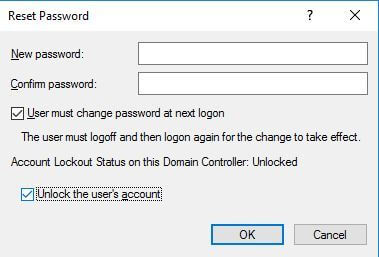
Figure 2: Resetting account password - Enter new passwords.
- Click “OK”.
Method 2 – Disable the Inactive Accounts
The inactive accounts must be disabled within 15-60 days to prevent any further security threats, using the commands given below:
-
- To disable the user accounts, run the following command in “Command Prompt”.
dsquery user -disabled -limit 30 - For disabling inactive computer accounts, run the following command in “Command Prompt”.
dsquery computer -disabled -limit 30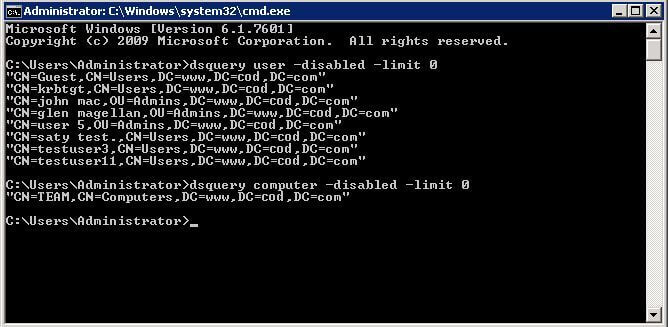
Figure 3: Disabling inactive users and computers NOTE: Here, 30 days is the inactivity period and you can change it.
- To disable the user accounts, run the following command in “Command Prompt”.
Method 3 – Move the account to an Organizational unit
After a few days of disabling the accounts, these should be moved to a stand-alone organizational unit. Right-click the username, select “Move” from the context menu and move the user to a standalone Organizational Unit. You can also drag-and-drop the user and computer account to any Organizational Unit.
Method 4 – Delete the inactive accounts
All the disabled inactive accounts after being moved to an organizational unit must be deleted to make sure that no one can use them at all. Execute the following commands.
-
- Run the command given below to delete the disabled user accounts
dsquery user -inactive 50 | dsrm–noprompt - Run the command given below to delete disabled computer accounts:
dsquery computer -inactive 7 | dsrm –noprompt
Figure 4: Deleting disabled inactive accounts NOTE: Here, 50 days is the inactivity period and you can change it.
- Run the command given below to delete the disabled user accounts
Disadvantages of Using the Native Method
All these steps have to be performed manually, which consumes a lot of time and effort. Also in the absence of an automated system, the steps mentioned above are not performed automatically at scheduled intervals, creating more manual work for IT teams.
This task becomes even more complicated when dealing with hundreds of accounts, as users will need an in-depth understanding of PowerShell cmdlets to extract the required information.
The Lepide Inactive User Reporter Freeware Tool
A more straightforward approach is to use the Lepide Active Directory Inactive User Reporter freeware tool. This solution will give you regular reports on stale accounts, helping you to identify and remove those that could be exploited by hackers or insiders. The steps to download and use this freeware tool are given below:
- Download the Freeware Inactive User Reporter
- Run the inactive-users.exe file and the dialog box shown below will be displayed
- Enter the Domain name, User Name and Password
- Click the button to Enumerate Domain Controllers
- Specify the Inactivity Period (Days)
- If required, check the box to Enable report to be sent via email
- If this option is checked, you will need to click Configure to configure the email settings and then click Save once done
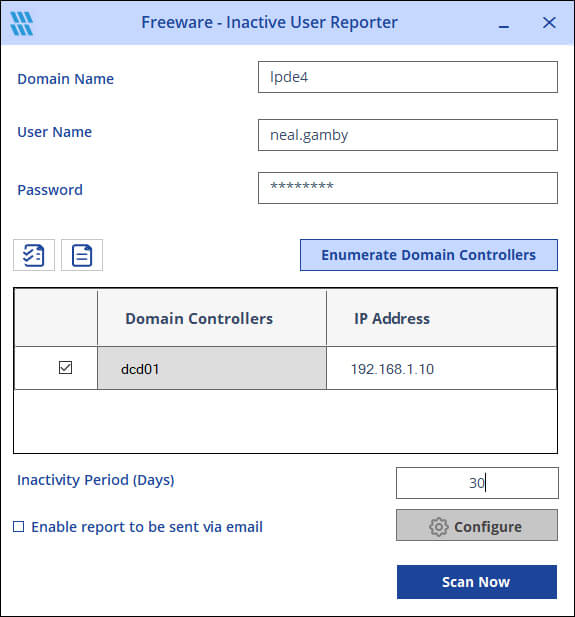
- Click Scan Now and the report will be generated

Native Methods vs. Lepide Tool Comparison
Frequently Asked Questions
There is no default inactivity period set by Active Directory itself. Organizations typically define their own thresholds based on security policies, with 30, 60, or 90 days being the most common choices.
You can automate cleanup by creating PowerShell scripts that run as scheduled tasks, or by using third-party tools like Lepide Inactive User Reporter that offer built-in scheduling and automated email reporting features.
To disable or delete user accounts, you need Domain Admin privileges or delegated permissions that grant you write access to user objects in Active Directory. For read-only queries, standard domain user permissions with read access to AD objects are sufficient.