An Active Directory account lockout occurs when a user exceeds the failed login attempt threshold set in the domain’s password policy, temporarily disabling the account.
Quick Reference: Key Event IDs
Why Does an AD Account Get Locked Out Frequently?
Below are some of the common causes of frequent AD account lockouts:
- Cached Credentials – Old passwords stored in Windows Credential Manager or browser autofill that attempt authentication with outdated credentials
- Service Accounts – Windows services configured with a user account that has an expired or changed password
- Scheduled Tasks – Automated tasks running with saved credentials that no longer match the current password
- Mobile Devices – Smartphones or tablets with saved Exchange/email credentials attempting to sync with old passwords
- Terminal Service Sessions – Disconnected RDP sessions that remain active with stale credentials
- Password Policy Issues – Mismatched password expiration settings across systems causing synchronization failures
- Misconfigured Policies – Group Policy Objects with incorrect lockout thresholds or authentication settings
- Brute-Force Attacks – Malicious attempts to guess passwords by systematically trying multiple combinations
Read more about common account lockout causes in detail.
Prerequisites
Before starting the troubleshooting process, ensure you have:
- Domain Admin privileges or equivalent permissions to access domain controller logs
- Access to Event Viewer on the domain controllers
- “Audit Account Management” enabled in Group Policy for account lockout events to be logged
How to Find Out the AD Account Lockout Source?
Follow the steps below to track locked out accounts and find the source of Active Directory account lockouts. If you already know the lockout account in question, you can start directly from step 5 (to track the source).
- Search for the DC having the PDC Emulator Role
- Open the Security Logs
- Search for Event ID 4740 in Event Viewer
- Find Out the Locked Account Whose Information is Required
- Open the Event Report to Find the Account Lockout Source
Step 1 – Search for the DC having the PDC Emulator Role
The DC (Domain Controller) with the PDC Emulator role (the domain controller that acts as the primary authority for password changes and account lockouts) will capture Event ID 4740 (the Windows Security event logged whenever an account is locked out). If you have only one DC then you can skip this step.

Run the following PowerShell command to identify the PDC Emulator:
Get-ADDomain | Select-Object PDCEmulator
Expected output:
PDCEmulator ----------- DC01.contoso.com
Step 2 – Open the Security Logs
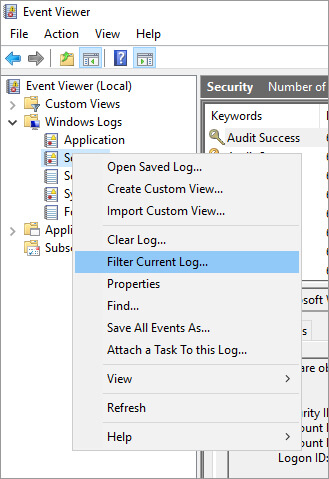
Open the event log viewer of the domain controller, Go to the security logs, and filter current log.
Step 3 – Check Account Lockout Event ID 4740 in Event Viewer
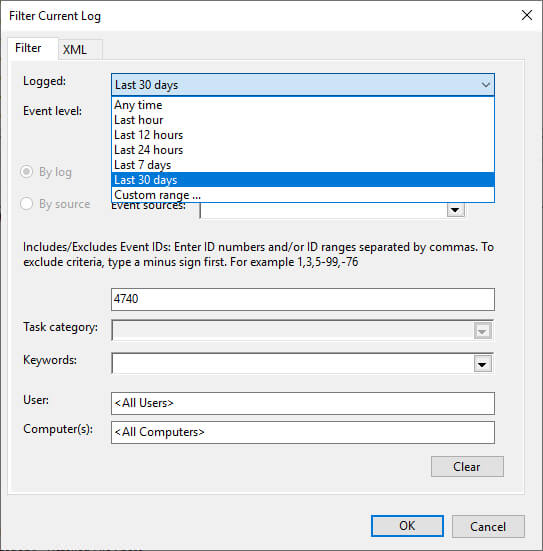
Search for Event ID 4740 in Event Viewer. There are suitable filters to generate a more customized report. For example, you can search for a lockout that occurred in the last hour and find the recent lockout source of a particular user.
Step 4 – Find Out the Locked Account Whose Information is Required
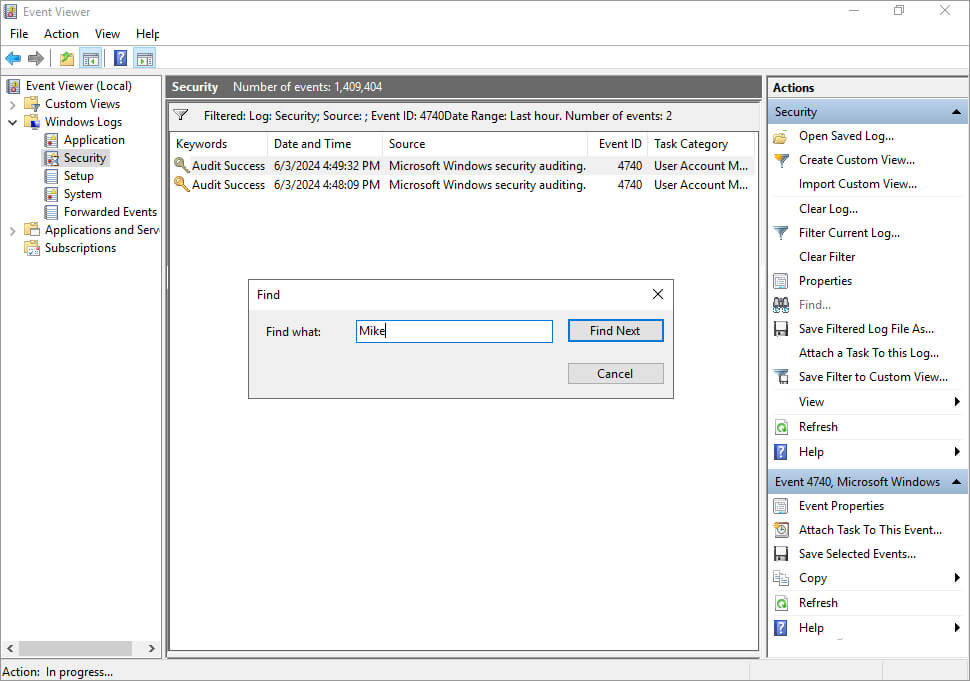
Click on the Find button in the Actions pane to look for the User whose account has been locked out.
Step 5 – Open the Event Report to Find the Account Lockout Source
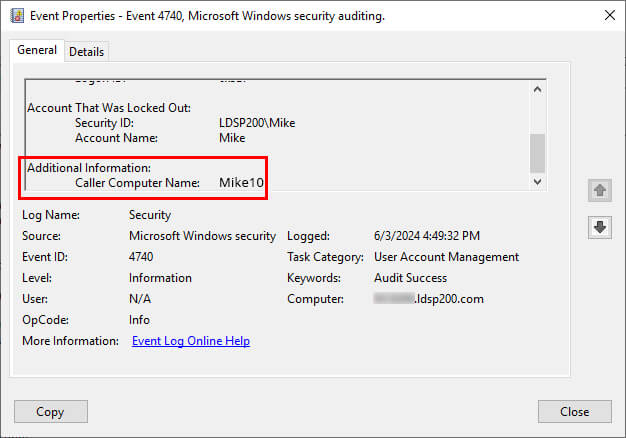
Here you can find the name of the user account in the Account Name, and the source of the lockout location in the Caller Computer Name field (the hostname of the machine where the failed authentication attempts originated).
How to Find Out the Cause of Account Lockout?
To perform a more detailed analysis of the cause of this lockout, carry out the following actions on the DC:
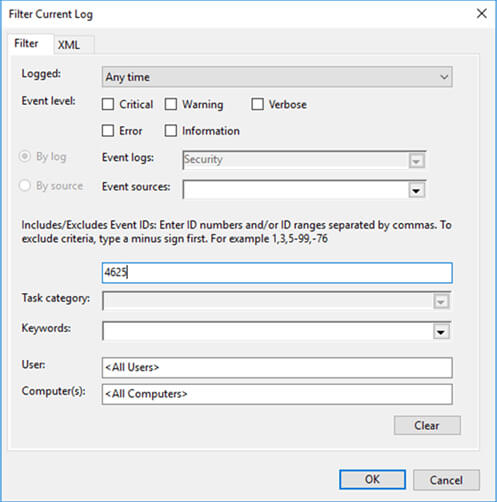
- In the Event Viewer, filter the current view to look for the Event ID 4625, which is logged when there is a failed logon.
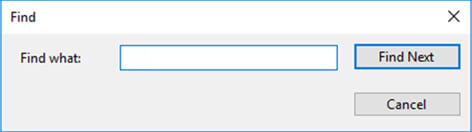
- On the right pane of the Event Viewer window, click Find, enter the user’s name that was locked out, and click Find Next.
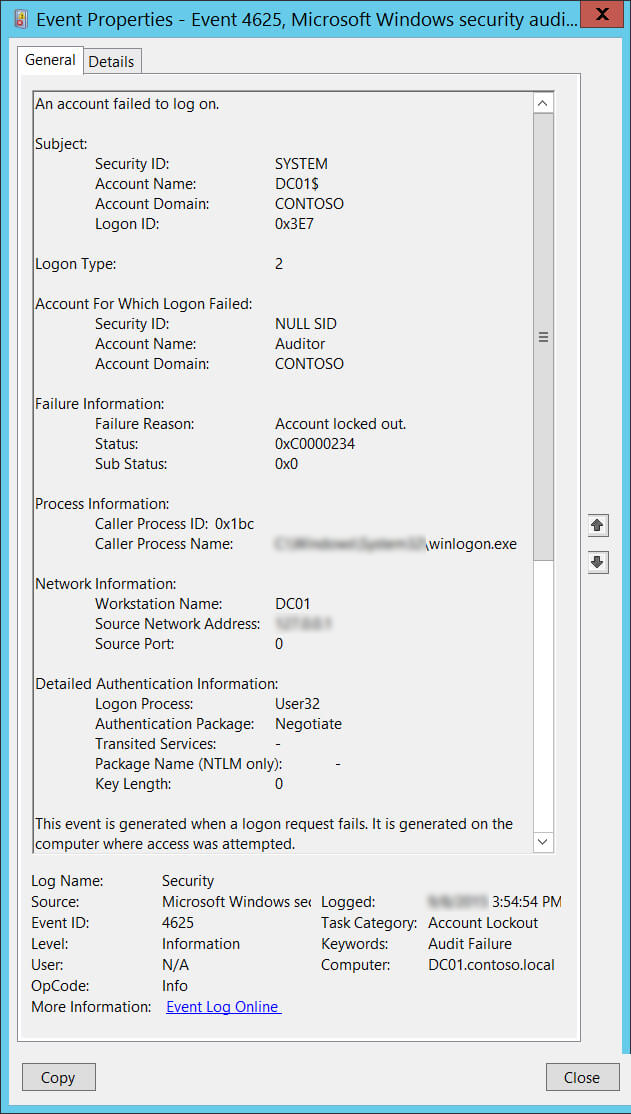
- Look for an event logged after the account lockout time and view its properties.
- Scroll down to Caller Process Name. This will show you the location of the process that possibly caused the lockout.
Troubleshooting Tips
- If Event ID 4740 is missing: Verify that “Audit Account Management” is enabled in Group Policy under Computer Configuration > Policies > Windows Settings > Security Settings > Advanced Audit Policy Configuration > Account Management.
- If Caller Computer Name shows a blank or unknown value: The lockout may have originated from a network device or application that doesn’t pass computer name information. Check RADIUS or VPN logs.
- If lockouts continue after password reset: Clear cached credentials in Windows Credential Manager and check for scheduled tasks or services using the old password.
Frequently Asked Questions
What Event ID shows account lockout source?
Where do I find the lockout source computer?
What Event ID shows failed logon attempts?
Which domain controller logs account lockouts?
How Lepide Account Lockout Examiner (Free Tool) Helps
Lepide Account Lockout Examiner Free Tool generates Account Lockout Reports where complete information about the event is displayed in a single row. When you right-click on any event, the context menu will give you the following options; “Unlock”, “Reset Password” and “Investigate”.
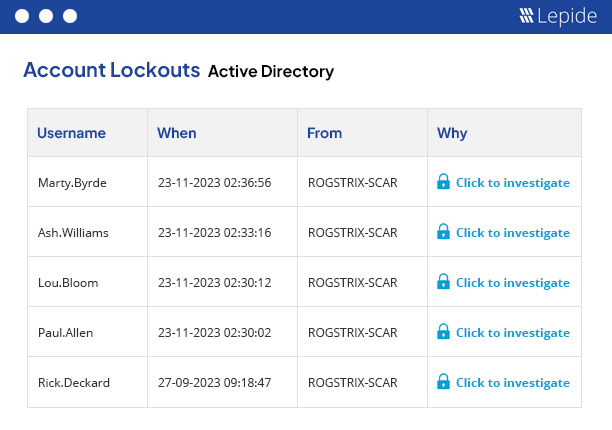
To run the Account Lockout Report:
- From the States & Behavior screen, expand the Active Directory component and click on Account Lockout Report
- Select a date range and click Generate Report
- The report is generated and can be grouped, filtered, saved and exported
Unlock Account
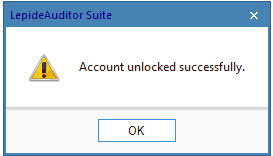
Click on this option to unlock the chosen user account. Once done, it shows the following message.
Reset Password
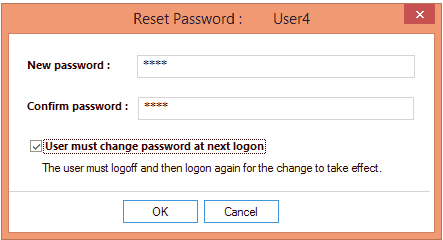
If you want to reset the users’ password, click on the “Reset Password” option. Enter the new password and then confirm it. Select the “User must change password at the next logon” option to force the user to change the password on the next logon.
Investigate
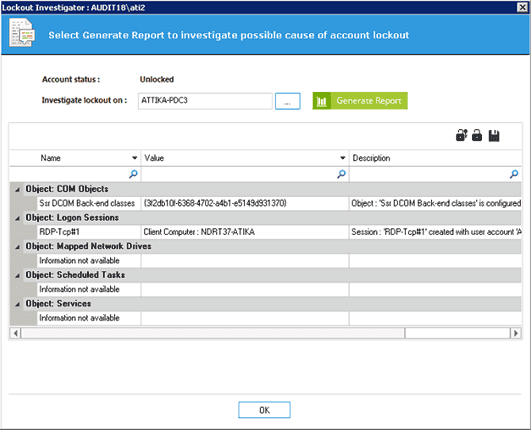
In order to investigate how the user account was locked out click on the “Investigate” option in the context menu. After clicking on the “Investigate” button, “Lockout Investigator” window opens up. In this window, you can click on the “Generate Report” button to generate the report to view the reason behind the account lockout.
The Security Implications of Account Lockouts
Account lockouts are generally a harmless and completely common occurrence. Users forget their passwords frequently. A lot is often made of the operational effects of account lockouts, including downtime, disruption, and consumption of IT resources. However, account lockouts can be a symptom of something more sinister.
Often, if there are a large number of account lockouts over a very small period of time it can be an indication of a brute force attack, where attackers might be using password-spreading techniques to gain access to resources.
So, account lockouts are not to be brushed off completely. And it’s worth making sure that you have a way of knowing whether the account lockouts you’re seeing are normal everyday behavior for your employees or the symptom of something darker at work.
With Lepide, you can learn what the normal behavior for your employees looks like, and receive real-time alerts whenever behavior deviates from this norm. You can also deploy any number of pre-defined threat models to automatically detect and react to threats such as brute force attacks, or password spraying.

