


Last Updated on October 5, 2026 by Satyendra
To check Microsoft 365 audit logs, sign in to the Microsoft Purview portal, go to Audit > Search, select the date and time range, and apply filters such as activities, users, record types, workloads, or files and sites. Run the search to review user and administrator activities across supported Microsoft 365 services.
Audit logging is enabled by default for most Microsoft 365 organizations, although administrators should verify that auditing is enabled for their tenant. Audit (Standard) retains audit records for 180 days by default, while Audit (Premium) provides longer retention and additional auditing capabilities.
Microsoft 365 audit logs are records that track user and administrator activities across Microsoft 365 services, including file access, sharing, permission changes, and configuration modifications. As organizations increasingly store sensitive information in cloud services, maintaining visibility into user activity and administrative changes is important for security investigations, compliance, and identifying potentially risky behaviour.
Regularly reviewing Microsoft 365 audit logs can help organizations understand how their environment is being used, investigate suspicious activity, and identify changes that could affect security.
In this article, we will look at what audit logging means in Microsoft 365, why audit logs should be monitored regularly, and how to search them using Microsoft Purview Audit. We will also look at how third-party auditing solutions can provide additional monitoring, reporting, and alerting capabilities.
Why Check Office 365 Audit Logs?
Microsoft 365 comprises multiple services, including Microsoft Teams, Exchange Online, Microsoft Entra ID, SharePoint Online, and OneDrive for Business. Monitoring activity across these services can be challenging for administrators, particularly in environments with multiple administrators and thousands of users.
Microsoft 365 audit logs provide visibility into user and administrator activities, such as accessing and sharing files, modifying permissions, changing configurations, and performing administrative operations. This information can help organizations investigate security incidents, understand how resources are being used, and support compliance requirements.
Microsoft Purview Audit provides native capabilities for searching and investigating this activity. However, organizations that require capabilities such as centralized monitoring across multiple platforms, simplified reporting, behavioural analytics, or real-time alerting may also consider third-party auditing solutions.
Key Microsoft 365 Services Covered by Audit Logs
- Exchange Online – Tracks activities such as mailbox access, message-related operations, permission changes, and administrative configuration changes.
- SharePoint Online – Records file access, sharing activities, permission changes, and site administration events.
- OneDrive for Business – Records activities such as file access, uploads, downloads, deletions, sharing, and synchronization.
- Microsoft Teams – Records activities such as team and channel operations, membership changes, messaging-related activities, and meeting-related events.
- Entra ID (Azure AD) – Provides separate audit and sign-in logs for identity-related activities such as sign-ins, user and group changes, role assignments, and authentication-related events. Relevant Entra ID activities are also available through Microsoft Purview Audit.
Download Whitepaper

How to Turn On/Enable Office 365 Auditing?
Audit logging is enabled by default for most Microsoft 365 organizations. However, administrators should verify that auditing is enabled before relying on the audit log.
Auditing is not enabled by default for some Small and Medium Business (SMB) licenses, including Microsoft 365 Business Basic, Business Standard, and Business Premium. Unmanaged tenants using free trials of enterprise licenses may also need to enable auditing manually.
Check Whether Auditing Is Enabled
You can verify the auditing status of your organization using Exchange Online PowerShell:Get-AdminAuditLogConfig | Format-List UnifiedAuditLogIngestionEnabled
If UnifiedAuditLogIngestionEnabled is set to True, auditing is enabled. If it is False, auditing needs to be enabled.
Note: Run this command in Exchange Online PowerShell. Microsoft states that when the same command is run in Security & Compliance PowerShell, the UnifiedAuditLogIngestionEnabled property can return False even when auditing is enabled.
Enable Auditing in Microsoft Purview
If auditing is not enabled:
- Sign in to the Microsoft Purview portal.
- Select Audit. If it is not displayed, select View all solutions > Audit.
- If auditing is disabled, you will see a banner prompting you to start recording user and administrator activity.
- Select Start recording user and admin activity.
Enable Auditing Using PowerShell
You can also enable auditing using Exchange Online PowerShell. Connect to Exchange Online PowerShell and run:Set-AdminAuditLogConfig -UnifiedAuditLogIngestionEnabled $true
Enabling auditing can take up to 60 minutes to take effect. Audit events may take additional time before they become searchable in the audit log.
How Long Does it Take to Capture the Events?
Microsoft 365 audit events are not available in the audit log immediately after an activity occurs. For core services such as Exchange, SharePoint, OneDrive, and Microsoft Teams, audit records are typically available within 60 to 90 minutes.
For other Microsoft 365 services, audit records may take longer to become available. Microsoft does not guarantee a specific time for an event to appear in audit search results, as service issues or other processing delays can affect audit record availability.
If auditing has only recently been enabled for the organization, audit events may take several hours before they become searchable.
How to Run an Office 365 Audit Log Search?
Follow these steps to search the Microsoft 365 audit log:
- Sign in to the Microsoft Purview portal.
- Select Audit. If the Audit solution is not displayed, select View all solutions, and then select Audit.
- On the Search page, configure the search criteria as required:
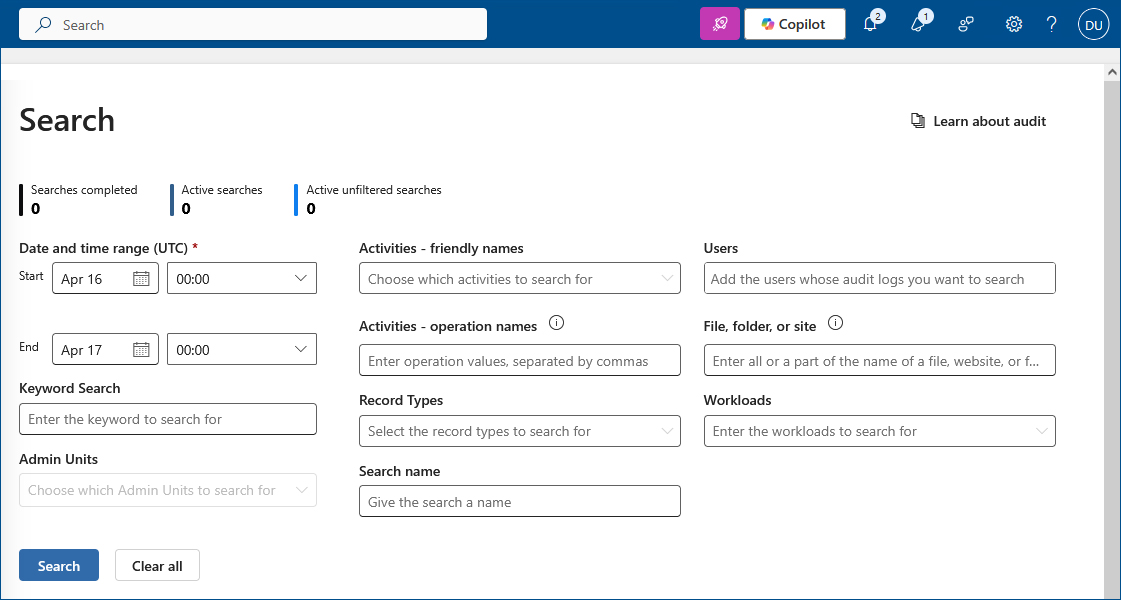
- Date and time range (UTC): Select the period you want to investigate. The last seven days are selected by default, and the maximum date range for a single search is 180 days.
- Keyword Search: Enter a keyword or phrase to narrow the search.
- Activities: Select specific user or administrator activities using friendly names or operation names.
- Record types: Select specific record types associated with Microsoft services and applications.
- Users: Select one or more users whose activities you want to investigate.
- File, folder, or site: Enter a file name, folder name, site, or URL to find related activities.
- Workloads: Select Microsoft services or workloads to include in the search.
- Enter a Search name to make the search job easier to identify.
- Select Search to start the search job.
- When the search is complete, open the search job to review the results. The results can include information such as the date and time of the activity, IP address, user, record type, activity, affected item, and additional event details.
- To download the results, select Export. Audit (Standard) supports exporting up to 50,000 records from a single audit search, while Audit (Premium) supports up to 1,000,000 records.
What are the Limitations of Native Searches in Microsoft 365 Audit Logging?
While Microsoft Purview Audit provides native capabilities for searching and investigating Microsoft 365 activity, there are some limitations to consider:
- Searches can take time in large environments: The time required to complete an audit search depends on factors such as the date range, number of users, volume of activity, and tenant size. Broad searches in large tenants may take up to 48 hours to complete.
- Search jobs have concurrency limits: A user can run a maximum of 10 audit search jobs simultaneously. Additional searches must wait until an existing search completes or is deleted.
- Export limits apply: Audit (Standard) allows up to 50,000 records to be exported from a single audit search, while Audit (Premium) supports up to 1,000,000 records. Larger datasets may require narrower filters or multiple searches.
- Audit data is not available indefinitely: Audit (Standard) retains audit records for 180 days by default. Longer retention and custom audit log retention policies require Audit (Premium) and appropriate licensing.
- Audit data is not real-time: Events may take time to become searchable after an activity occurs, which can limit the use of audit searches for immediate investigation or response.
- Capabilities depend on licensing: Features such as longer retention, custom audit retention policies, intelligent insights, and higher-bandwidth access to audit data are available with Audit (Premium) and appropriate licensing.
How Long Should You Retain Your Office 365 Audit Logs?
The appropriate retention period for Microsoft 365 audit logs depends on your organization’s security, investigation, legal, and compliance requirements.
Default Retention Periods
- Audit (Standard): Audit records are retained for 180 days by default.
- Audit (Premium): For appropriately licensed users, audit records for Microsoft Entra ID, Exchange, OneDrive, and SharePoint are retained for one year by default. Audit records for other activities are retained for 180 days by default.
- Organizations with the appropriate Audit (Premium) licensing can create custom audit log retention policies. Audit logs can be retained for longer periods, including up to 10 years with the required 10-Year Audit Log Retention add-on license.
Compliance and Security Considerations
Organizations should determine how long audit logs need to be retained based on applicable regulatory requirements, internal security policies, incident investigation needs, and legal obligations.
Longer retention can be useful for investigating security incidents that are discovered months after they occur, identifying historical patterns of suspicious activity, and supporting forensic investigations and compliance audits.
Before defining a retention period, organizations should review the specific requirements that apply to their industry and data rather than assuming that a particular regulatory record-retention requirement applies directly to Microsoft 365 audit logs.
How to Create Audit Log Retention Policies?
Organizations with the appropriate Microsoft Purview Audit (Premium) licensing can create custom audit log retention policies to control how long specific audit records are retained.
To create an audit log retention policy:
- Sign in to the Microsoft Purview portal using an account assigned the Organization Configuration role.
- Select Audit. If Audit is not displayed, select View all solutions > Audit.
- Select Create audit retention policy.
- Configure the following settings:
- Policy name: Enter a unique name for the policy. The name cannot be changed after the policy is created.
- Description: Optionally provide information about the purpose and scope of the policy.
- Users: Select the users to whom the policy should apply. Leave this field blank to apply the policy to all users.
- Record type: Select one or more audit record types. If you select a single record type, you can also specify individual activities. Leaving the record type blank applies the policy to all record types.
- Duration: Select how long matching audit records should be retained. Available options include 7 days, 30 days, 6 months, 9 months, 1 year, 3 years, 5 years, and 7 years. A 10-year option is available for users with the required 10-Year Audit Log Retention add-on license.
- Priority: Specify the order in which the policy should be applied if multiple policies match the same audit records. A lower number indicates a higher priority. For example, a policy with priority 5 takes precedence over one with priority 10.
- Select Save to create the audit log retention policy.
The new policy will appear on the Policies page in Microsoft Purview Audit.
How Lepide Helps
Lepide Auditor for Microsoft 365 helps address many of the challenges associated with native Microsoft 365 auditing by centralizing audit data, simplifying reporting, and providing real-time alerting and behavioural analysis.
Lepide tracks user and administrator activity across Microsoft Entra ID, Exchange Online, SharePoint Online, OneDrive for Business, and Microsoft Teams. It provides clear visibility into who performed an activity, what changed, when it happened, and where the activity originated.
Lepide also provides predefined reports that make it easier to investigate Microsoft 365 activity without manually working through large volumes of audit data. Examples include reports for:
- External data sharing
- Permission modifications
- User and group modifications
- Document modifications
- Policy modifications
- Mailbox and Exchange changes
- SharePoint Online activity
Real-time alerts can be configured for critical events and delivered by email or through the Lepide mobile app. Lepide also uses behavioural analytics to identify unusual user activity and potential security threats.
Beyond audit events, Lepide can provide additional context by identifying and classifying sensitive data in SharePoint Online and OneDrive, monitoring how users interact with sensitive data, identifying excessive permissions, and detecting when sensitive information is shared externally or through Microsoft Teams.
Automated responses can also be triggered from real-time alerts to help security teams respond more quickly when potentially risky activity is detected.
If you’d like to see how Lepide can help you monitor and investigate Microsoft 365 activity, schedule a demo with one of our engineers.
Native Microsoft 365 Audit Logs vs. Third-Party Solutions
Microsoft Purview Audit provides built-in capabilities for searching, investigating, and retaining user and administrator activity across Microsoft 365 services. Audit (Premium) extends these capabilities with longer retention, custom retention policies, intelligent insights, and higher-bandwidth access to audit data.
However, organizations that need continuous monitoring, simplified reporting, cross-platform visibility, or faster identification of suspicious activity may use third-party auditing solutions alongside native Microsoft 365 auditing.
| Capability | Native Microsoft 365 Audit | Third-Party Solutions |
|---|---|---|
| Audit data collection | Captures thousands of supported user and admin activities across Microsoft 365 services | Can collect Microsoft 365 audit data and, depending on the solution, activity from other platforms |
| Searching and investigation | Provides filtering and search through Microsoft Purview Audit | May provide simplified searches, dashboards, and investigation workflows |
| Retention | 180 days with Audit (Standard); longer retention is available with Audit (Premium) and appropriate licensing | Retention periods vary by solution and configuration |
| Custom retention policies | Available with Audit (Premium) | Varies by solution |
| Alerts and monitoring | Available through Microsoft’s broader security and compliance ecosystem depending on licensing and configuration | May provide built-in real-time or near-real-time alerting and monitoring capabilities |
| Reporting | Audit data can be searched, reviewed, and exported for further analysis | May provide prebuilt audit, security, and compliance reports |
| Cross-platform visibility | Primarily focused on Microsoft services and solutions | May correlate Microsoft 365 activity with Active Directory, file servers, cloud services, and other environments |
| Audit data access | Available through the Purview portal, PowerShell, Microsoft Graph Audit Search API, and Office 365 Management Activity API | aries by solution; may provide centralized dashboards, reports, APIs, or integrations |
| Licensing | Advanced capabilities such as longer retention and intelligent insights require Audit (Premium) licensing | Requires separate third-party licensing |
Frequently Asked Questions
Yes. Audit logging is enabled by default for most Microsoft 365 organizations. However, auditing is not enabled by default for some SMB licenses, including Microsoft 365 Business Basic, Business Standard, and Business Premium. Administrators can verify the auditing status in Microsoft Purview or by using Exchange Online PowerShell.
Microsoft Purview Audit (Standard) retains audit records for 180 days by default. With Audit (Premium), audit records for Microsoft Entra ID, Exchange, OneDrive, and SharePoint generated by appropriately licensed users are retained for one year by default. Organizations with the required licensing can also create custom audit log retention policies for longer retention periods.
Audit records for core services such as Exchange, SharePoint, OneDrive, and Microsoft Teams are typically available within 60 to 90 minutes. Other services may take longer, and Microsoft does not guarantee a specific time for every audit event to become searchable.
Yes. Audit search results can be exported from Microsoft Purview Audit. Audit (Standard) supports exporting up to 50,000 records from a single audit search, while Audit (Premium) supports exports of up to 1,000,000 records.