


Last Updated on October 1, 2026 by Ashok Kumar
Microsoft 365 Copilot runs within the access controls that users already have in place within Microsoft 365. It doesn’t grant users new access to organizational content, but it can make existing access issues more consequential by making already-accessible information easier to discover and use. Organizations need to recognize whether users already have too much access to business data.
The objective is not to restrict Copilot unnecessarily. It is to identify and reduce overexposed permissions before Copilot makes existing information easier for users to discover and use.
Why Overexposed Permissions Matter Before Enabling Copilot
Copilot adheres to any existing permissions set by Microsoft 365. Copilot can ground responses in organizational content that the signed-in user is authorized to access across supported Microsoft 365 services, including SharePoint, OneDrive, Teams, and Exchange. The issue here is that users may already have access to information that they do not require. This access may be acquired via group membership, sharing, permission inheritance, and past roles or projects.
Information that is available but hard to access can be easily discovered using a simple conversational command. Microsoft identifies oversharing and poorly governed content as factors that could impact Copilot outcomes and risk.
That’s the reason organizations should distinguish between:
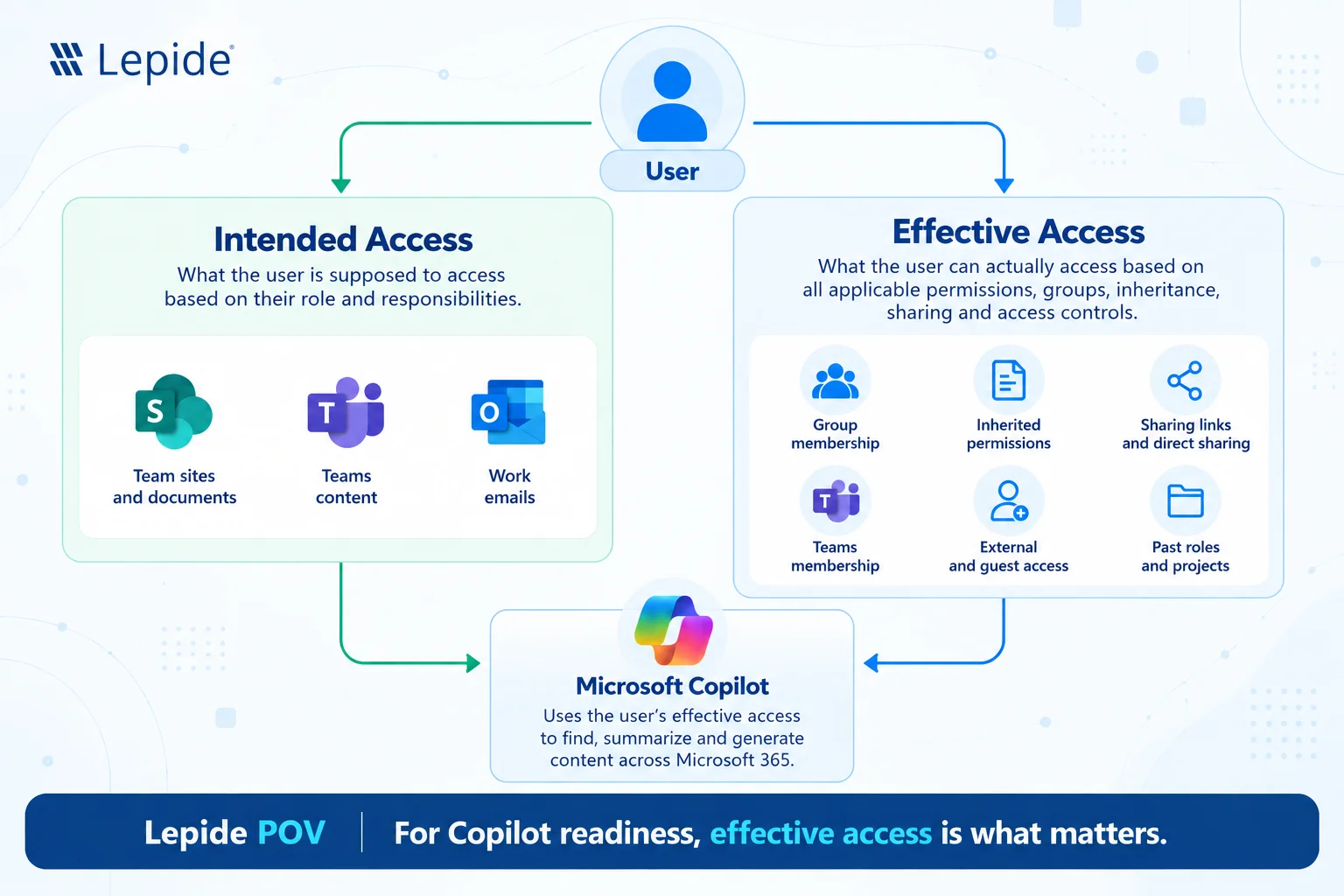
- Intended Access: What a user is supposed to access based on their role and responsibilities.
- Effective Access: What the user can access based on all applicable permissions, groups, inheritance, sharing, and access controls.
For Copilot readiness, effective access is what matters.
What Causes Overexposed Permissions in Microsoft 365
Permissions exposure rarely comes from one configuration mistake. More often, it develops gradually as users, groups, sites, and content change over time. The common sources of excessive access are as follows:
1. Broad SharePoint and Teams Permissions
SharePoint sites tend to grow in membership and in permission groups. Team membership can provide access to associated content. Files uploaded to standard Teams channels are stored in the team’s SharePoint site, while files shared in chats are typically stored in the sender’s OneDrive. Site-level permissions, broad groups, organization-wide access, and permissions granted to Teams members who have access to the related SharePoint sites increase the audience
2. Stale and Unnecessary Access
Permissions can become stale when organizational responsibilities change. Examples include users who retain access after:
- Changing role
- Moving departments
- Completing projects
- Leaving groups or teams
- No longer working with a particular business function
The problem is not necessarily that the original permission was wrong. The problem is that the business justification for the permission may no longer exist.
3. Inherited and Nested Permissions
Determining proper access can become quite complicated if permissions are either inherited or assigned by groups. In that case, the user may not seem to have any access rights at all but may be able to access that resource because of group membership. Group-based access can make effective permissions difficult to trace because a user may receive access through one or more group memberships rather than through a direct permission. Nested groups can add further complexity in scenarios where the relevant group type and resource support nesting. Thus, analyzing permissions individually may not give a complete picture of the users with access rights
4. Overshared Files and Folders
Access to files and folders may accrue due to direct permissions, sharing links, inherited permissions, and collaborative activity. A file that was originally shared with a smaller project group may ultimately be accessible to many more people. External sharing and broadly scoped sharing links may increase the number of people who can access the file.
5. Excessive Access to Sensitive Data
The risk grows when excessive permissions apply to personal, financial, regulated, or confidential information. Examples may include personal information, financial records, confidential business documents, regulated information, HR records, intellectual property, or other data that should only be available to a defined audience. The key issue is not simply whether sensitive data exists. It is whether the right users have access to it for the right business reasons.
How to Identify Overexposed Permissions Before Enabling Copilot
Permission assessment should answer a straightforward question: Who can access what today? Answering that question requires looking beyond individual SharePoint permissions and examining effective access across Microsoft 365 environments.
1. Establish What Users Can Actually Access
Start by reviewing the effective access across:
- SharePoint sites
- Teams and their associated SharePoint sites
- OneDrive
- Files and folders
- Microsoft 365 groups
- Direct permissions
- Inherited permissions
- Group-based permissions
2. Review Broad and Risky Permissions
Examine permissions that expose content to unnecessarily large audiences. Look for configurations such as:
- Broad Microsoft 365 groups
- Organization-wide access
- Oversized SharePoint site memberships
- Excessive Teams membership
- Broad sharing links
- Anonymous or “Anyone” links where applicable
- Unnecessary external access
- Direct permissions granted outside established access groups
These configurations are not automatically insecure. Their risk depends on the data involved, the audience, and the business requirement. The important question is: Is the size and composition of the audience appropriate for the content?
3. Identify Stale Permissions and Group Memberships
Stale access deserves particular attention because it can be difficult to identify through a point-in-time permissions review. Look for:
- Old project groups
- Inactive Teams memberships
- Direct permissions granted long ago
- Users who changed departments
- Former project participants
- Groups that no longer have a clear business owner or purpose.
Where possible, validate permissions against current job responsibilities rather than simply asking whether the permissions were originally approved.
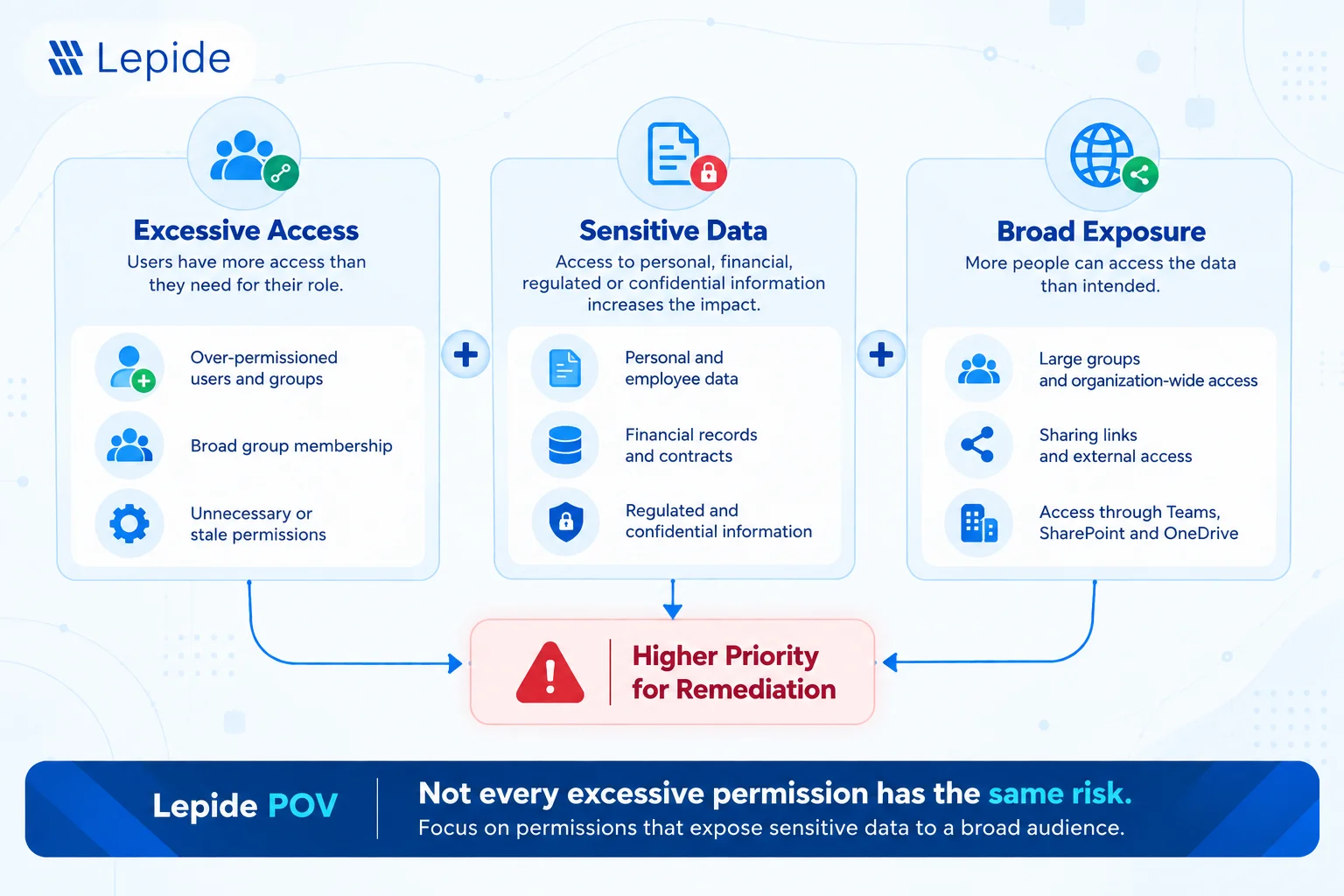
4. Prioritize Permissions That Expose Sensitive Data
Not every excessive permission represents the same level of risk. A useful prioritization model is:
Excessive access + sensitive data + broad user exposure = higher priority
This approach enables IT/security teams to direct their remediation efforts to areas where excessive permissions are coupled with data exposure. This is also because permission management is naturally linked to the sensitive data discovery process, which needs to be considered when evaluating the sensitive data Microsoft Copilot can access.
How to Reduce Overexposed Permissions Before Copilot Rollout
Identifying excessive permissions is only the first step. Organizations should then remediate access that cannot be justified. Depending on the situation, remediation may involve:
- Remove unnecessary permissions
- Remove stale group memberships
- Review direct permissions
- Review external access
- Establish periodic access reviews
- Apply least privilege
- Reduce overly broad sharing and sharing links
The aim isn’t to restrict Copilot unnecessarily. It is to correct the underlying Microsoft 365 access model so that Copilot reflects the access people should have.
Native Microsoft Tools for Reviewing Permissions Before Copilot
Microsoft provides several native capabilities that organizations can use as part of a Copilot readiness assessment.
- SharePoint Site Permissions: SharePoint administrators can view site owners, site members, site visitors, permission levels, site sharing, and access controls. Microsoft offers data access governance reports for identifying possibly overshared SharePoint content.
- Site and Group Memberships: Review Microsoft 365 group and Teams membership to identify users who may have access through collaboration groups they no longer need. This is particularly important because Teams-connected content can rely on SharePoint for file storage.
- Microsoft Entra ID Access Reviews: Microsoft Entra ID Governance provides access reviews that can be used to periodically review group memberships, application access, access-package assignments, and supported role assignments. Reviewers such as group owners or managers can verify whether users still require access, helping organizations maintain least privilege.
- Microsoft Purview: Microsoft Purview has capabilities that include information protection, data governance, audit, and compliance, and can be used along with a permission review. Microsoft also discusses Purview capabilities related to audit of Copilot activity, as well as information protection and DLP policy application to Microsoft 365 data. The goal is to leverage these native capabilities during an assessment process rather than use Copilot licensing and configuration as a replacement for access governance.
Limitations of Native Permission Reviews
Microsoft provides substantial capabilities for managing and reviewing access. The challenge for many organizations is not the absence of controls; it is the difficulty of applying them consistently at scale. Common challenges include:
- Fragmented Visibility: Access can span SharePoint, OneDrive, Teams-connected resources, Microsoft 365 groups, Entra ID, direct permissions, sharing links, and other access paths, which can make organization-wide effective-access analysis complex.
- Effective Access Is Difficult to Understand: It can be challenging to define “who can actually access this?” due to the mix of direct permissions, group memberships, inherited privileges, shared links, and external links.
- Limited data context: Knowing that 500 users have access is not the same as knowing that those 500 users can access a file containing sensitive information such as payroll, passwords, contracts, etc.
- Prioritization can still require business context: Native reports can identify potentially overshared sites, broad permissions, sharing links, and sensitive-content indicators, but organizations may still need additional context to determine which findings represent the highest business risk.
- Manual effort at scale: Evaluating thousands of locations, files, folders, groups, and users one by one is not practical in a large environment.
- Point-in-time reviews: Access information changes constantly. A desirable situation in the present can become an undesirable one due to new sharing links, group changes, or the granting of rights.
- Limited usage context: The number of permissions may seem high, but the access may be legitimately needed. On the other hand, an outdated permission may not seem dangerous, but nobody may have used it for quite some time.
- Remediation complexity: Identifying the access is only part of the issue; remediating it properly without hindering legitimate collaboration requires ownership and business context.
- Copilot-specific exposure can be difficult to visualize: Traditional permission reports alone may not show how permission exposure, sensitive content, and Copilot usage intersect. Organizations may need to correlate access, sensitivity, and Copilot activity to understand the resulting exposure.
How Lepide Helps Identify Overexposed Permissions Before Copilot
Lepide focuses on data access governance to solve the challenge. The process includes the following:
- Discover and Classify Sensitive Data: Lepide can discover and classify sensitive data across supported repositories and combine this information with permissions analysis to show where sensitive data resides and who has access to it.
- Understand Effective Access: Permission analysis helps provide instant visibility into existing permissions and permission changes to identify excessive access and effective permissions.
- Prioritize by risk: Lepide integrates data discovery with permission analysis, making remediation possible based on actual access to sensitive data.
- Remediate: Lepide can identify excessive permissions and automatically revoke them using custom policies applied to files and folders
- Monitor Continuously: Lepide audits Microsoft 365, including Exchange Online, SharePoint Online, OneDrive, Teams, and Entra ID, enabling monitoring of permission changes and user activity.
Lepide also provides Copilot-specific visibility, including reporting on Copilot searches, sensitive data accessed through Copilot, Copilot access and usage, and inactive users with Copilot access, as well as real-time alerts for high-risk Copilot queries.
Schedule a demo to see how Lepide can show your overexposed permissions before Copilot does.
Don’t Treat Copilot Readiness as a One-Time Permission Review
A pre-rollout review reduces the existing access exposure that Copilot inherits, but permissions keep changing. Users join groups, share content, change roles, and create new sites and Teams every day. Organizations need to move from a one-off effort to an ongoing cycle: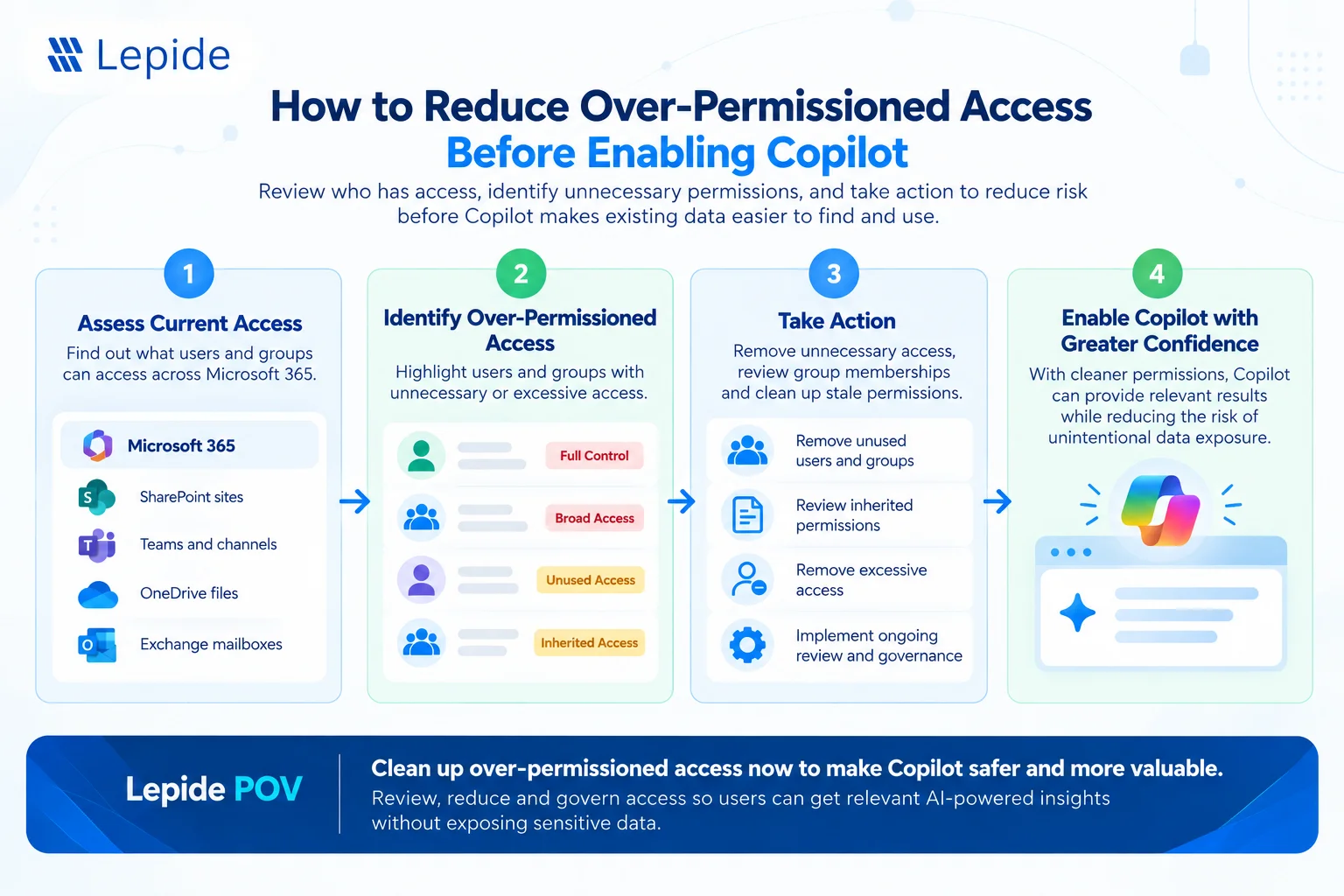
Frequently Asked Questions
Overexposed permissions occur when users have access to information beyond what they reasonably need for their current responsibilities. The access may result from broad group memberships, inherited permissions, direct sharing, Teams membership, organization-wide access, or permissions that were never removed after a role or project changed.
No. Microsoft 365 Copilot operates within existing permissions and access controls. It does not need to grant a user new access to information for an existing permission problem to become more visible
No. Copilot only retrieves content the signed-in user is already authorized to see. That’s why fixing overexposed permissions matters before rollout.
Review effective access across SharePoint sites, Teams, OneDrive, groups, and files, including direct and inherited permissions. Use native tools for smaller environments and a data access governance tool for larger ones.
SharePoint holds a large share of organizational content. Microsoft specifically recommends identifying potentially overshared SharePoint content and controlling access as part of Copilot readiness. Reviewing SharePoint permissions before deployment helps organizations address existing oversharing rather than allowing those access relationships to remain unexamined.
Least privilege limits users’ access to the information they need for their work. Because Copilot respects existing permissions and access controls, reducing unnecessary access also reduces the amount of organizational information that can potentially be surfaced to the user through Copilot. The objective is not to restrict useful access. It is to ensure that access is aligned with legitimate business requirements and remains appropriate over time.