Last Updated on October 9, 2026 by Satyendra
Sensitive data stored across Windows file servers and Microsoft 365 can become accessible to more users than intended. Excessive access can result from direct permissions, group membership, nested groups, permission inheritance, ad hoc shares, and permissions or access that were not removed when a user’s role or responsibilities changed.
To identify excessive access properly, you need to be able to answer three questions:
- Where is the sensitive data located?
- Who has access to it?
- Which users have too much access?
How to Identify Users with Excessive Access to Sensitive Data
To identify users with excessive access, start by locating sensitive data and then determine who can access it, how that access is granted, and what each user can actually do with the data. You can then compare their effective access with their business requirements to identify permissions that may be unnecessary or excessive.
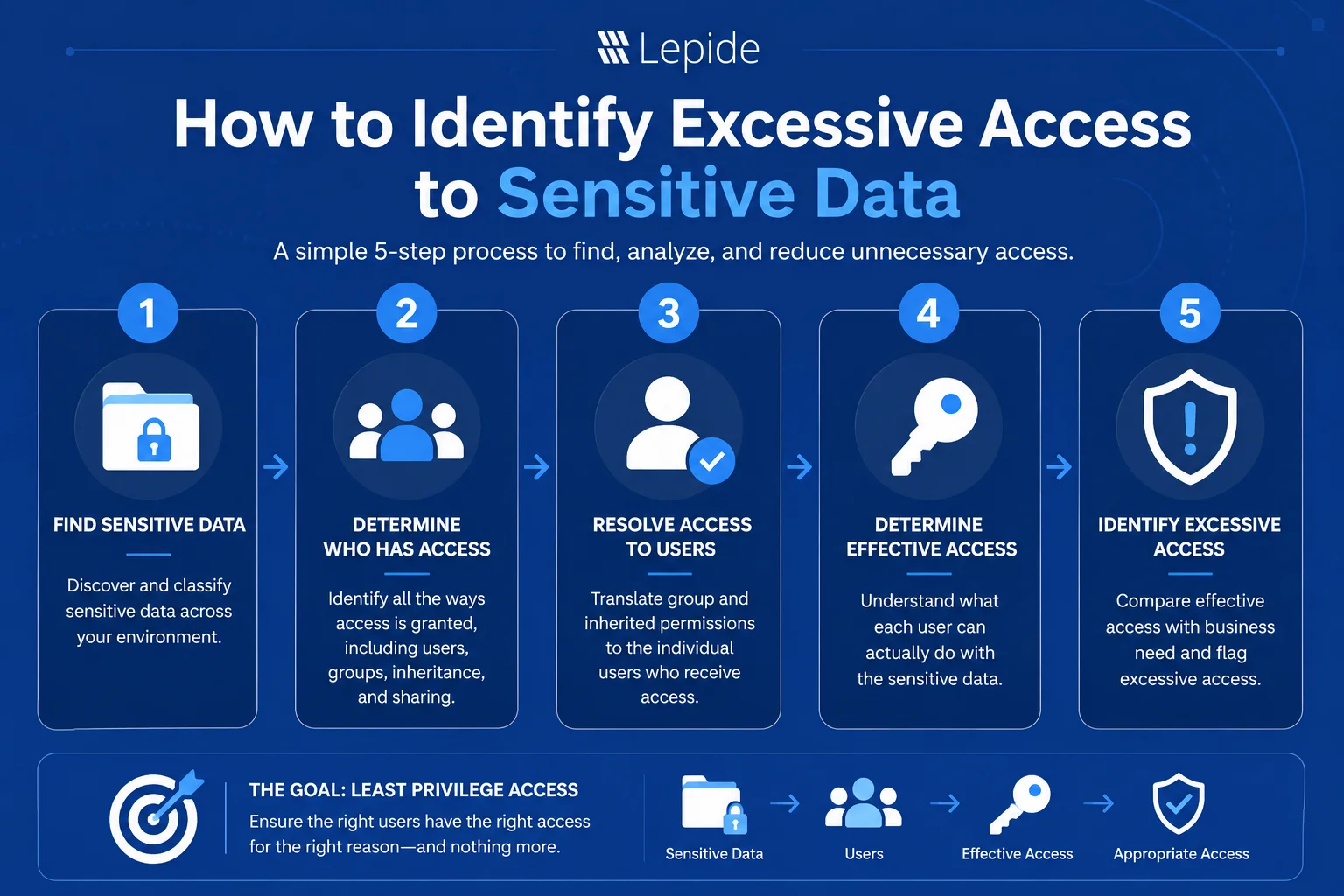
1. Identify Where Sensitive Data Is Stored
Start with the data, not the users. Discover sensitive data across Windows file servers and Microsoft 365 services such as SharePoint Online and OneDrive. Classify the data as you find it, for example, personal data, financial information, credentials, intellectual property, or confidential company information, and determine where sensitive data is concentrated.
Outcome: A list of sensitive resources for which access needs to be evaluated.
2. Identify Who Has Access to Sensitive Files and Folders
For every sensitive location on that list, determine all the individuals who have access to them. This involves considering:
- Direct user permissions
- Active Directory security-group membership
- Nested security groups
- NTFS permission inheritance
- SMB share permissions
- Guest or external access where applicable
For Microsoft 365 resources, account for:
- Direct permissions
- SharePoint groups
- Microsoft 365 groups
- Security groups
- Group membership and nested membership where supported
- Permission inheritance
- Sharing links and external sharing
What is required is to resolve group-based permissions to the individual users who ultimately receive access. It is not enough to know that the Finance-Users group has access; you also need to determine which users are members of that group, including relevant nested membership, and therefore receive that access.
Outcome: A mapping of each sensitive resource to the users who can access it.
3. Identify Folders with Excessive or Inherited Permissions
To identify folders with excessive or inherited permissions, locate folders containing sensitive data, review their explicit and inherited permissions, resolve applicable group memberships to individual users, and determine each user’s effective access. Then assess whether that access is justified by the user’s business role.
Here’s what that involves in practice:
- Review Explicit and Inherited Permissions: Evaluate the permissions on each sensitive folder to determine whether those permissions have been explicitly set on the folder, inherited from the parent folder, or gained through group membership. This distinction matters because permissions inherited from parent resources or granted through group membership can be less obvious when reviewing a resource directly.
- Trace Inherited Permissions to the Parent: If a sensitive folder has permissions based on inheritance, trace the permission back to the parent folder where they were set and see who inherits access from the parent folder and whether this permission is justified for the sensitive folder.
Look for Indicators of Excessive Folder Permissions
Flag situations such as:
- Broad Access: The Everyone group or other overly broad groups have access to the folder.
- Too Many Users: A large number of users can access a sensitive folder.
- Unexpected Access: Users outside the relevant department or team have permissions.
- Excessive Privileges: Users have write, modify, or full-control capabilities when read-only access would be sufficient.
- Inherited Permissions: Sensitive subfolders inherit broad permissions from parent folders.
- Stale Access: Old groups, inactive accounts, or accounts belonging to former employees still retain permissions.
Identifying Excessive Inherited Permissions on a Windows File Server
Consider a Finance file share containing a Payroll folder that stores sensitive employee information, including salaries and bank account details.
Folder structure:
Finance → Payroll → Employee Records
If the Payroll folder inherits its NTFS permissions from the Finance folder, members of the Finance-Users Active Directory security group may receive access to Payroll even though some of them are not members of the payroll team. The actual access available over the SMB share must also be evaluated against the share permissions.
To investigate this excessive access:
- Identify sensitive information within the Payroll folder, such as salary, bank account, and employee records.
- Review the folder’s NTFS and share permissions to understand who has access.
- Separate explicit permissions from inherited permissions to determine which permissions were assigned directly to Payroll and which came from its parent.
- Trace inherited permissions back to the Finance folder to identify the source of unnecessary access.
- Resolve Finance-Users group membership to see the individual users receiving access through the group.
- Determine each user’s effective access, considering direct and inherited NTFS permissions, applicable group memberships (including nested groups), and SMB share permissions.
- Identify users who can read Payroll data but have no legitimate business requirement to access it.
Finding: The Payroll folder may never have been explicitly shared with these employees. Their potentially excessive access may have resulted from NTFS permissions inherited from the Finance parent folder through the Finance-Users group.
4. Determine Each User’s Effective Access to Sensitive Data
After identifying the permissions that are set, the next step is to determine what each user can actually do with the data. In this phase, you will have to assess the access granted through direct permissions, inherited permissions, group memberships, and applicable NTFS, share, or Microsoft 365 sharing mechanisms to identify whether the user can read, write, modify, delete, or otherwise control the data based on the applicable permissions. The focus therefore shifts from “What permissions are set on this resource?” to “What can this particular user do with the data?”
Outcome: A user-level view of each user’s effective access to sensitive information.
5. Identify Which Users Have Excessive Access
Reverse the analysis. Instead of starting with a sensitive folder and asking:
Sensitive folder → Who has access?
Start with the user and ask:
User → What sensitive data can they access?
Such an approach will allow you to identify users who have excessive overall access despite having no single obviously anomalous permission. Flag users who:
- Can access unusually large volumes of sensitive data compared with others in similar roles.
- Have access to sensitive data outside their department or job responsibilities.
- Can access multiple unrelated sensitive repositories, which may indicate accumulated or excessive permissions.
- Have Modify or Full Control permissions when their role requires only Read access.
- Retain access from previous roles, projects, or responsibilities after their duties have changed.
- Receive unnecessary access indirectly through group memberships.
- Have access that has not been used for a significant period, particularly for sensitive data.
- Are inactive or stale accounts that still retain access to sensitive information.
Wherever possible, compare effective permissions with actual access activity and the user’s business requirements. This will help distinguish required access from permissions that have not been reviewed.
Access that is not frequently used is not necessarily unnecessary. However, it can prove helpful in deciding which permissions need to be reviewed, minimized, or removed.
Identifying Excessive Access in SharePoint Online
Consider a SharePoint Online site created for a confidential acquisition project. The site contains sensitive information, including contracts, financial data, HR data, and due diligence data. Employees working in finance, legal, human resources, and management departments have been given access to these documents during the project period.
After the acquisition is completed, certain employees no longer need to access these files, yet they still retain their permissions.
To identify excessive access:
- Identify sensitive documents within the SharePoint site, such as financial records, contracts, and employee information.
- Determine which users and groups have access to those documents and the sites or libraries containing them.
- Resolve the applicable group memberships and SharePoint permission assignments to identify the individual users who ultimately receive access. Depending on the configuration, access may come through SharePoint groups, Microsoft 365 groups, security groups, direct permissions, or sharing mechanisms.
- Determine each user’s effective access by considering direct permissions, applicable group memberships, permission inheritance from the site, library, folder, or parent item where applicable.
- Review user activity to determine whether those users are still accessing the sensitive documents.
- Compare their current access with their business requirements and determine whether their role still requires access to the acquisition data.
- Flag potentially unnecessary access, including access that appears unused, for review and remediation.
Key Findings: The permissions may have been valid when they were issued initially. Nevertheless, the permissions may become excessive in cases where the business requirements have changed, but the permissions were never revoked.
This demonstrates that the issue of excessive permissions is not exclusive to poorly configured permissions. Excessive permissions may also arise from permissions that used to be relevant but were retained after they were no longer necessary.
What to Do When You Find Excessive Access
Once potentially excessive access has been identified, the next step is to validate and remediate it without disrupting legitimate business operations. Start by confirming access requirements with the data or resource owner, then:
- Remove Unnecessary Permissions: Revoke direct permissions that users no longer need and remove users from groups that provide unnecessary access.
- Review Group and Inherited Access: Replace overly broad groups where appropriate and address inappropriate inherited permissions at the appropriate parent or child resource. Where necessary, redesign the permission structure or break inheritance to establish a separate permission scope.
- Reduce Excessive Privileges: Downgrade permissions when users only require read or limited access instead of full control or administrative privileges.
- Remove Stale Access: Disable inactive accounts where appropriate and remove unnecessary permissions assigned to stale accounts.
- Apply Least Privilege: Ensure that users, groups, and service accounts receive only the minimum permissions required to perform their business functions, and review those permissions when roles or responsibilities change.
- Continue Monitoring: Regularly review permission changes, group membership updates, and newly granted access to prevent excessive permissions from accumulating again.
How Lepide Helps Identify Users with Excessive Access to Sensitive Data
Lepide helps organizations identify users with excessive access to sensitive information by providing visibility into permissions, access activity, and permission changes.
- Identify Excessive Permissions: Analyze user and group permissions along with user behavior to identify accounts with potentially excessive access or privileges based on how they are using their access to data.
- See Who Can Access Sensitive Data: Identify users and groups with access to critical files and folders.
- Monitor Permission Changes: Track who granted, modified, or removed permissions to detect risky changes.
- Track Data Access: Monitor user activity to see who accessed or modified sensitive data and when.
- Support Least Privilege: Use these insights to remove unnecessary access and reduce data exposure risks.
Want to know more about identifying and removing excessive permissions? Read this blog.
Conclusion
Identifying excessive access requires a clear three-part approach: Find sensitive data → determine effective access → identify access that is no longer justified. Excessive access does not necessarily have to involve any erroneous permission. It can be generated from inherited permissions, groups or even nested group memberships, and permissions that used to be appropriate for legitimate reasons but are no longer appropriate
The challenge is gaining a complete picture of who can access sensitive data, how that access is granted, and whether it still serves a legitimate business purpose. Lepide helps provide visibility into sensitive data, permissions, access activity, and permission changes, enabling organizations to identify potentially excessive access, investigate its source, and support remediation.
Schedule a demo now to discover who has access to sensitive files and folders, understand how that access is granted, and identify permissions that may be putting your data at risk.
Related Articles:
Frequently Asked Questions
The common indicators include permissions retained from previous roles, broad group access, unnecessary modify or full control privileges, stale accounts, and unused access to sensitive resources. These situations should be reviewed to determine whether the access remains necessary.
Identifying who can access sensitive files requires identifying where the data is stored and evaluating the applicable access-control mechanisms. For Windows file servers, this includes NTFS ACLs, SMB share permissions, Active Directory security-group membership, nested groups, and inheritance. For Microsoft 365, it may include SharePoint permissions, group membership, direct permissions, inheritance, and sharing mechanisms.
To determine a user’s effective access to a Windows file-server folder, evaluate the user’s direct NTFS permissions, membership in applicable Active Directory security groups (including relevant nested groups), inherited NTFS permissions, and SMB share permissions. For SharePoint Online, evaluate direct permissions, applicable SharePoint/Microsoft 365/security group memberships, inheritance, and sharing links or external sharing that grant access. The result should then be assessed against the user’s business requirement.
Determine which folders contain sensitive information and review both direct and indirect access, including access granted through group membership and inheritance. Resolve applicable permissions to individual users and determine each user’s effective access level. Then identify overly broad permissions that provide users with more access than their role requires.