


Last Updated on October 13, 2026 by Akhilesh
Reviewing and cleaning up over-permissioned users and groups is a multi-step process that involves identifying their effective permissions, determining which access is excessive or no longer required, removing unnecessary permissions, and maintaining least privilege over time.
This blog walks through how to identify over-permissioned users and groups, determine what remediation is needed, implement remediation measures, and prevent excessive permissions from occurring in the future.
What Are Over-Permissioned Users and Groups?
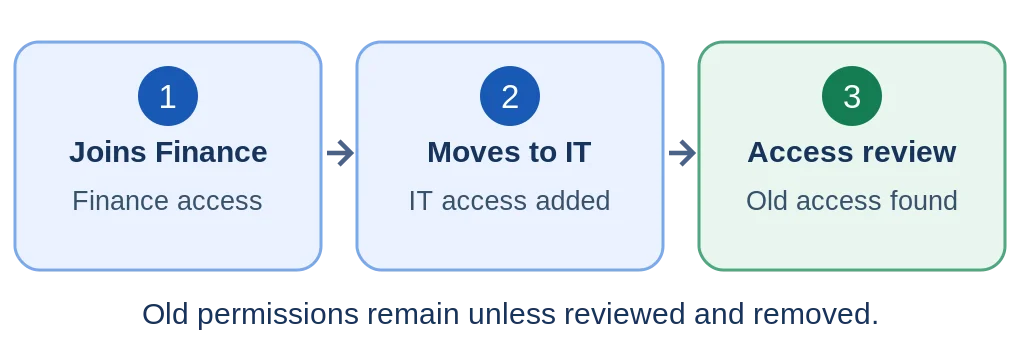
Permissions can accumulate as users change roles, join projects, move departments, or leave the organization. Group memberships, inherited permissions, and direct assignments can leave users and groups with access they no longer need.
An over-permissioned user or group has more access than required for its current responsibilities. This can occur across Active Directory, Microsoft Entra ID, Microsoft 365, SharePoint, OneDrive, and Windows file systems, increasing the potential impact of compromised or misused accounts.
How to Identify Over-Permissioned Users and Groups
Identifying excessive permissions means looking beyond a single list of accounts. The first step is understanding who has access, what they can access, and how that access was granted.
- Review Privileged Users and Groups: Begin with accounts and groups that provide elevated access. These include administrative roles, privileged Active Directory groups, and other groups that can make significant changes to systems or data. Look for:
- Users who no longer require privileged access
- Too many permanent administrators
- Unexpected members of privileged groups
- Privileges retained after role changes
- Administrative access that was granted temporarily but never removed.
- Review Group Memberships: Groups are an efficient way to manage access, but they can also become a major source of excessive permissions. Identify:
- Users belonging to groups they no longer need.
- Nested group memberships.
- Users who accumulate access through multiple groups
- Stale or inactive accounts remaining in groups.
- Groups with unusually broad membership.
The key thing to realize is that access may not be direct. A user may gain access through nested group membership, group-based permissions, or inherited permissions. Therefore, reviews should consider effective access and the different paths through which that access is granted.
- Review Direct and Inherited Permissions: Check access assigned directly to users as well as permissions inherited through groups, folders, sites, SharePoint sites and libraries, and other resources. Pay particular attention to users who receive the same access through several different paths, since removing one path may not remove the access. A user may no longer need a direct permission because the same access is already provided through a group. Removing redundant assignments can simplify access management and make future reviews easier.
- Review Access to Sensitive Data: Determine which users and groups have unnecessary access to sensitive files and locations. This means analyzing access to Windows file shares, SharePoint sites, OneDrive repositories, sensitive directories, and other types of confidential data. This investigation aims to find access levels that exceed normal job requirements. Limiting access to sensitive data, however, remains important, as unnecessary access can increase the risk of an unintentional incident as well as an insider threat.
- Identify Stale and Unnecessary Access: Look for permissions that no longer have a clear business justification. These permissions tend to build up over time because it is easier to give access than to take it away. If there’s no ongoing review process in place, what was valid access yesterday might be an unnecessary permission today. This includes inactive accounts, former project members, department changes, previous job roles, and temporary access that was never removed
Privileged access deserves attention because unnecessary administrative permissions can significantly increase the impact of a compromised account.
How to Decide Which Permissions Should Be Removed
Identifying the users who have multiple access rights is distinct from identifying those who have excessive access rights. While users may have access to various resources due to their previous roles, it is necessary to determine whether these rights are still justified in light of their current roles. One must think about the following questions before revoking someone’s access:
| Review Criteria | Key Question |
|---|---|
| Current Job Role | Does the user’s current job position permit the use of this access? |
| Business Need | Is there a legitimate reason for the user to access the resource? |
| How Access Was Granted | Did the access come through a direct assignment, group membership, or inheritance? |
| Access Usage | Is the permission currently being utilized? |
| Privileged Access | Is elevated access still necessary? |
| Least Privilege | Is the access more than necessary for the user to perform the assigned tasks? |
| Resource Sensitivity | How sensitive or business-critical is the resource the user can access? |
Permission usage can provide useful context, but it should not be the only factor. Lack of recent usage does not mean access is unnecessary. The goal is not to give permissions to the fewest number of users but rather to make sure that users and groups have all the access they require for their current tasks.
How to Clean Up Excessive Permissions Safely
Once excessive permissions have been identified and validated, remediation should be systematic. A practical sequence is:
- Remove Obsolete Permissions: Start by removing permissions that were assigned directly to users and are no longer required. Direct assignments can be difficult to track over time, particularly in large environments. Where appropriate, access should be managed through well-defined groups instead.
- Remove Unnecessary Group Memberships: Remove users from groups that no longer match their current responsibilities. Before making changes, check whether the group provides access to other resources that the user still needs. For example:
Scenario: A user has access through three different groups.
An administrator removes the user’s direct permission to a sensitive folder. However, the user can still access it through a nested security group.
Lesson: Removing one permission assignment does not necessarily remove effective access. - Clean Up Stale and Inactive Accounts: Review inactive accounts and determine whether they should be disabled or removed. Leaving unused accounts enabled and associated with groups can create unnecessary access paths and increase security risk.
- Review Nested Groups and Simplify Them: Nested groups can make effective permissions difficult to understand. Review group memberships and remove unnecessary nesting where possible. A simpler group structure makes permissions easier to audit and reduces the likelihood of unexpected access.
- Remove Unnecessary Privileged Roles: Reassess administrative roles and privileged group memberships. Where users no longer require elevated access, remove those privileges. Organizations should also minimize unnecessary permanent administrative access where more controlled or time-limited alternatives are available.
- Correct Overly Broad Inherited Permissions: Review inherited permissions that provide users or groups with broader access than they require. Changes to inheritance can have a wide impact, so validate dependencies before modifying permissions on parent folders, sites, or other shared resources.
- Restrict Unnecessary Access to Sensitive Data: Where users or groups have access to sensitive information that is not required for their responsibilities, reduce that access after validating the business requirement.
- Document Significant Permission Changes: Keep a record of important access changes, particularly changes involving privileged accounts, sensitive resources, or widely used groups. Documentation provides an audit trail and makes future reviews easier.
Permission cleanup should not be treated as a one-time exercise to remove as much access as possible. A large indiscriminate cleanup can remove legitimate business access and disrupt users, applications, or business processes. The process should include verifying the justification for the permission, its method of inheritance, proper ownership, and the process for confirming and changing permissions. The goal remains to maintain least privilege with minimal disruption.
How to Prevent Permissions From Becoming Excessive Again
Cleaning up excessive permissions once is useful, but it does not solve the underlying problem if access continues to accumulate. Organizations must develop and implement a continuous access management program where access permissions are handled as part of the user management lifecycle. Important practices here are as follows:
- Apply Least Privilege: Give users and groups only the access they need to perform their current responsibilities. Avoid granting access permissions broadly merely for convenience’s sake or because a user may need them.
- Establish Regular Access Reviews: Conduct regular evaluations of users, groups, privileged roles, as well as key resources. The frequency of such evaluations must reflect the organization’s risk level and the sensitivity of the resources involved.
- Review Permissions When Users Change Roles: Role changes are a common source of excessive access. If a user changes departments or takes on another position, the relevant access must be checked instead of simply adding to the access the user was already granted.
- Remove Access Promptly When Users Leave: Offboarding should include disabling accounts, removing group memberships, and revoking access to relevant resources. Access should not remain available simply because nobody has revisited it since the employee left.
- Use Time-Limited Access Where Appropriate: Temporary access should have an expiration point whenever possible. This is useful for project-based access, elevated privileges, and other permissions that are only needed for a limited period.
- Monitor Privileged Group Membership Changes: Changes to administrative groups and other privileged groups should receive particular attention. Knowing when a user is added to or removed from a privileged group can help security teams identify unexpected changes quickly.
- Monitor Permission Changes: Track changes that grant, modify, or remove access. Monitoring can help identify new access risks before they become permanent problems.
- Review Inactive Accounts: Organizations must periodically identify and check their inactive accounts. Inactive accounts that serve no valid business purpose should be investigated and, where appropriate, disabled or removed in accordance with the organization’s account lifecycle and retention requirements.
- Establish Ownership for Important Groups and Resources: Every relevant group, application, website, or information store must have an assigned owner responsible for ensuring that access is appropriate. Without ownership, access reviews can become exercises in guesswork. A simple access lifecycle looks like this: Grant Access → Monitor → Review → Remove Unnecessary Access → Repeat. This turns permission management from a one-time cleanup project into an ongoing security process.
Interactive Permission Management Self-Assessment
How Lepide Helps Identify and Manage Excessive Access
The challenge with permission management is not just the implementation of changes. Security teams have to gain sufficient visibility first to analyze the current access landscape and determine which changes can introduce risk. Manual auditing of permissions in Active Directory, Microsoft Entra ID, Microsoft 365, SharePoint, OneDrive, and file servers is a cumbersome process whose output can become outdated very quickly.
Lepide makes it easier for security teams to tackle three crucial questions:
- Who has access?
- What can they access?
- Do they still need it?
Here is how Lepide’s capabilities map to the process above:
| Step | How Lepide Helps |
|---|---|
| Find users and groups with excessive access | Provides visibility into who has access to what, so over-permissioned users and groups can be found without piecing together native reports. |
| Review privileged users and group memberships | Shows who sits in privileged groups and roles, so unexpected or unnecessary members stand out. |
| Track permission and group membership changes | Reports on changes to permissions and group memberships, showing who made them and when. |
| Check access to sensitive data | Highlights who can reach sensitive files and locations, supporting the narrower sensitive-data reviews described earlier. |
| Spot stale or risky permissions | Helps identify potentially stale or excessive access, including permissions associated with inactive users and access that appears excessive based on permission and usage analysis. |
| Catch changes that introduce new access risk | Tracks and alerts on permission changes that grant new or broader access so potentially risky changes can be reviewed quickly. |
| Support periodic access reviews | Produces reports that resource owners and managers can use to confirm or remove access. |
Ongoing monitoring is what keeps the cleanup from being a one-off. When permission and group membership changes are tracked continuously, changes that may introduce excessive access can be identified and reviewed quickly, rather than quietly accumulating until the next review
Schedule a demo with one of our engineers to see how Lepide simplifies permission management, helps reduce excessive access, and protects sensitive data.
Related Articles:
Frequently Asked Questions
Over-permissioned users or groups have greater access rights than required to do their job. Excessive access can result from direct permissions, group memberships, nested group membership, inherited permissions, privileged roles, or a combination of several access paths.
Start by reviewing privileged users and groups, group memberships, nested groups, direct and inherited permissions, access to sensitive resources, and stale accounts. The important factor is to assess a user’s effective access, not just directly assigned permissions. Check for a correspondence between what access each user has and the actual duties of that user.
There is no single schedule, but privileged access and sensitive data should be reviewed more often than general access. Also, review permissions whenever a user changes roles or leaves instead of waiting for the next scheduled review.
Using group-level permissions often makes access assignment less complicated than assigning privileges per user. It is also easier to review and manage group permissions than to review direct permissions.
The more direct permissions users have assigned to them, the harder it is to monitor those permissions, so it is best to keep them to a minimum.