Last Updated on October 30, 2026 by Satyendra
To monitor what users are accessing through Microsoft Copilot, organizations need visibility into which sensitive files and data users can access, how Copilot interacts with that data, and whether permissions are exposing information unnecessarily.
Tools like Microsoft Purview and Lepide Data Security Platform can help identify sensitive data, audit access activity, and detect excessive permissions that could expose confidential information through Copilot.
This blog will guide how to monitor Copilot interactions, investigate potential sensitive data exposure, and review audit logs exploring the limitations of native monitoring tools.
What Can You Monitor About Microsoft Copilot Users?
Copilot is not a single log. It is a collection of evidence sources that are connected to each other but are designed to answer several different questions:
- Copilot Interactions: The interactions show who interacts with Copilot, at what point in time, and in which application.
- Prompts and Responses: Authorized investigators can review available Copilot prompts and responses using supported Microsoft Purview eDiscovery workflows. Availability depends on the Copilot experience, applicable retention settings, permissions, and licensing.
- Referenced Organizational Content: The files and other resources identified as part of an interaction can be monitored where supported by the audit records.
- Sensitive Information Exposure: This involves determining whether interactions included sensitive information using applicable Purview capabilities such as sensitivity labels, sensitive information types, and Data Security Posture Management (DSPM) for AI.
- Related Workload Activity: Audit events associated with file access, sharing, downloads, and modifications in SharePoint and OneDrive, along with relevant mailbox and other Microsoft 365 workload events.
Important Distinction: Copilot interaction logs, reference-content logs, and underlying file-access logs are all different sources of evidence. When a file appears in a Copilot interaction’s referenced-resource information, it does not necessarily mean the user manually opened the file or read its entire contents. Referenced-resource records and underlying file-access events should be interpreted separately. Think of all the evidence as pieces of the larger picture, not as proof in themselves.
How to Monitor Microsoft Copilot Using Microsoft Purview
Microsoft Purview is the native starting point for Copilot oversight. Before searching, ensure your account has the appropriate Microsoft Purview Audit Reader or Audit Manager permissions. Access to eDiscovery and DSPM for AI requires separate applicable permissions.
Step 1: Verify Auditing Is Enabled
- Sign in to the Microsoft Purview Portal.
- Open the Audit solution.
- Verify that Microsoft Purview auditing is enabled. Auditing is enabled by default in most Microsoft 365 organizations, but administrators should confirm that audit recording is active. If auditing is disabled and the option is available, enable recording of user and administrator activity.
- Confirm that your account has the required audit permissions and that your tenant has the applicable licensing.
Audit events are available and retained based on your license, workload, and configuration. Microsoft Purview Audit (Standard) generally retains supported audit records for 180 days. Audit (Premium) provides extended retention for eligible records, with applicable default retention periods and optional longer-term retention policies depending on licensing. Verify the retention policy and licensing applicable to Copilot events in your tenant.
Step 2: Search for Microsoft Copilot Interaction Events
- Navigate to Microsoft Purview → Audit → Search.
- Select the appropriate date range.
- In the Activities filter, select Interacted with Copilot under the available Copilot activities. The corresponding audit operation is CopilotInteraction. Use the workload filter where supported to narrow the results.
- Specify a user if investigating an individual account.
- Run the search and review the results.
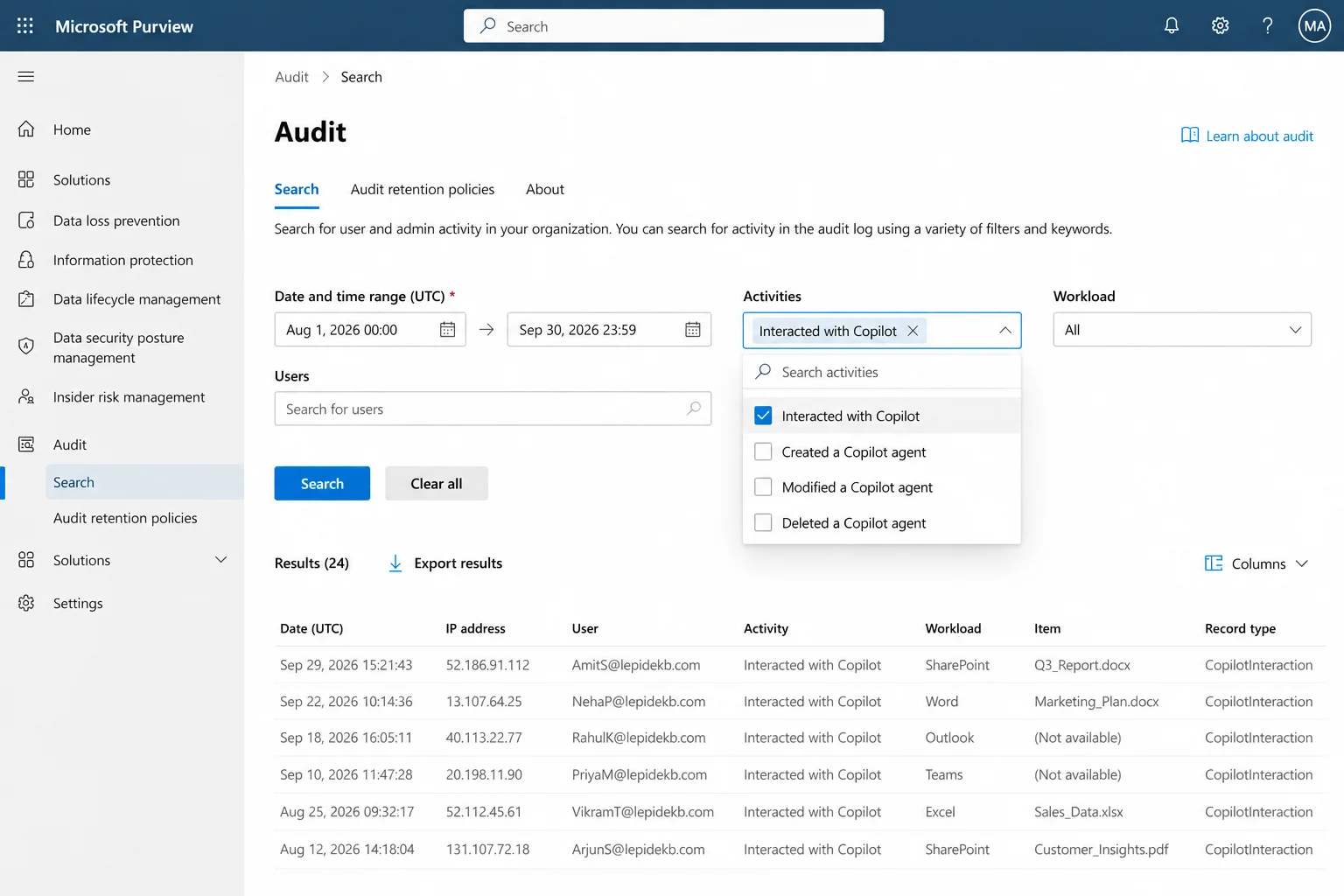
Audit records may take time to become searchable after an interaction occurs.
Step 3: Review Copilot Interaction Details
Open a relevant Copilot interaction record and review available properties such as UserId, CreationTime, Operation, Workload, and CopilotEventData.
Where populated, inspect AppHost, Contexts, and AccessedResources to identify the application context and associated resources.
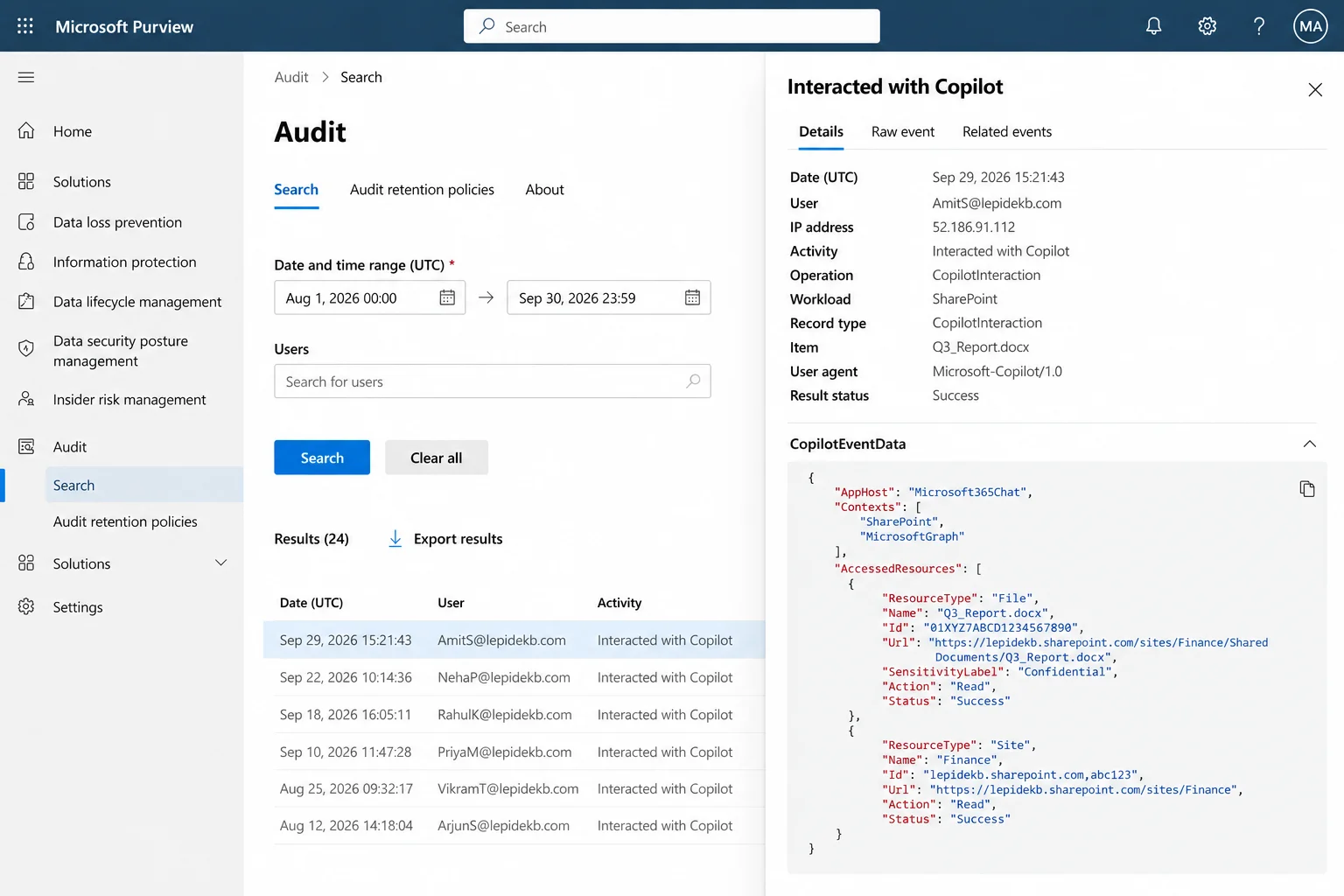
Standard audit records do not necessarily expose complete prompt text, response text, or every item of content Copilot processed. Treat the standard Copilot audit record primarily as interaction metadata and available resource-reference evidence, rather than a complete transcript. Use supported Microsoft Purview eDiscovery workflows when an investigation requires available prompt and response content.
Where available, review AccessedResources properties such as resource name, identifier, URL, sensitivity label, action, and status.
Step 4: Investigate Sensitive Data Access Associated with Copilot
Where an interaction looks concerning, go beyond the audit log:
- Use Microsoft Purview eDiscovery to investigate available Copilot prompt and response content, and DSPM for AI Activity Explorer to review supported AI interactions and sensitive-information findings, subject to licensing, permissions, and configuration.
- Investigate available Copilot prompt and response content through authorized compliance workflows, with the appropriate approvals and role-based access.
- Identify interactions involving sensitive information.
- Correlate Copilot evidence with SharePoint, OneDrive, and other relevant Microsoft 365 audit events.
- Review file permissions and sharing settings to determine whether sensitive content is excessively accessible.
Open an eDiscovery case, select the relevant mailbox, and filter for the Copilot activity content type, where supported.
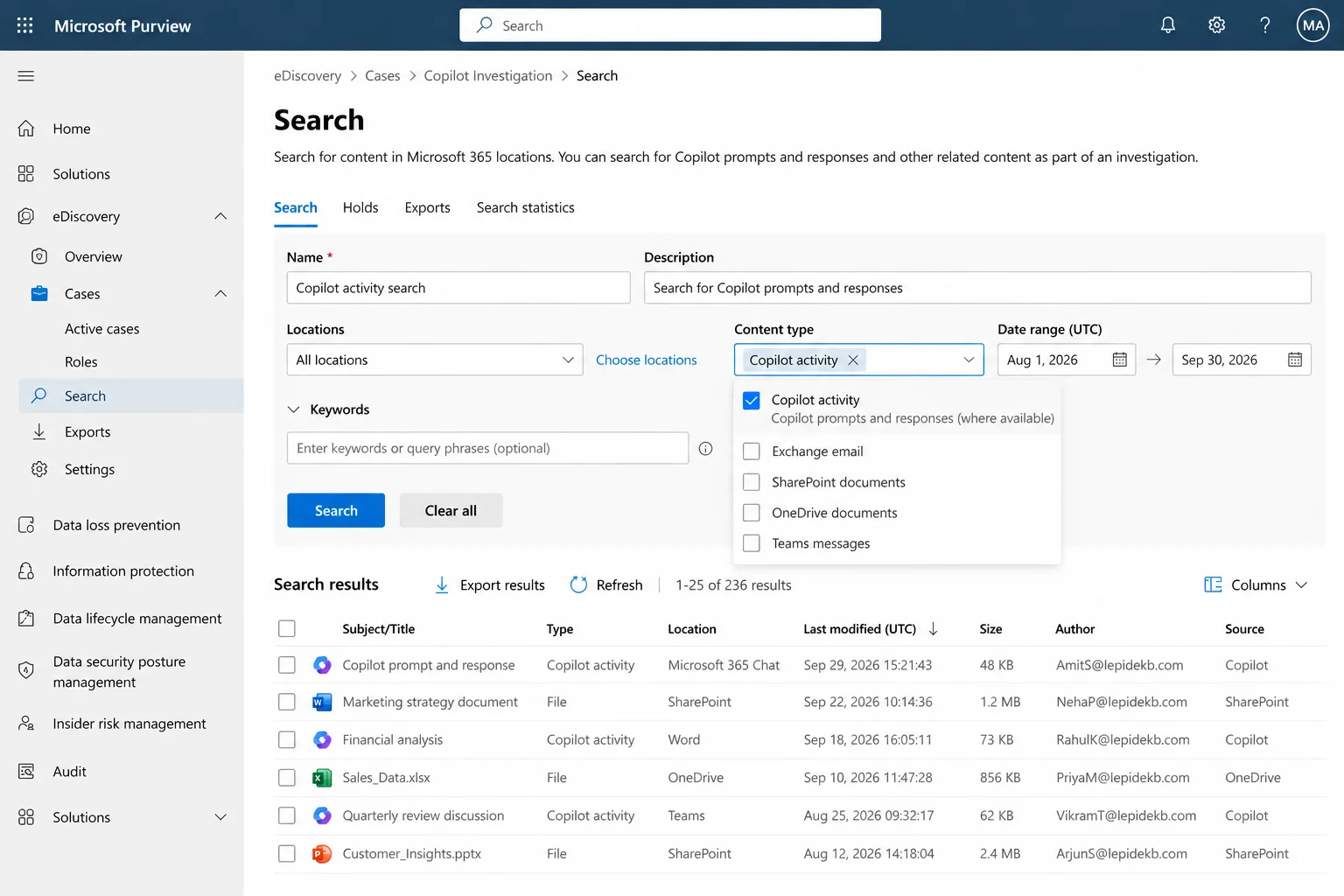
That last step matters most. If Copilot surfaces sensitive information unexpectedly, investigate excessive permissions, sharing settings, group memberships, sensitivity labels, and applicable data protection policies. The cause may involve oversharing, inappropriate access configuration, or gaps in information protection controls.
Step 5: Export and Review Copilot Audit Records
- Export the applicable audit search results.
- Review activity by user, timestamp, workload, and available resource information.
- Look for unusual patterns, such as sudden spikes in usage or repeated interactions involving sensitive content.
- Preserve relevant evidence for security investigations and compliance reporting.
What are the Limitations of Native Microsoft Copilot Monitoring?
Purview provides meaningful capabilities for monitoring sensitive Copilot interactions, depending on configuration and licensing. Teams should still plan for a few practical constraints:
| Limitation | Description |
|---|---|
| Incomplete Content Visibility from Audit Logs Alone | Standard audit events may not provide full prompts, responses, or every document used to generate an answer. |
| Multiple Investigation Tools | Administrators may need to combine Purview Audit, eDiscovery, DSPM for AI, and workload-specific activity logs to build a full picture. |
| Licensing Dependencies | Some advanced investigations, risk detection, and content inspection capabilities require additional licensing. |
| Complex Access Investigations | Working out why a user could reach sensitive content may require separate permission and sharing analysis across sites, groups, and nested memberships. |
| Audit Event Correlation | Copilot interaction records and underlying SharePoint, OneDrive, or other workload events may need to be correlated using timestamps, user identities, and resource information. A Copilot resource reference does not necessarily correspond to a separate user file-access event. |
Best Practices for Monitoring Microsoft Copilot Data Access
- Review Audit Events: Enable Copilot-related audit logging and regularly check events for unusual or risky activity.
- Investigate Sensitive Interactions: Use Microsoft Purview to review Copilot activity involving sensitive data.
- Check Content Permissions: Regularly verify access to sensitive SharePoint and OneDrive files.
- Watch for Unusual Activity: Investigate unexpected file access, downloads, or sharing.
- Reduce Oversharing: Fix overly broad file permissions and remove unnecessary group memberships.
- Apply Data Protection Policies: Use appropriate sensitivity labels, DLP policies, and SharePoint access controls to restrict Copilot access to sensitive information where supported.
How to Improve Microsoft Copilot Data Access Visibility with Lepide
Because Copilot works within a user’s effective permissions, reducing risk starts with understanding what your users can actually reach. Lepide complements Microsoft’s native tooling by focusing on data access visibility, permission analysis, and sensitive data risk.
Identify Sensitive Data Accessible to Copilot Users
- Discover and classify sensitive information across Microsoft 365 repositories supported by Lepide.
- Identify excessive permissions and overshared files.
- Analyze permissions to identify users and groups with access to sensitive information across supported data sources.
Monitor Activity Around Sensitive Data
- Monitor supported file activity and permission changes to investigate access to sensitive information.
- Investigate unusual activity involving sensitive files.
- Use available auditing and reporting capabilities to investigate activity associated with users and sensitive resources.
Reduce Copilot-Related Data Exposure Risks
- Identify and prioritize overexposed sensitive data.
- Review unnecessary access permissions.
- Use available reporting and alerting capabilities to support remediation.
Schedule a demo to identify and reduce sensitive data exposure risks before they reach Microsoft Copilot.
Related Articles:
- Identify Overexposed Permissions Before Enabling Copilot
- How to Identify What Sensitive Data Microsoft Copilot Can Access
- How to Monitor Copilot Usage Using Lepide
- Microsoft Copilot Security Checklist
- Top 7 Tools for Microsoft Copilot Security
- How to Reduce the Risk of Copilot Exposing Sensitive Information
Frequently Asked Questions
Yes, administrators may be able to review users’ Microsoft Copilot activity, depending on the license, settings, and organizational policies. However, access to individual prompts and responses depends on the specific type of Copilot and the organization’s audit and data retention configurations.
Microsoft Purview Audit can provide information about resources associated with supported Copilot interactions, including file references recorded in properties such as AccessedResources, where available. However, these records do not necessarily provide a complete list of every file or content fragment processed by Copilot. A referenced file should not automatically be interpreted as a separate file-open action performed by the user.
Organizations can investigate potential sensitive information exposure through Microsoft Purview DSPM for AI, supported DLP policies, and eDiscovery. These capabilities can help authorized investigators identify available Copilot interactions involving sensitive information, review relevant prompts and responses, and examine associated resources. Security teams should also review permissions and sharing settings on affected content to determine whether access is appropriate.
Yes, Copilot operates within the requesting user’s effective permissions and only surfaces content that the user can already access. That is precisely why excessive permissions and oversharing remain the central risk. Copilot makes overshared content far easier to find.